
How to deactivate an API key
Updated about 2 months ago
Browse All
If a key has been compromised, an integration is being retired, or the person who set it up has moved on, you can cut off its access from the Integrations / API page. In Togetherly, deactivating a key means deleting it — so it's worth a quick look at what depends on it first.
Before you start
- You're an administrator for the account.
- The Integrations / API feature is switched on for your account.
- You know which external system is still using the key you're about to delete.
- If that system still needs access, create a replacement key and update it there first — the old key can't be brought back.
Steps
Find your API keys
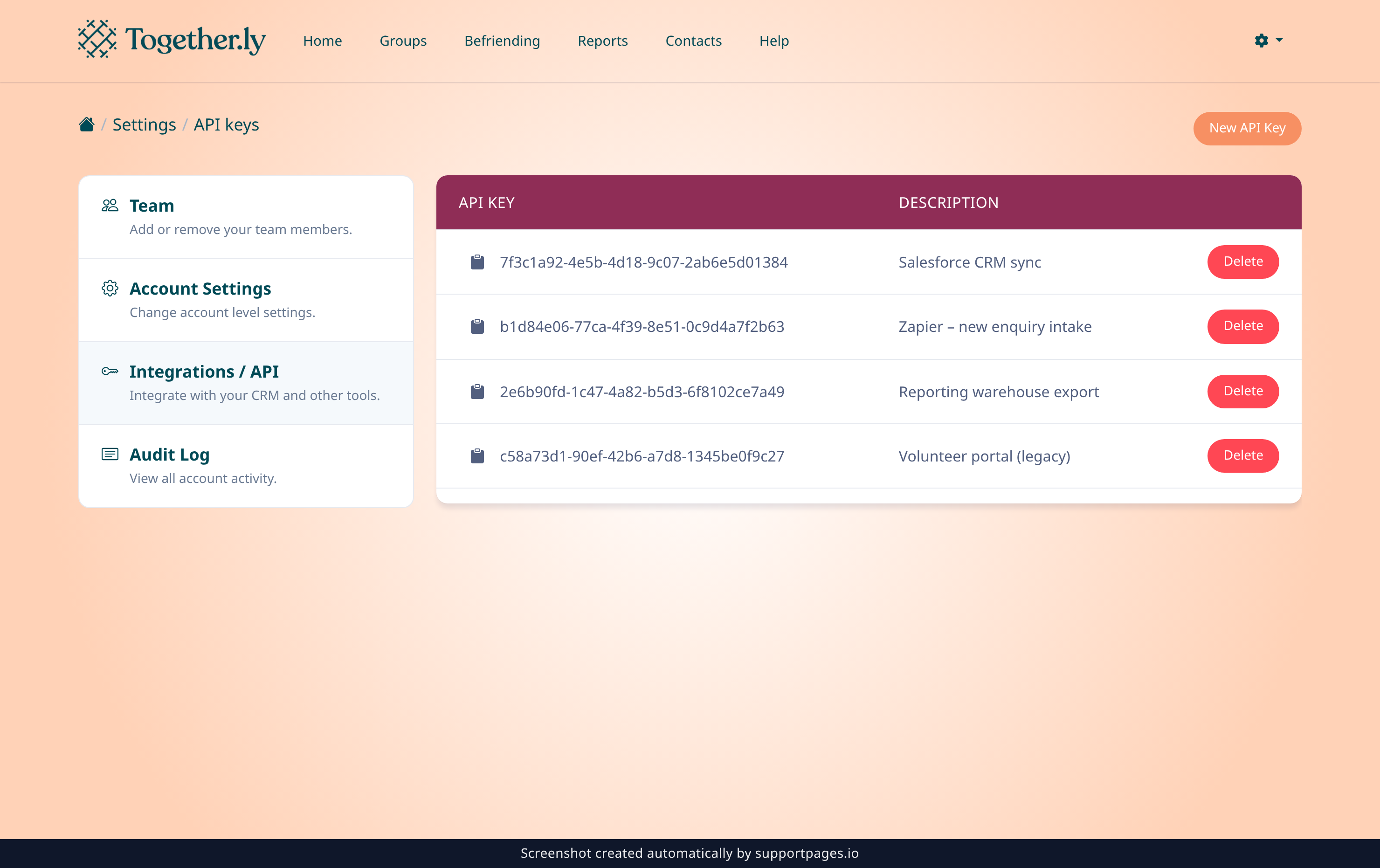
Your account's keys live in its settings area. In the menu on the left, choose Integrations / API — it's the one with the key icon. Every key for this account is listed in the API Key table, with the name you gave it under Description.
Delete the key and confirm
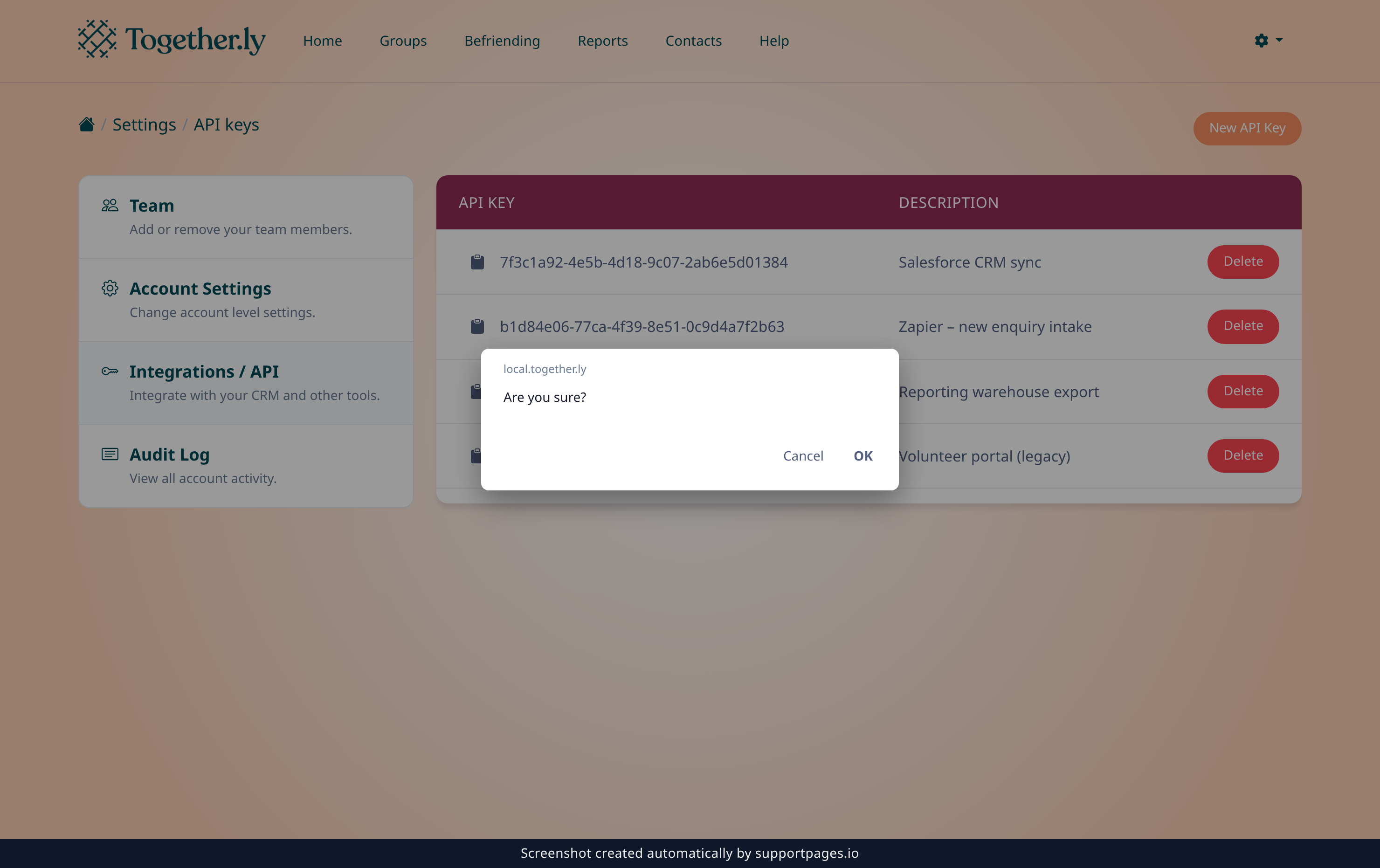
Check the key in that row against the value stored in your external system, then choose the red Delete button at the end of it. Your browser asks you to confirm — select OK to go ahead. The key is gone for good, and any system still using it loses access straight away.
Tips
- Rotate rather than delete when a system is still live: create the new key with New API Key, update the external system, test it, then come back and delete the old one.
- Give every key a clear Description naming the tool it belongs to, so the right row is obvious months later.
- Deleting a key takes effect immediately — there's no pause option and no way to undo it.
Summary
Deactivating an API key is done from Settings → Integrations / API: find the key by its Description, choose Delete, and confirm. It's permanent, so check what depends on the key first — and create a replacement before you delete if the integration is staying.
Was this article helpful?
Powered by supportpages.io, AI release notes software.
Have a question?
Search our articles, or ask and get an answer straight away.