
How to enable or disable safeguarding analysis
Updated 10 months ago
Browse All
Safeguarding analysis uses AI to automatically detect potential concerns like mentions of self-harm, abuse, or other safeguarding issues in your call recordings. This guide shows you how to turn this feature on or off for your organization.
Prerequisites
- You must be an administrator for your Togetherly account
- Your account must have the Conversational Analysis feature included in your subscription plan
Steps
Navigate to Account Settings
From any page in Togetherly, click on 'Settings' in the top navigation menu. This takes you to the Settings area. In the left sidebar, click on 'Account Settings' to view your organization's recording and analysis options.
Check your subscription includes conversational analysis
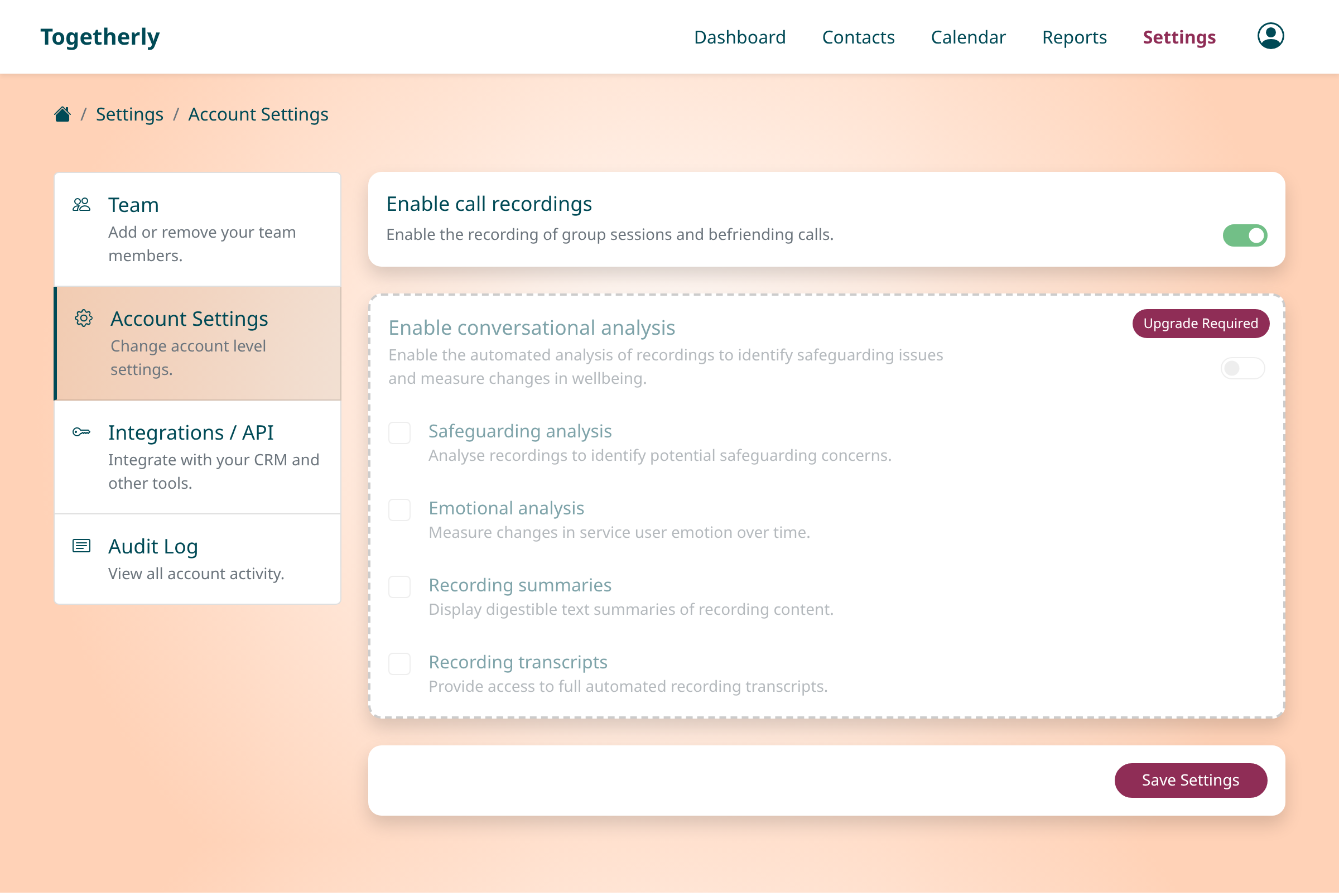
Scroll down to find the 'Enable conversational analysis' section. If this section shows 'Upgrade Required' and appears grayed out, your current subscription plan does not include this feature. You'll need to contact Togetherly to upgrade your plan before you can enable safeguarding analysis. If the section is active and you can interact with the toggle, proceed to the next step.
Enable conversational analysis
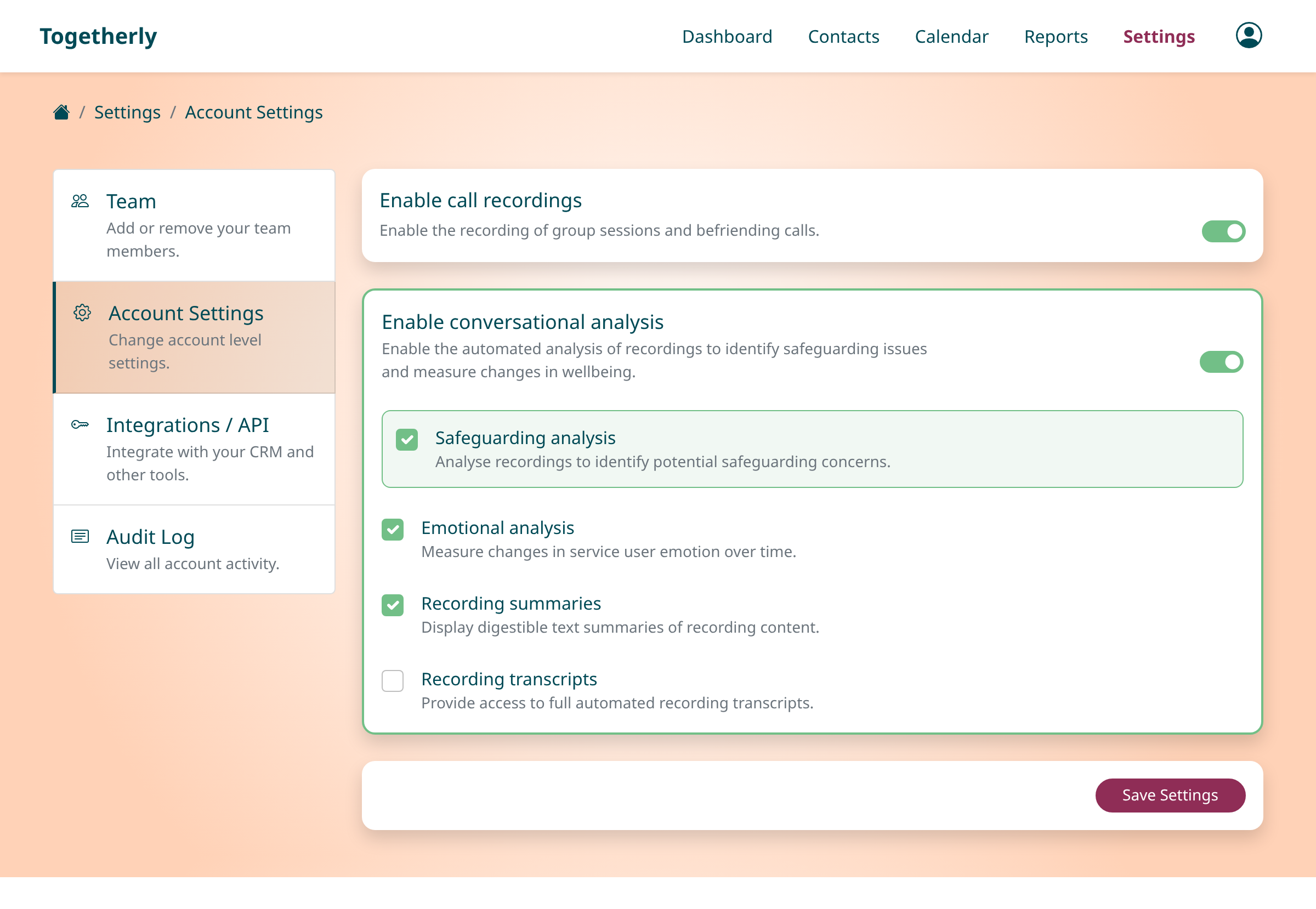
Before you can use safeguarding analysis, you must first enable conversational analysis. Find the toggle switch next to 'Enable conversational analysis' and turn it on (the switch should appear green when enabled). This master setting controls all AI analysis features for your recordings.
Enable or disable safeguarding analysis
Once conversational analysis is enabled, you'll see several checkbox options below it. Find the checkbox labeled 'Safeguarding analysis' with the description 'Analyse recordings to identify potential safeguarding concerns.' Click the checkbox to enable safeguarding analysis (a tick mark appears when enabled). To disable it, simply uncheck the box.
Save your changes
After making your selection, scroll to the bottom of the page and click the 'Save Settings' button. A confirmation message will appear indicating your settings have been updated successfully. Your changes will apply to all future call recordings - existing recordings will not be re-analyzed.
Tips
- Safeguarding analysis requires call recordings to be enabled for your account. If recordings are not enabled, the AI has nothing to analyze.
- When you enable safeguarding analysis, the AI checks recordings for mentions of self-harm, sharing of personal identifiable information (PII), incident reports, and inappropriate content by default.
- Only future recordings will be analyzed after you enable this feature. If you need to review older calls, you'll need to check them manually.
Summary
Safeguarding analysis helps protect vulnerable individuals by automatically flagging concerning content in call recordings. Once enabled, your team can monitor the Safeguarding Report to review any alerts and take appropriate action according to your organization's safeguarding procedures.
Was this article helpful?
Built with supportpages.io — SaaS documentation software.
Have a question?
Search our articles, or ask and get an answer straight away.