
How to view session attendance and no-shows
Updated 10 months ago
Browse All
After a session ends, you can review exactly who joined and who was invited but didn't attend. This information helps you follow up with participants who may have missed the call and track attendance patterns over time.
Prerequisites
- You must be logged in to your Togetherly account
- At least one scheduled session must have already taken place
Steps
Navigate to the Groups page
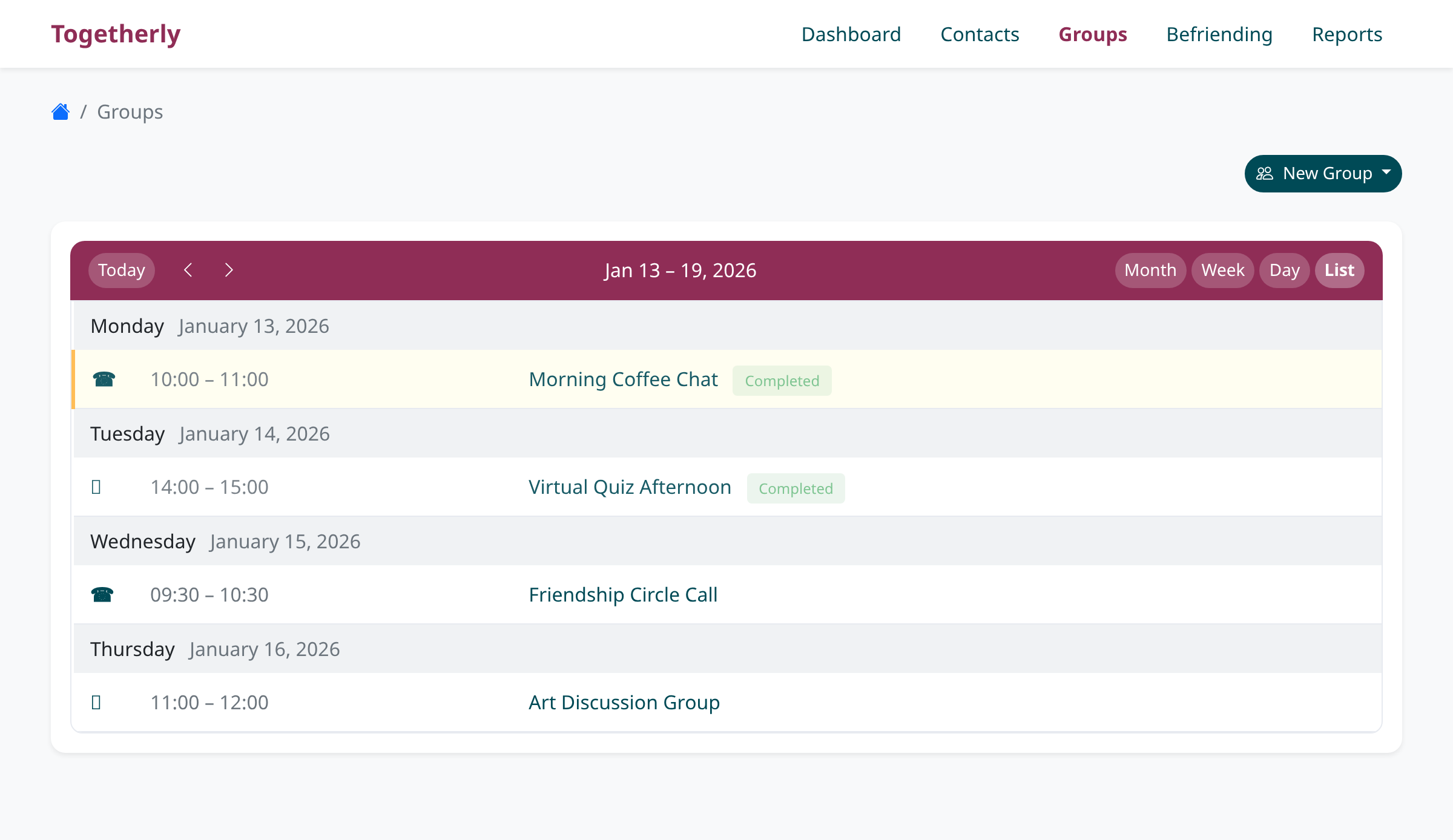
Click on 'Groups' in the main navigation bar to open your calendar of scheduled sessions. The calendar displays all your past and upcoming sessions in a list or calendar view. Completed sessions will appear alongside scheduled ones.
Open a completed session
Find the session you want to review in the calendar list. Click on the session name to open its details. If the session has already ended, you will automatically be taken to the completed session summary page showing attendance information.
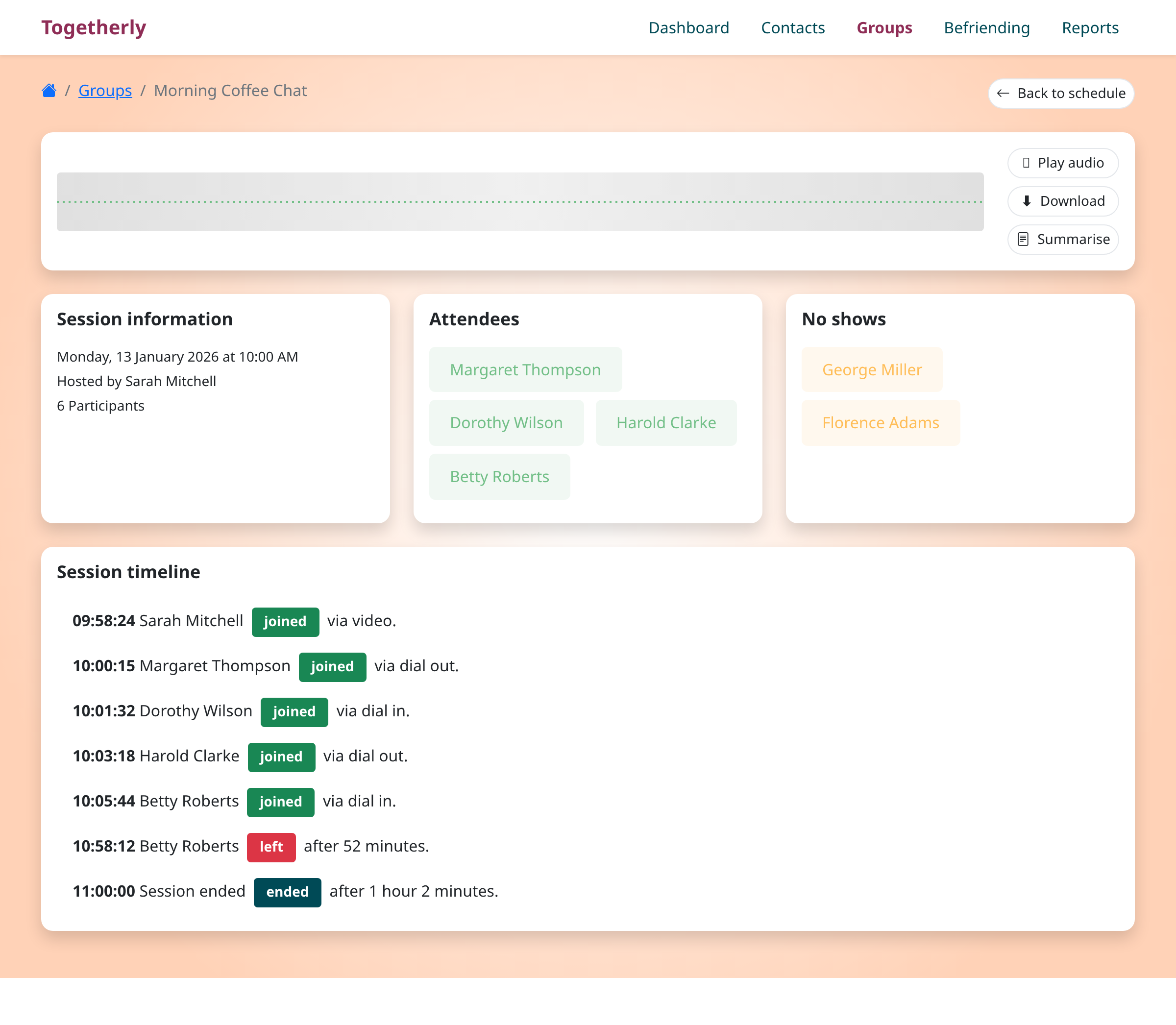
View the session summary
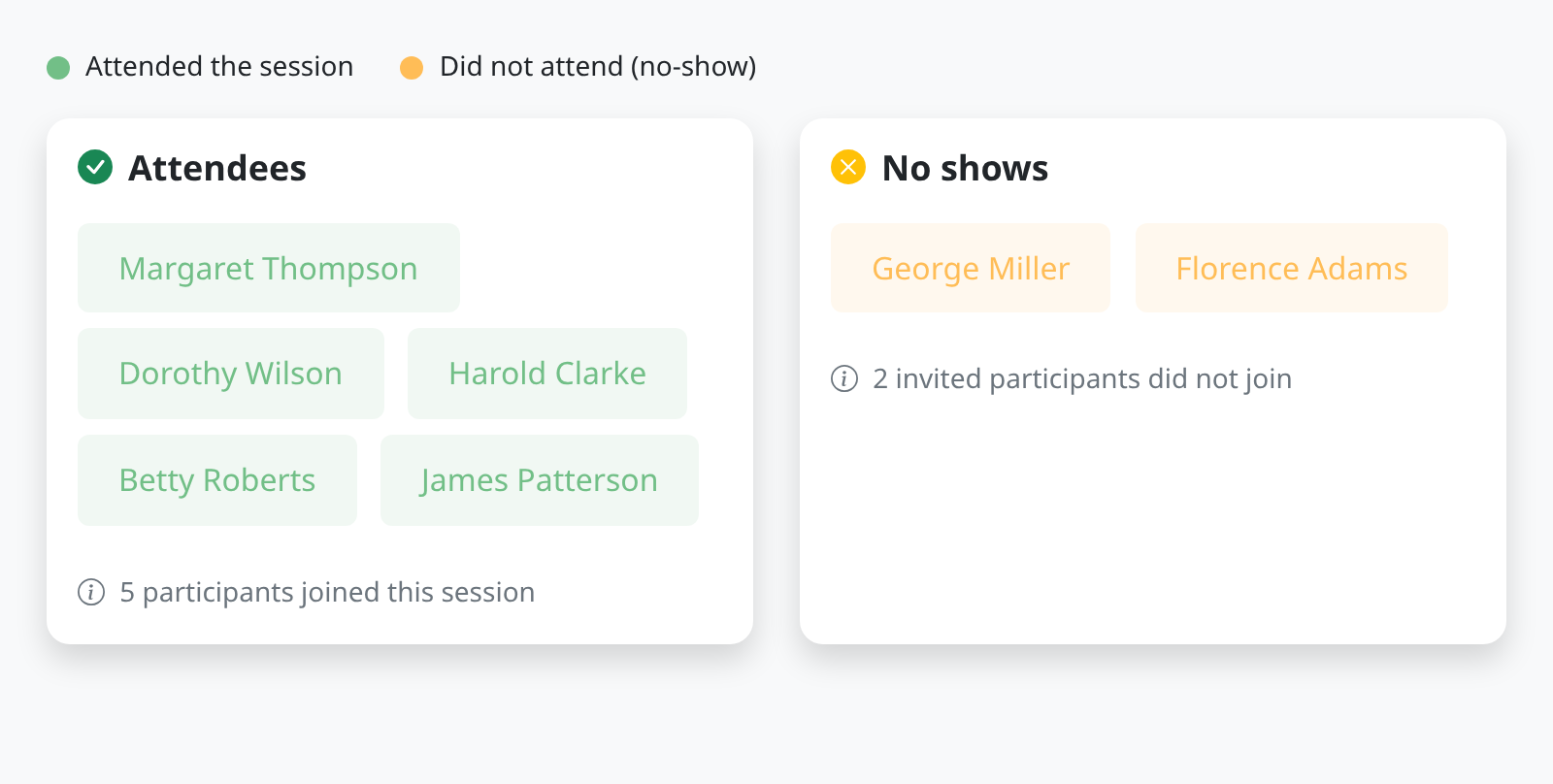
The session summary page displays three information cards at the top. The 'Session information' card shows the date, time, host, and total number of participants. The 'Attendees' card shows everyone who successfully joined the session (displayed with green badges). The 'No shows' card lists anyone who was invited but did not join (displayed with orange badges).
Identify attendance patterns
Green badges indicate participants who attended the session. These are contacts who successfully connected to the call, whether by video, dial-out, or dial-in. Orange badges indicate no-shows, meaning they were on the invitation list but their phone went unanswered or they never connected. Use this information to identify participants who may need follow-up contact.
Review the session timeline
Scroll down to see the Session Timeline section, which shows a chronological record of when each participant joined and left the call. Each entry displays the exact time, participant name, whether they joined or left, and how they connected (video, dial out, or dial in). This helps you understand the full flow of the session.
Tips
- If a participant appears in the no-shows list, they may have been unavailable or experienced technical issues - consider reaching out to check on them
- Compare attendance across multiple sessions to identify participants who consistently miss calls, which may indicate they need additional support
- The session timeline shows connection methods, so you can verify whether dial-out calls are reaching participants successfully
Summary
You can now easily check session attendance and identify no-shows from the completed session summary page. Use this information to follow up with participants who missed calls and to track engagement patterns across your service.
Was this article helpful?
Maintained by supportpages.io, a self-updating help centre for SaaS teams.
Have a question?
Search our articles, or ask and get an answer straight away.