
How to create a public telephone group
Updated 10 months ago
Browse All
Public telephone groups let you host dial-in phone sessions where anyone with the phone number can join without needing individual invitations. This guide shows you how to create a public group session and share the dial-in number with your service users.
Prerequisites
- You must have an active account with the Public Groups feature enabled
- You should have at least one facilitator contact set up in your account
Steps
Navigate to Groups and select Public Telephone Group
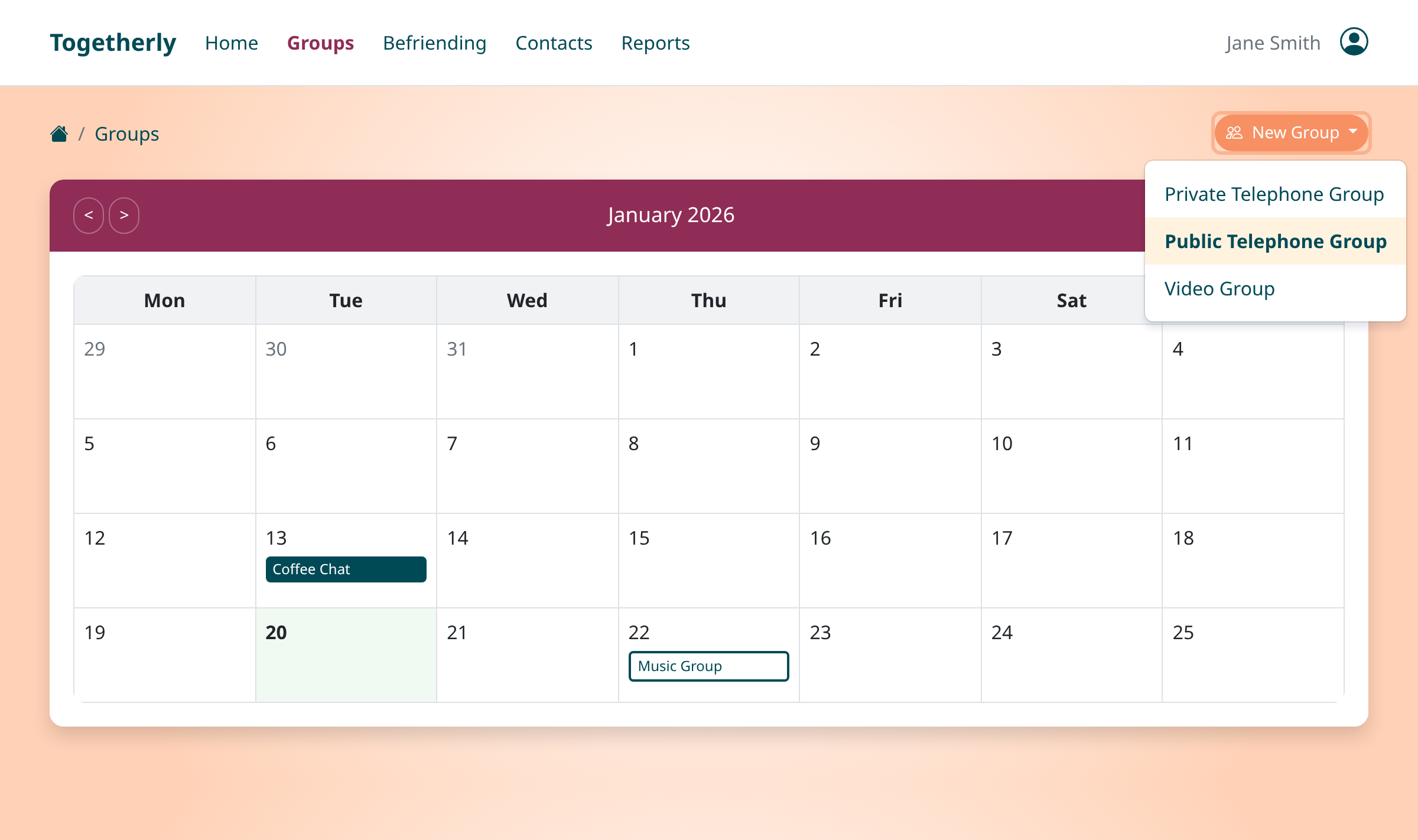
From your dashboard, click on the Groups section in the navigation menu. In the top right corner, click the orange 'New Group' dropdown button. From the dropdown menu, select 'Public Telephone Group' to start creating your open dial-in session.
Enter the session details
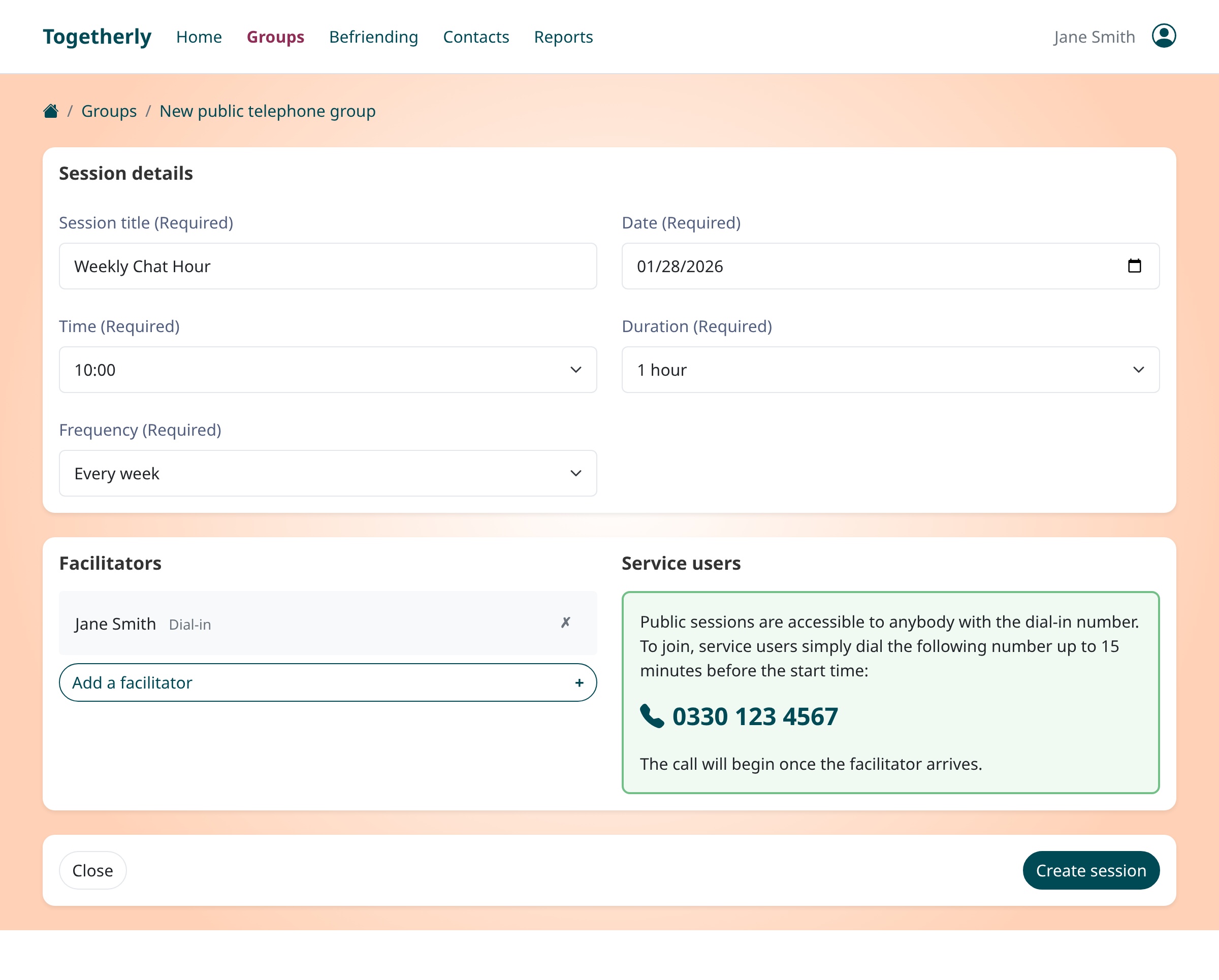
Fill in the basic information for your public telephone group. Enter a descriptive session title that participants will recognize (e.g., 'Weekly Chat Hour' or 'Community Music Session'). Select the date and time for the session. Choose the duration of the call, which can range from 15 minutes to 3 hours. Set the frequency to determine if this is a one-time event or a recurring session that repeats weekly.
Configure session options
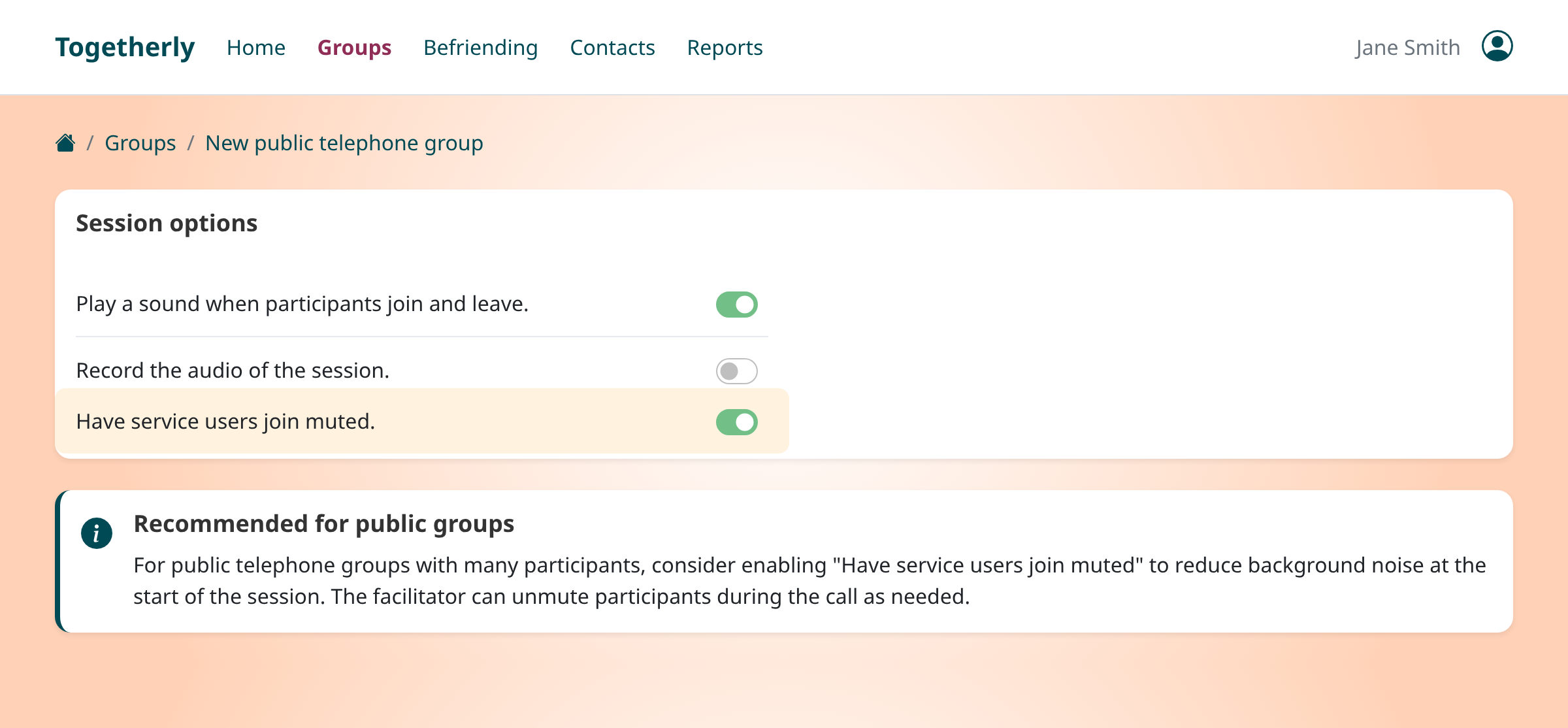
Customize how your public group call will behave. Toggle 'Play a sound when participants join and leave' to enable entry/exit notifications. If your account has recording enabled, you can choose to 'Record the audio of the session' for later review. The 'Have service users join muted' option is particularly useful for public groups, as it starts all participants muted to reduce background noise when many people join at once.
Add a facilitator to lead the session
Click 'Add a facilitator' to select a team member who will host and manage the call. Choose how the facilitator will join: they can dial in using the provided number, receive an automatic call at the session start time, or join via Togetherly's web interface. You can add multiple facilitators if needed for larger groups or to provide backup coverage.
Note the public dial-in number
Unlike private groups where you add specific service users, public groups display a dedicated dial-in number. This is the phone number that anyone can call to join your session. The number appears in the 'Service users' section of the form. Write down or copy this number to share with your community. Participants can dial in up to 15 minutes before the scheduled start time, and the call will begin once the facilitator arrives.
Create the session and share the dial-in number
Review all your settings to ensure everything is correct. Click 'Create session' to save your public telephone group. The session will now appear on your Groups calendar. Share the dial-in phone number with your community through your preferred channels (email newsletters, printed flyers, social media, or word of mouth). Remind participants of the session date, time, and the phone number they need to call.
Tips
- Public groups can accommodate up to 200 participants, making them ideal for large community events or public announcements
- Consider enabling 'start muted' for large public sessions to maintain order when many participants join simultaneously
- Share the dial-in number widely through newsletters, posters, or social media since anyone with the number can join
- The session only becomes active once the facilitator joins, so participants calling early will wait in a holding queue
Summary
You've successfully created a public telephone group with a dedicated dial-in number. Share this number with your community so anyone can join simply by making a phone call at the scheduled time. The facilitator controls when the session starts and can manage participants during the call.
Was this article helpful?
Written with supportpages.io. More on documentation automation on our blog.
Have a question?
Search our articles, or ask and get an answer straight away.