
How to hide audio-only participants during video calls
Updated 9 months ago
Browse All
During video sessions with multiple participants, you may want to focus only on those who have their cameras enabled. Togetherly allows facilitators to toggle a view that hides audio-only participants from the video grid, making it easier to see everyone who is sharing video.
Prerequisites
- You must be logged in as a facilitator
- An active video session must be in progress
Steps
Open the Session Actions menu
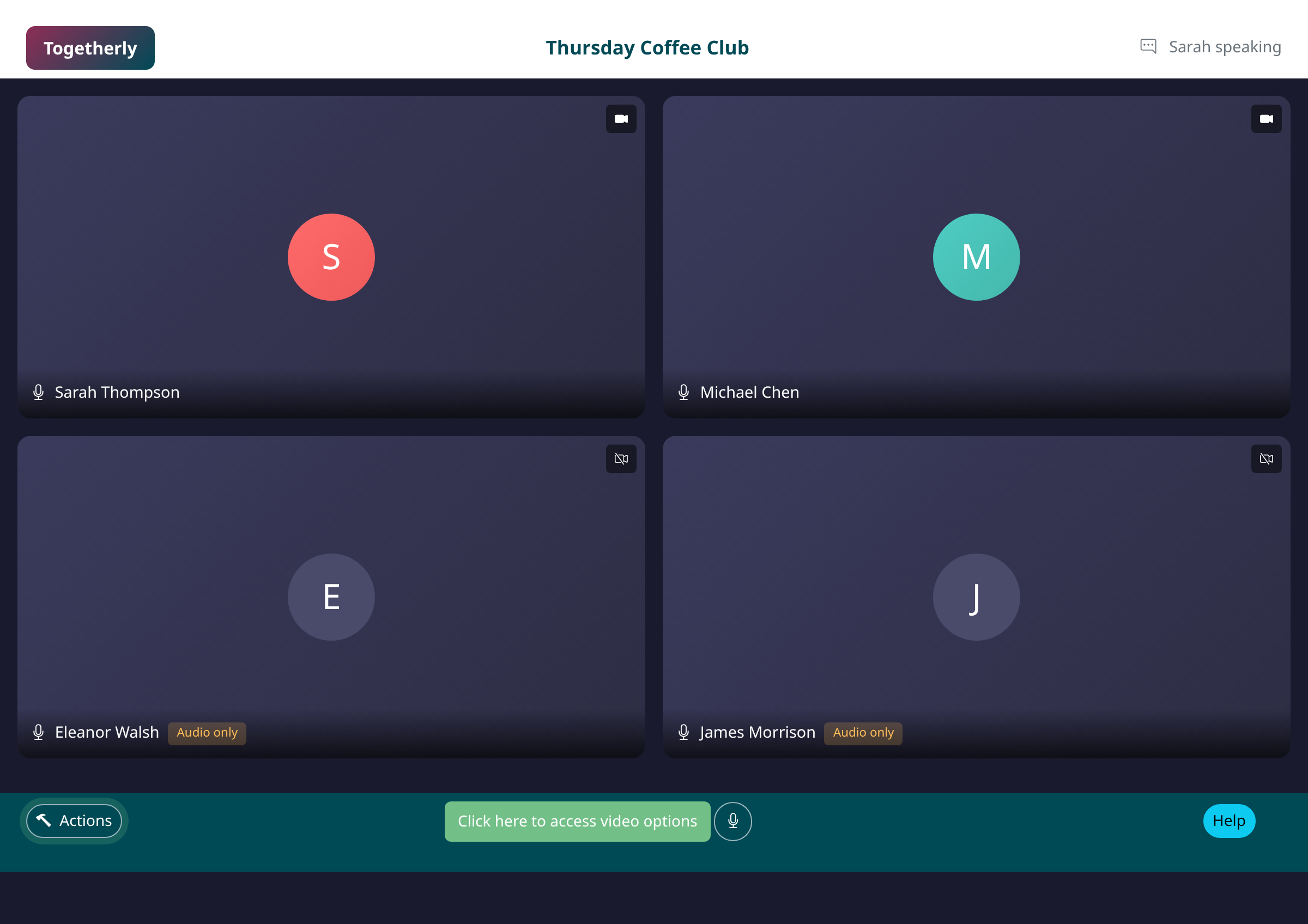
During a live video call, look at the control bar at the bottom of your screen. On the left side, you will see an Actions button. Click this button to open the Session Actions menu, which contains options for managing participants and video settings.
Select the Show video only option
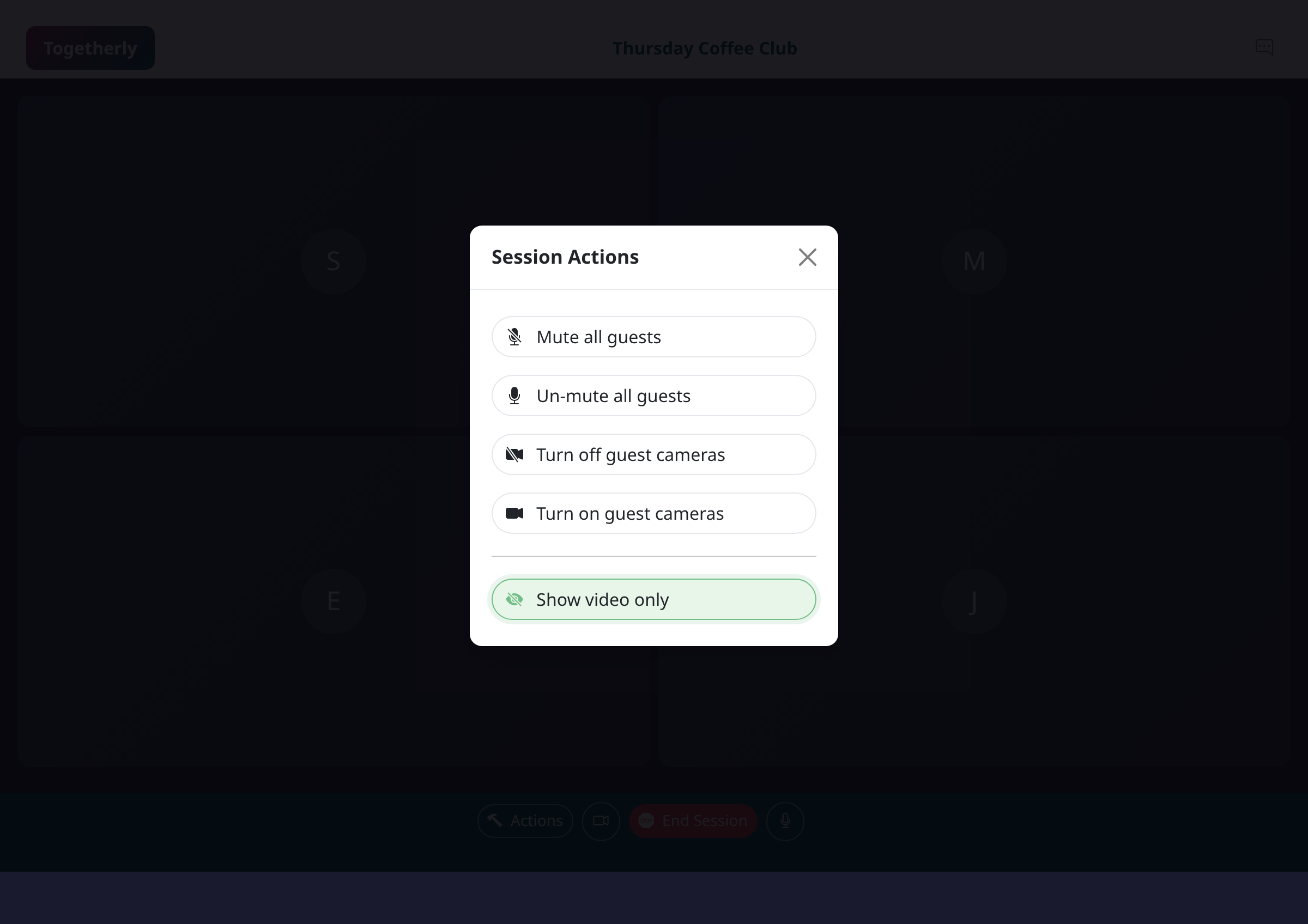
In the Session Actions dialog that appears, scroll down past the mute and camera controls. Below the camera options, you will see a Show video only button. Click this button to hide all participants who do not have their cameras enabled. The button icon shows an eye with a slash, indicating that non-video participants will be hidden from view.
Review the updated video grid
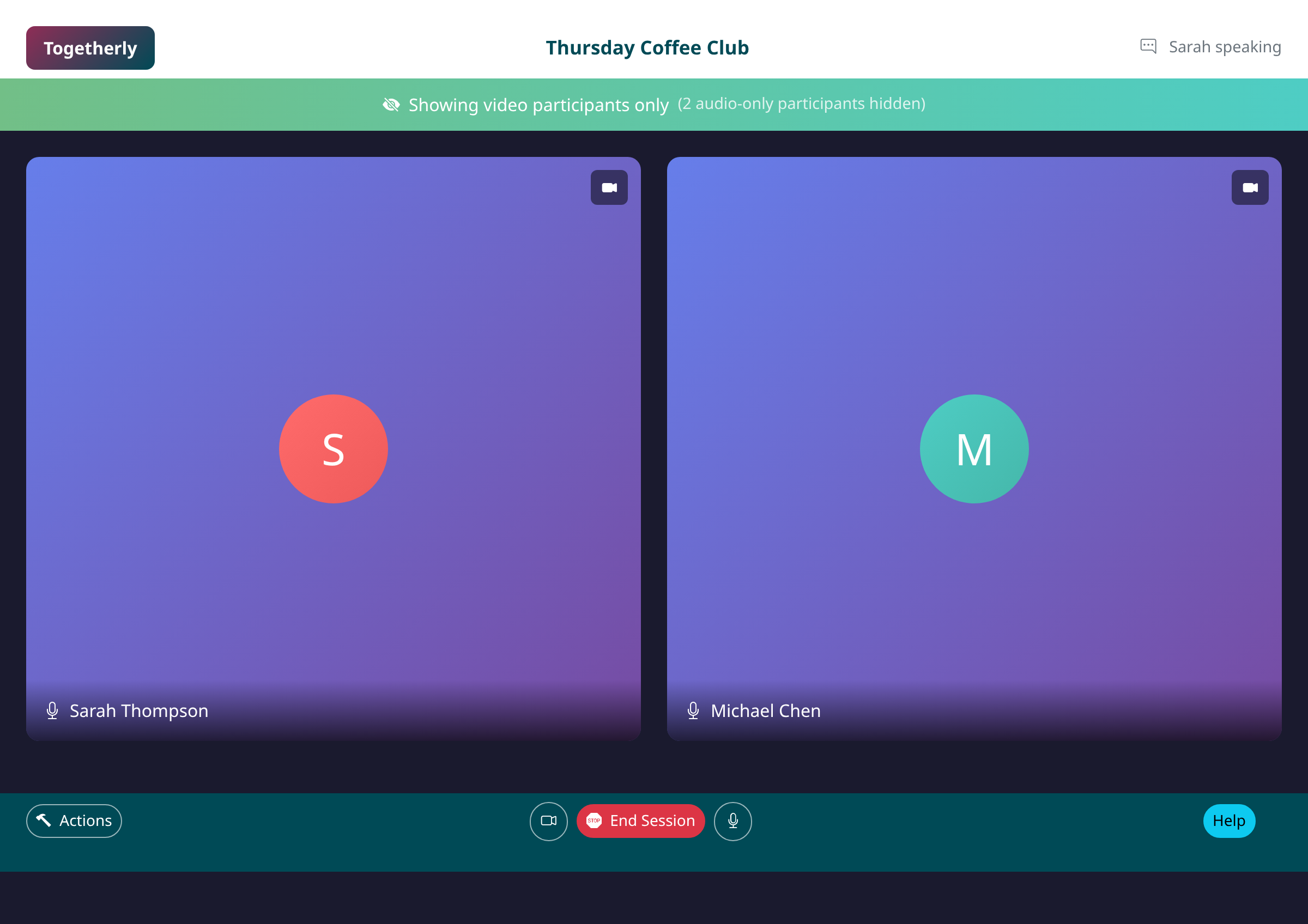
After enabling the option, the video grid will update to show only participants with active cameras. Participants who are connected via phone or have their cameras turned off will no longer appear as placeholder tiles. The grid layout will automatically adjust to give more space to the remaining video feeds. Audio-only participants can still hear and speak in the session, they are simply hidden from the video display.
Return to showing all participants
To show all participants again, open the Session Actions menu by clicking the Actions button. The button text will now say Show all participants instead of Show video only. Click this button to restore the full view including audio-only participants. Their placeholder tiles will reappear in the video grid.
Tips
- Use this feature in larger sessions where many participants join by phone to create a cleaner video experience
- Audio-only participants can still hear everything and speak when unmuted, even when hidden from the video grid
- The setting only affects your view as the facilitator and does not change what participants see
Summary
You can now focus your video display on participants with active cameras by using the Show video only toggle in the Session Actions menu. This helps create a cleaner viewing experience during sessions with mixed video and audio-only participants.
Was this article helpful?
Generated automatically by supportpages.io — AI knowledge base software for SaaS teams.
Have a question?
Search our articles, or ask and get an answer straight away.