
How to enable or disable chat for scheduled sessions
Updated 10 months ago
Browse All
This guide explains how to enable or disable the text-based chat feature when creating a new scheduled session, so participants can send messages to each other during live video calls.
Prerequisites
- You must be a facilitator or administrator on your Togetherly account
- Your account must have the text chat feature enabled by your organisation's administrator
Steps
Open the new session form
Navigate to the Groups section from the main menu and click New Group. Choose either Video Group to begin creating a new video session. The session creation form will open with fields for title, date, time, and other settings.
Locate the chat toggle in Session options
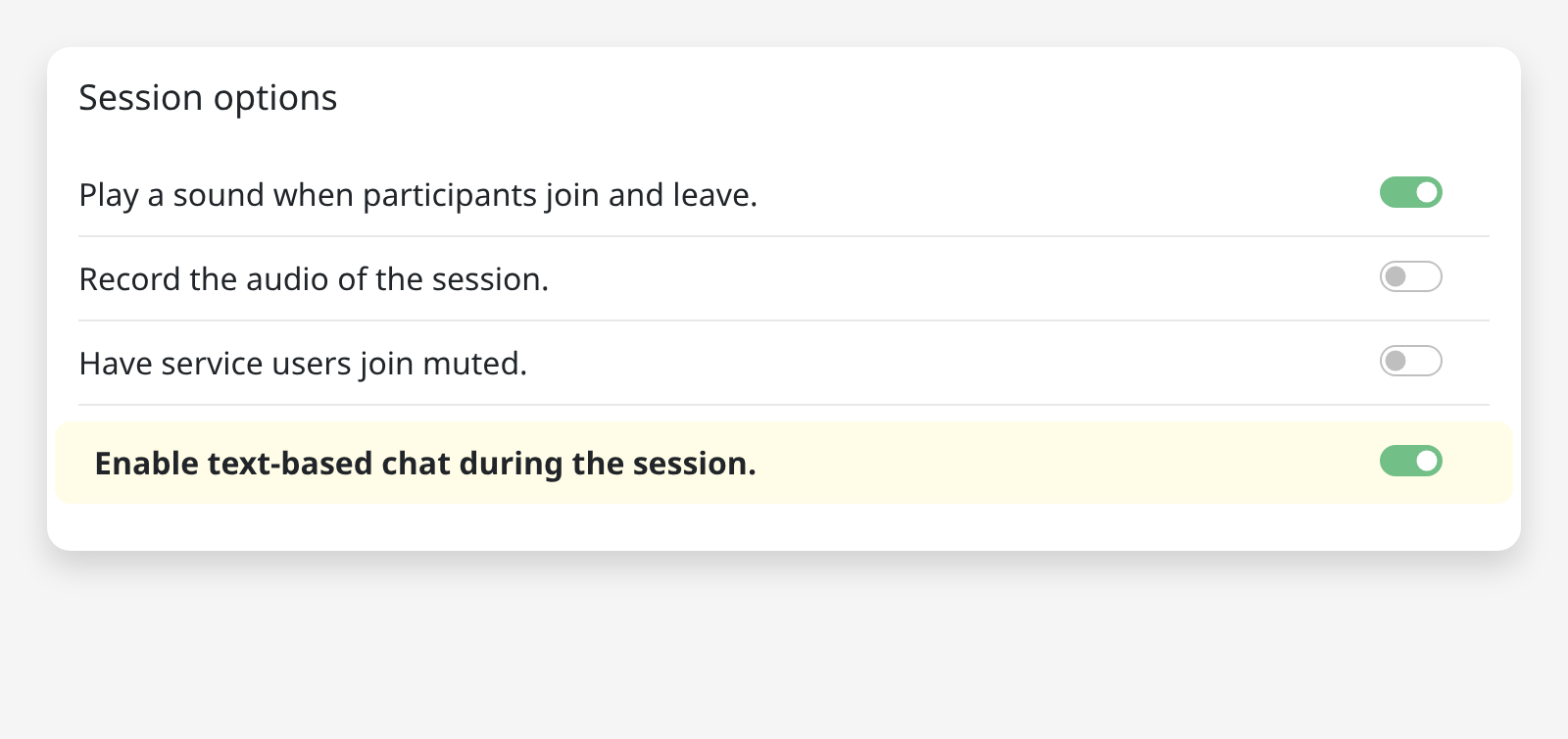
Scroll down to the Session options card. You will see a list of toggle switches for various session settings, including join sounds, recording, and muting. At the bottom of this list, look for the option labelled Enable text-based chat during the session. This toggle only appears if your account has the chat feature available.
Turn chat on or off
Click the toggle switch next to Enable text-based chat during the session to turn it on (green) or off. When enabled, all participants will be able to send and read text messages during the live video call. When disabled, the chat panel will not appear during the session. Chat is turned off by default, so you need to explicitly enable it for each session where you want it available.
Complete the session and confirm
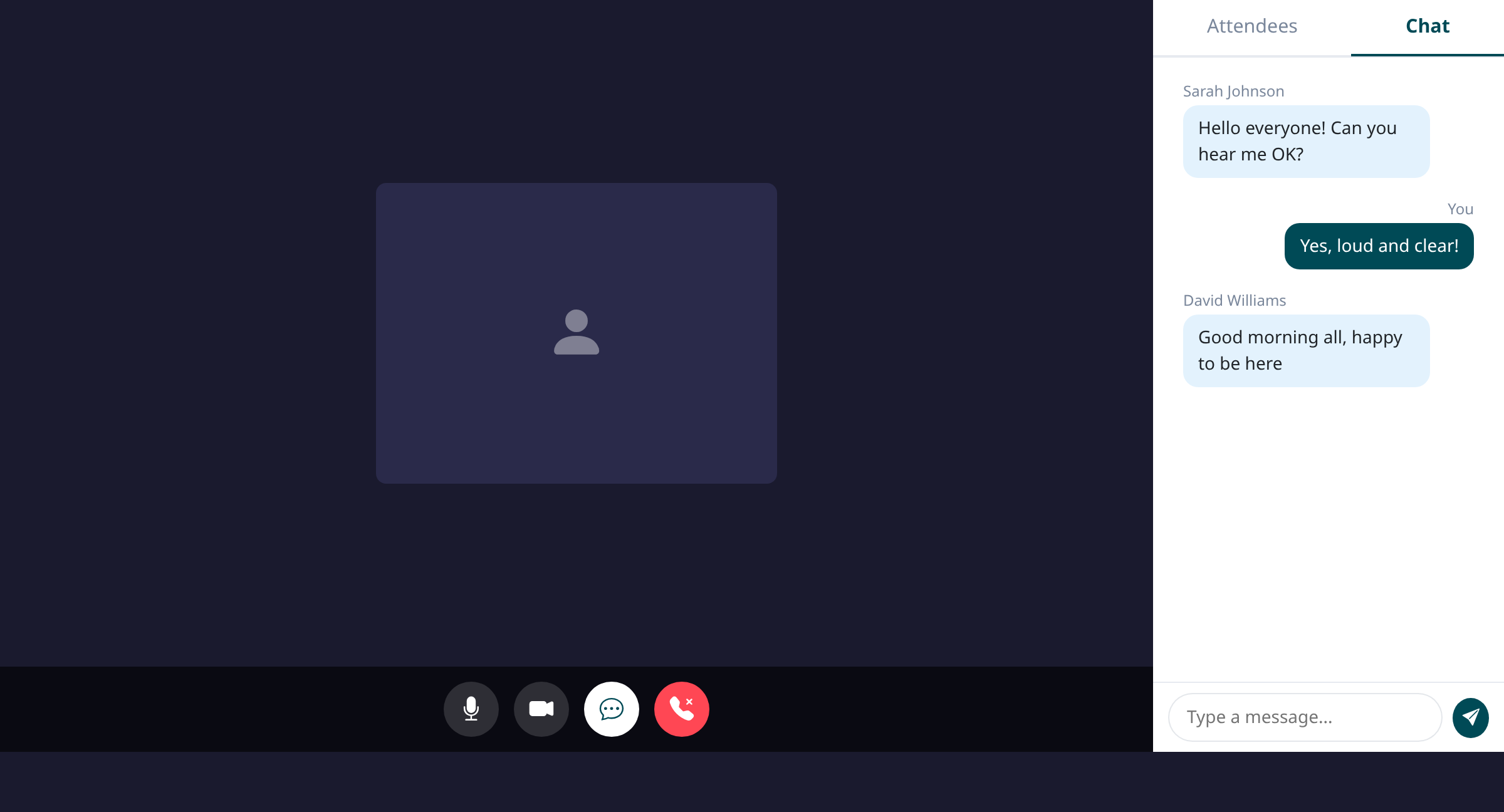
Finish filling in the remaining session details — add your facilitators and service users, then click Create session. Once the session starts, participants will see a Chat button in the call controls bar at the bottom of the screen. Facilitators can switch between the Attendees list and the Chat tab in the sidebar, while participants see the chat view directly.
Tips
- Chat is only available for video sessions, not telephone-only sessions
- All chat messages are saved and visible in the session's activity timeline after the call ends, so facilitators can review the conversation later
- If you do not see the chat toggle in the session options, contact your organisation's administrator to enable the text chat feature for your account
Summary
You now know how to enable or disable chat when scheduling a video session. When chat is turned on, participants can communicate via text messages during the call, and facilitators can review the full conversation history afterwards.
Was this article helpful?
Help centre by supportpages.io — AI-generated documentation for SaaS.
Have a question?
Search our articles, or ask and get an answer straight away.