
How to use the participant list during calls
Updated 10 months ago
Browse All
The participant list shows you who has joined your session, their current status, and provides quick access to participant controls during video calls.
Prerequisites
- You must be a facilitator to access the participant list
- The session must be a video call (the list is only available for video sessions)
Steps
Open the participant list
During a video call, look for the 'Attendee List' button in the bottom-right corner of your screen. Click this button to open the sidebar showing all participants. The button appears white when the list is open, and outlined when closed.
View participant status
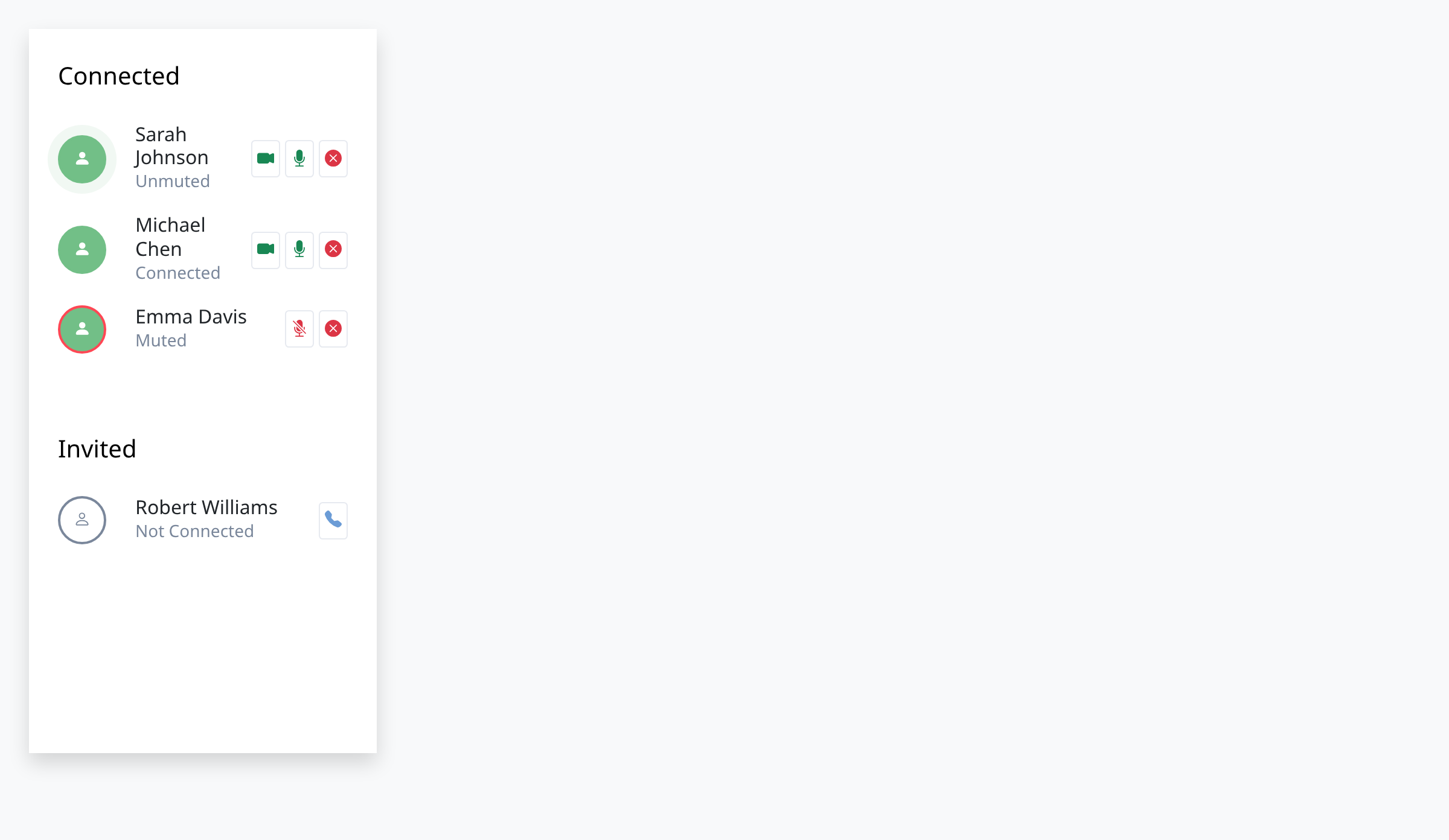
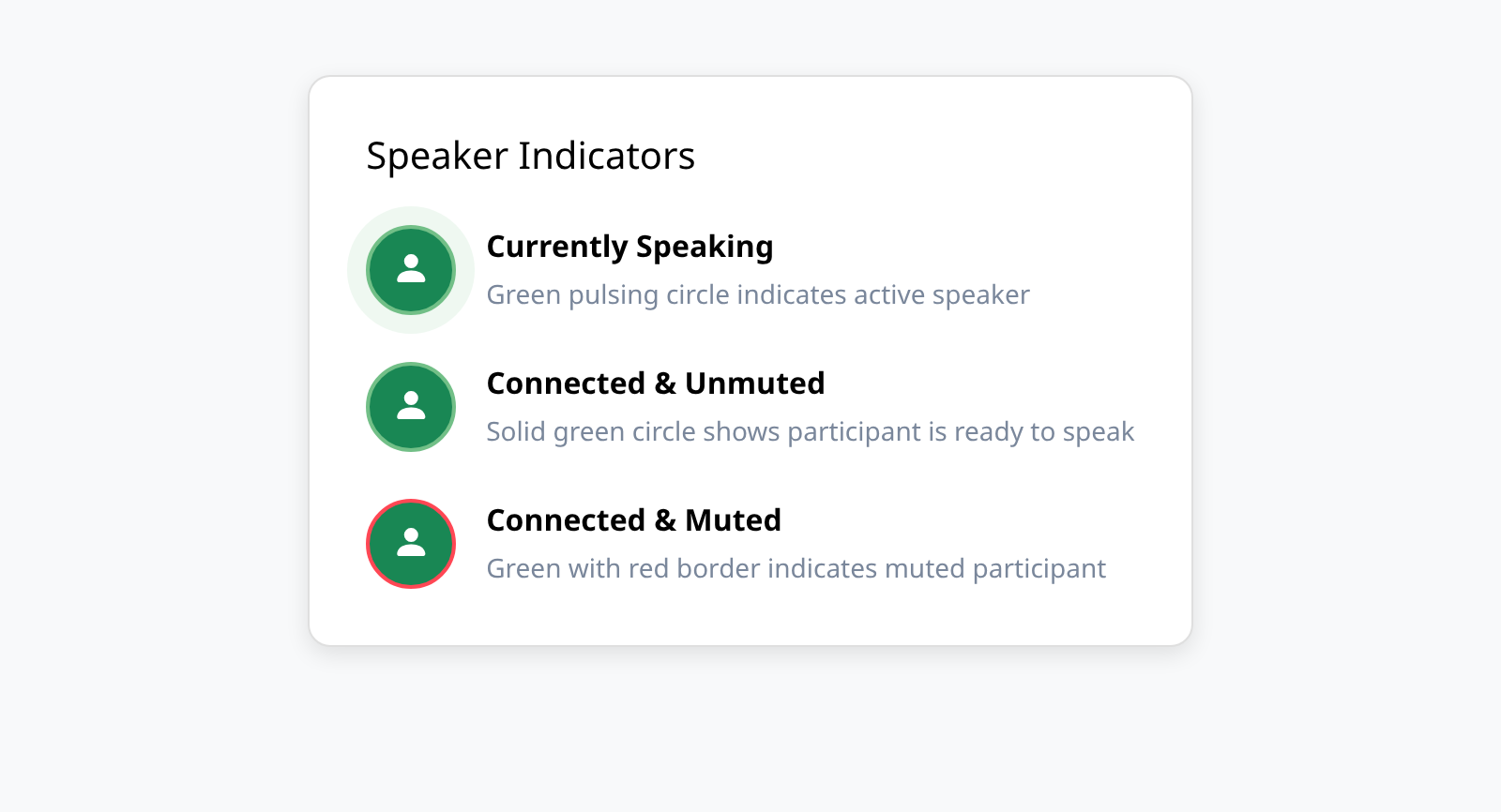
The participant list is divided into two sections: 'Connected' and 'Invited'. Connected participants appear at the top with their current status. Each participant has a colored circle icon that indicates their state: a pulsing green circle means they're currently speaking, a solid green circle means they're connected and unmuted, and a green circle with a red border means they're muted. Participants who haven't joined yet appear in the 'Invited' section with a gray circle.
Identify who is speaking
When a participant is actively speaking, their status icon changes to a pulsing green circle with an animated ring effect. This makes it easy to see who's talking at any moment, especially useful in larger group sessions where video feeds might not be visible for everyone.

Use participant controls
Next to each connected participant's name, you'll see control buttons. For participants with video, a camera icon lets you show or hide their video feed. The microphone icon allows you to mute or unmute them (muted participants show a red microphone icon). The X button removes a participant from the call. For invited participants who haven't joined, you'll see a phone icon to dial them into the session.
Close the participant list
To hide the participant list and give more space to video feeds, click the 'Attendee List' button again. The sidebar will slide closed, and you can reopen it anytime during the call.
Tips
- The pulsing green indicator updates in real-time, so you can always see who's speaking even when their video is off
- You can control multiple participants quickly by using the Actions menu for bulk operations like muting all guests
- The participant list automatically updates when people join or leave, so you don't need to refresh
Summary
The participant list gives you full visibility and control over your video sessions, letting you see who's connected, identify active speakers, and manage participant settings all from one convenient sidebar.
Was this article helpful?
Powered by supportpages.io — help centre software for SaaS.
Have a question?
Search our articles, or ask and get an answer straight away.