
How to view your calendar of scheduled sessions
Updated 10 months ago
Browse All
The calendar view helps you see all your upcoming group sessions and befriending calls at a glance, making it easy to stay organized and plan ahead.
Prerequisites
- You must be logged in to Togetherly
- You must have at least one scheduled session or befriending call created
Steps
Navigate to the Groups page
Click on the 'Groups' link in the main navigation bar at the top of the page. This will take you to the calendar view where all your scheduled sessions are displayed.
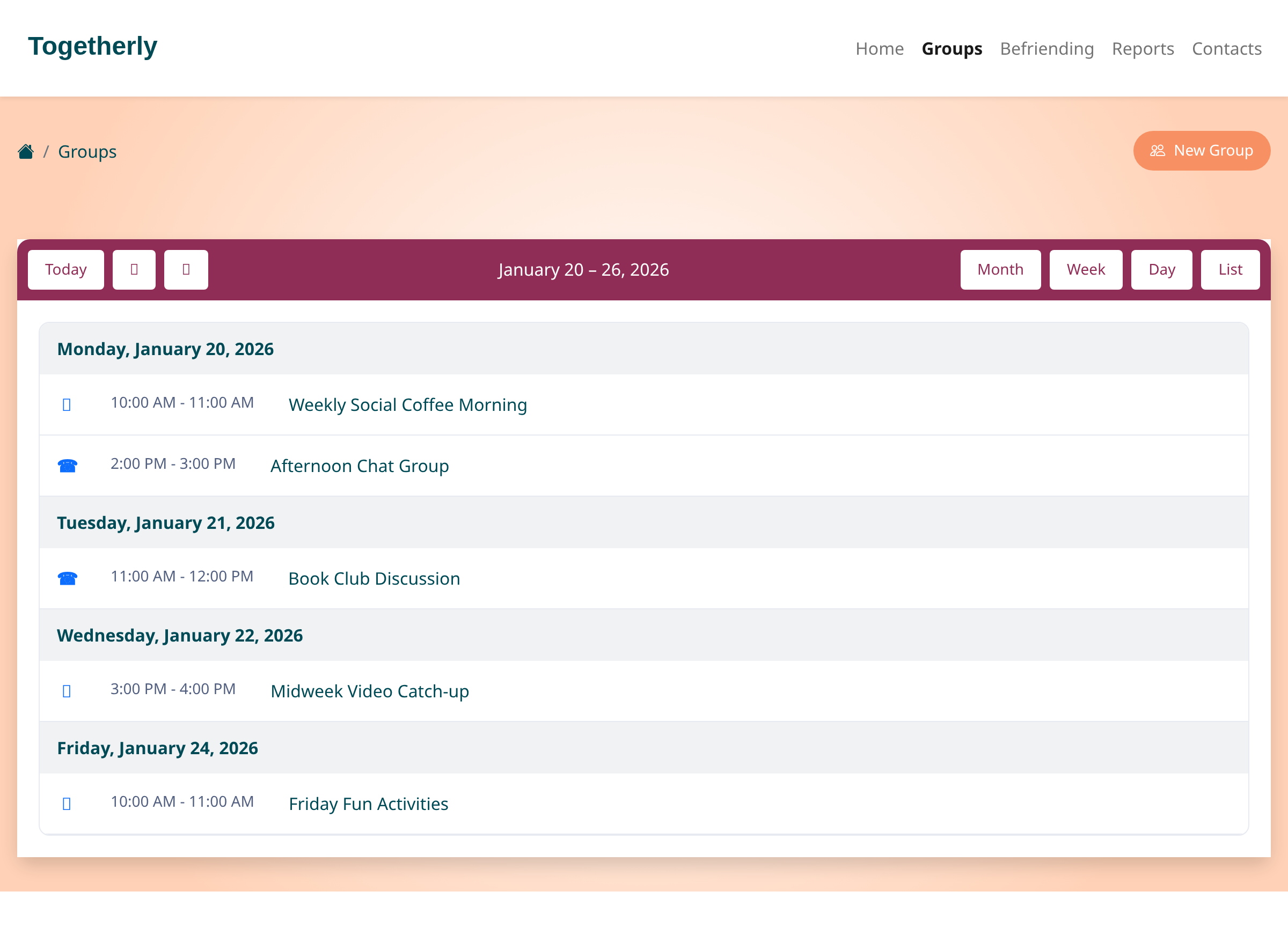
View your sessions in list format
By default, the calendar opens in List view, showing your sessions organized by date. Each session displays an icon indicating whether it's a video call (camera icon) or phone call (phone icon), along with the time and session name. Today's date is highlighted with a light green background. Click on any session name to view its details.
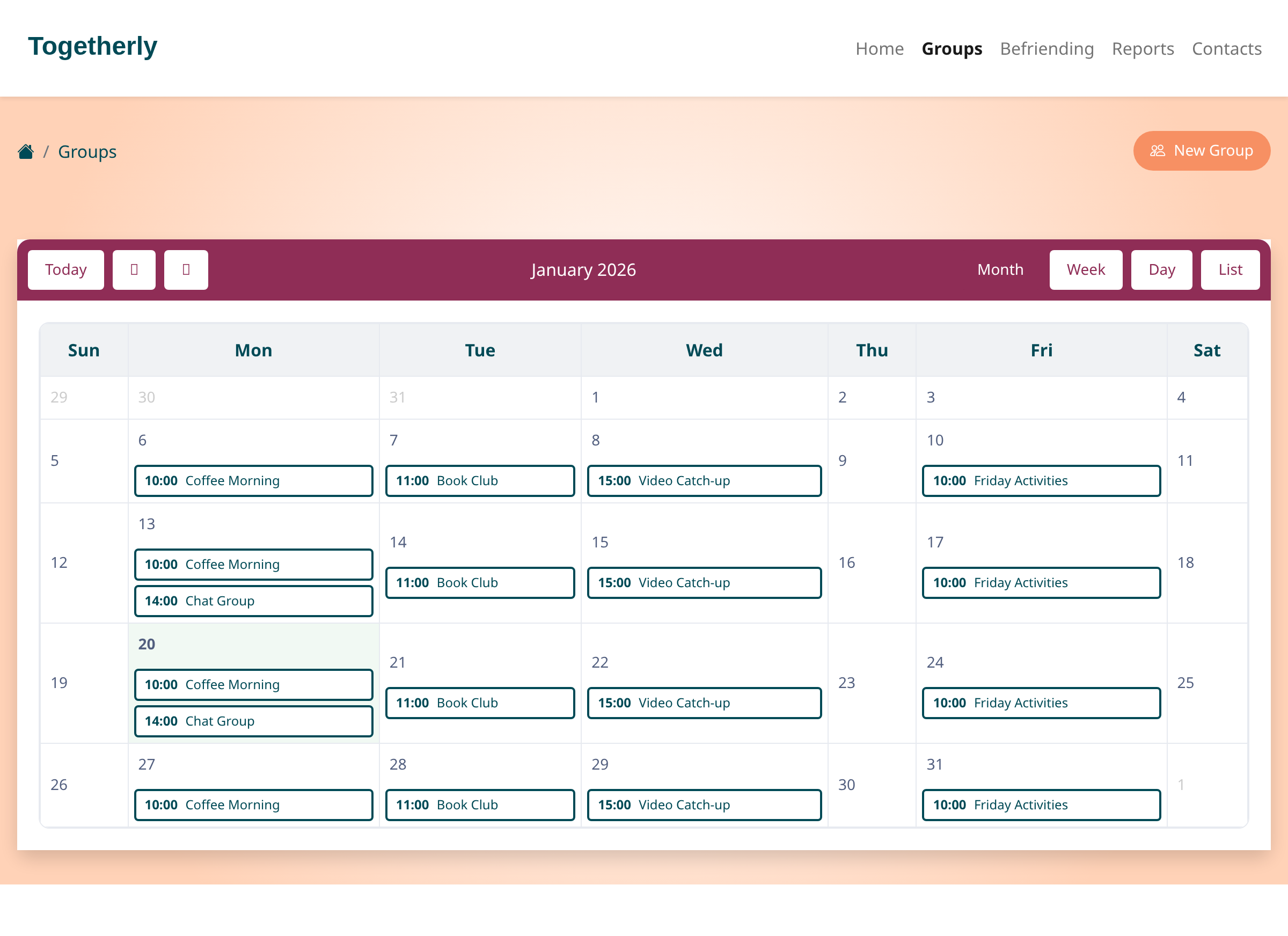
Switch between calendar views
Use the view buttons in the top-right corner of the calendar to change how your sessions are displayed. Choose 'Month' to see a full month grid, 'Week' to focus on the current week, 'Day' to see just today's sessions, or 'List' to return to the chronological list view. Each view offers a different perspective to help you plan effectively.
Navigate through time
Use the navigation controls at the top-left of the calendar. Click 'Today' to jump back to the current date, or use the left and right arrow buttons to move backward or forward in time. The center of the toolbar shows the current date range you're viewing.
Tips
- The calendar automatically refreshes to show new sessions as they're created, so you always see the latest schedule
- Video sessions are marked with a camera icon, while phone sessions show a phone icon to help you quickly identify the session type
- If you see 'No sessions to show', it means there are no scheduled sessions for the current time period - try navigating to a different date range or create a new group session
Summary
You can now easily navigate your calendar to view all scheduled sessions across different time periods and formats, helping you stay on top of your social service activities.
Was this article helpful?
Built with supportpages.io — an AI documentation generator.
Have a question?
Search our articles, or ask and get an answer straight away.