
How to edit or cancel a scheduled session
Updated 10 months ago
Browse All
Learn how to modify scheduled group sessions or cancel them when plans change, whether it's a single session or an entire recurring series.
Prerequisites
- You must be the session organizer or have facilitator permissions
- The session must not have already started or been completed
Steps
Navigate to the Groups calendar
From the main menu, click on Groups to access your calendar view. You'll see all your scheduled sessions displayed on the calendar with their titles and start times. Sessions you created are highlighted differently from sessions created by others.
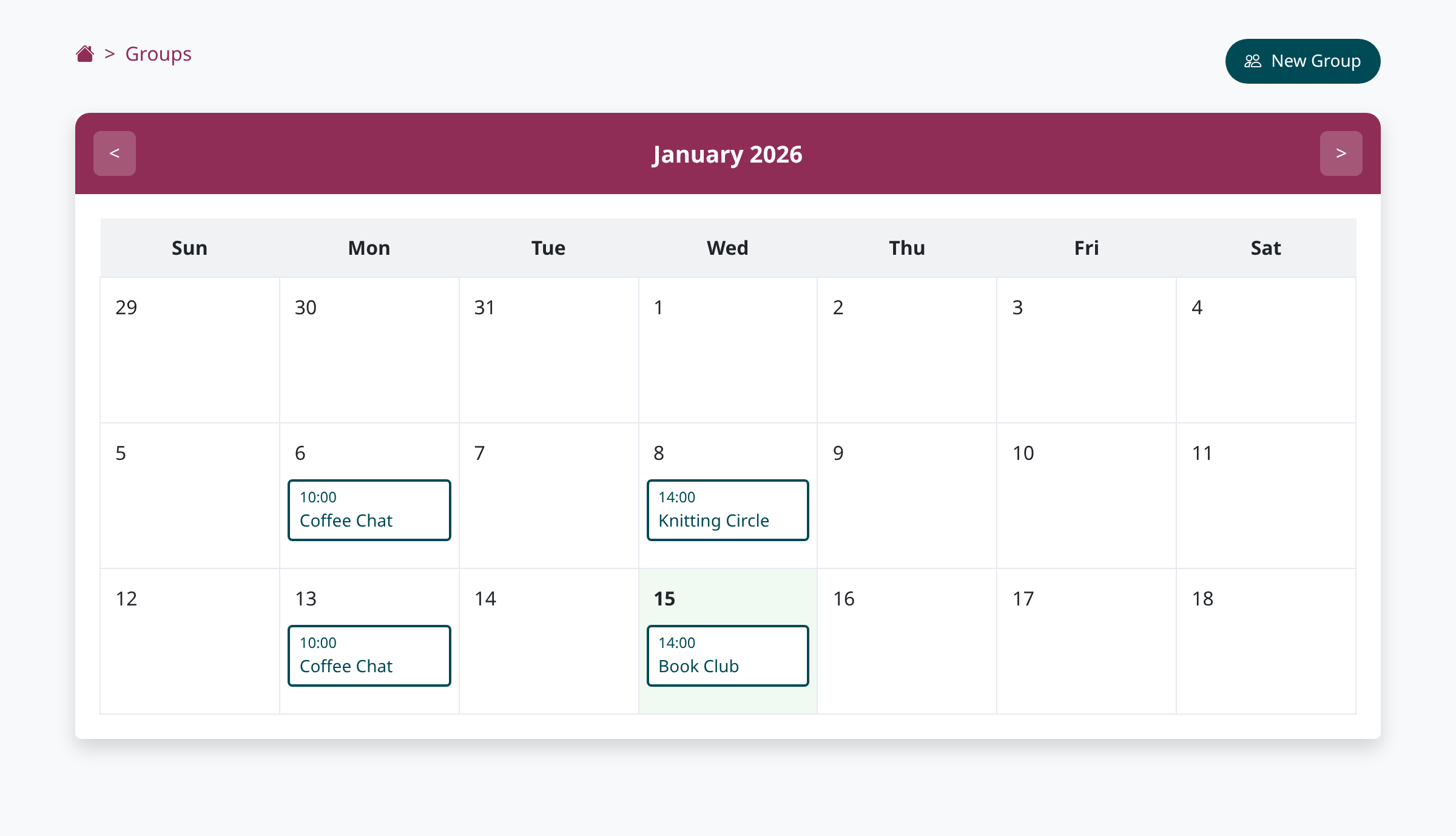
Click on the session to edit
Find the session you want to edit on the calendar and click on it. This will open the session details page where you can view and modify all session settings. You'll see the session title in the breadcrumb navigation at the top of the page.
Update session details
On the session details page, you can modify the session title, date, time, duration, and frequency. You can also adjust session options like join beeps, audio recording, and whether service users join muted. To add or remove participants, use the Add a facilitator or Add a service user buttons in the Facilitators and Service users sections. Make any changes you need, then click Save session at the bottom of the page.
Choose update scope for recurring sessions
If you're editing a recurring session, a dialog will appear asking whether you want to update just this occurrence or all future occurrences. Toggle the Update future occurrences switch if you want your changes to apply to the entire series. If left unchecked, only this single session will be updated. Click Save session to confirm your changes.
Cancel a session
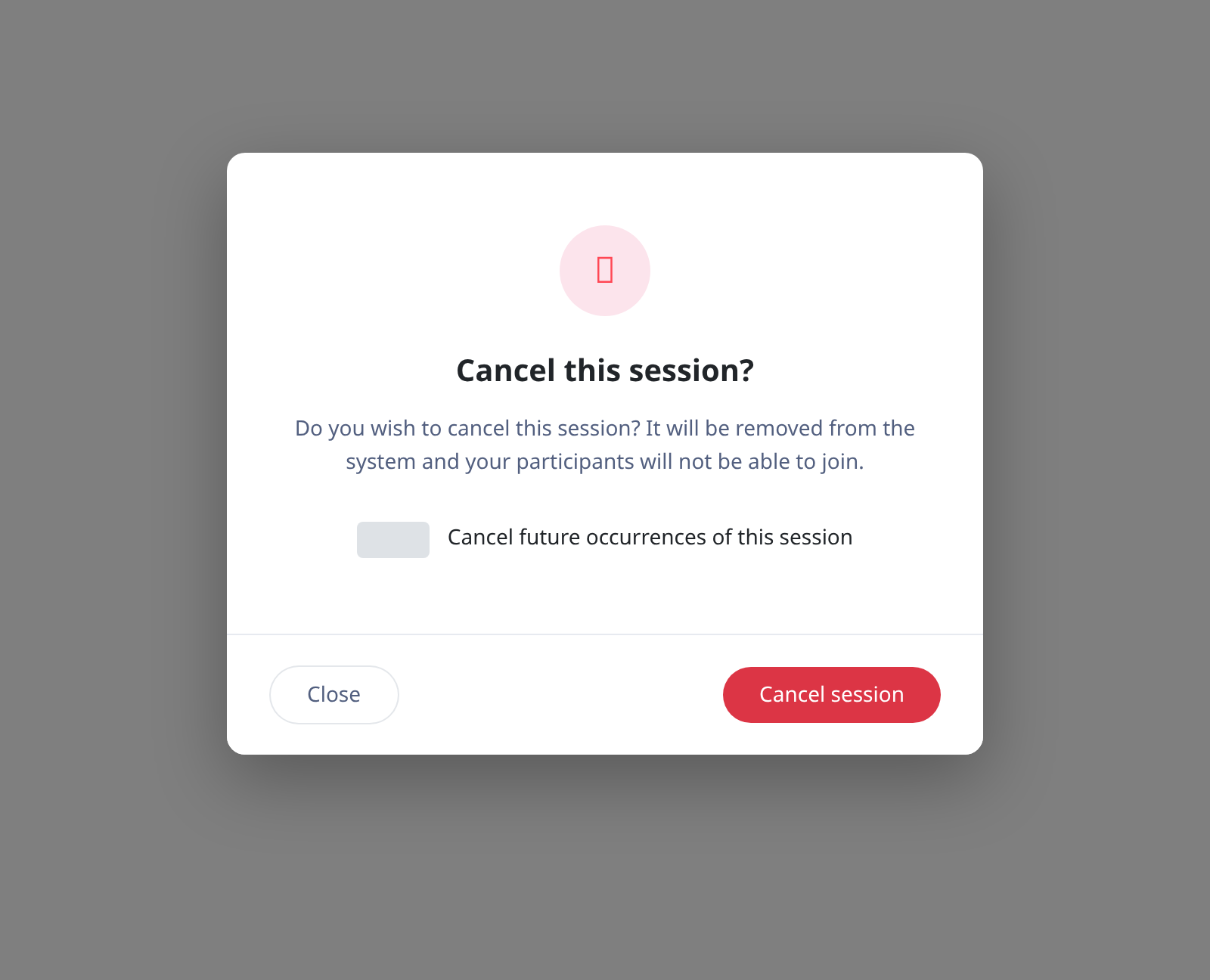
To cancel a session, scroll to the bottom of the session details page and click the Cancel session button. A confirmation dialog will appear asking you to confirm the cancellation. If this is a recurring session, you'll see an option to Cancel future occurrences of this session. Check this box if you want to cancel all upcoming sessions in the series, or leave it unchecked to cancel only this single occurrence. Click Cancel session to complete the cancellation.
Tips
- Changes to recurring sessions only affect future occurrences, never past sessions
- Participants will not receive automatic notifications when you edit or cancel a session, so you may want to inform them separately
- You cannot edit or cancel a session that has already started or been completed
Summary
You can now confidently edit session details or cancel sessions as needed. Remember that changes to recurring sessions can be applied to just one occurrence or all future occurrences, giving you flexibility in managing your schedule.
Was this article helpful?
Help centre by supportpages.io — AI-generated documentation for SaaS.
Have a question?
Search our articles, or ask and get an answer straight away.