
How to add your first contacts
Updated 10 months ago
Browse All
Before you can schedule calls or create befriending matches, you'll need to add contacts to your account. This guide walks you through creating contact records with all the details you need.
Prerequisites
- You're signed in to your Togetherly account
- You have permission to manage contacts
Steps
Open the Contacts page
Click Contacts in the navigation bar. You'll see your contact list, which may be empty if you're just getting started.
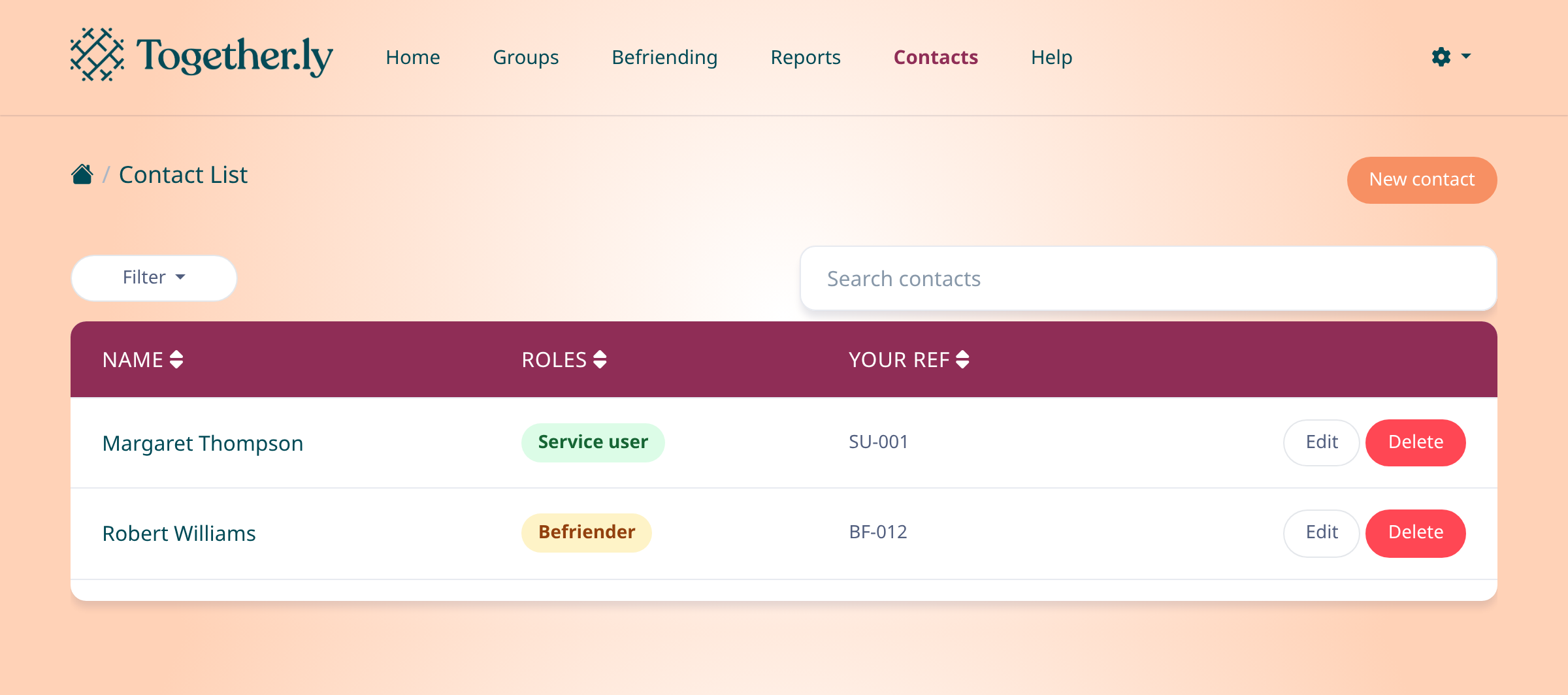
Click New contact
Click the New contact button in the top right corner. A form will appear where you can enter the contact's details.
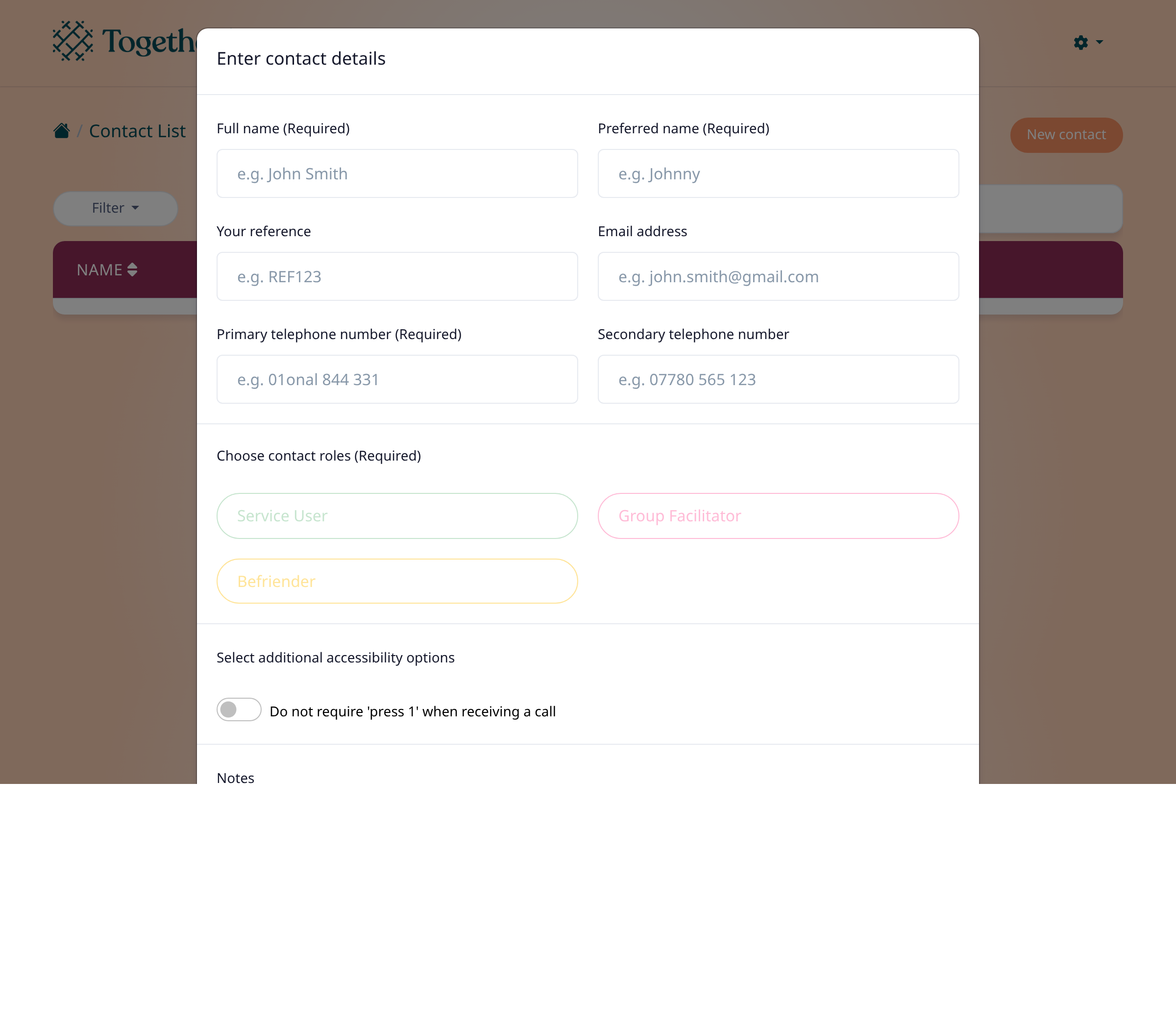
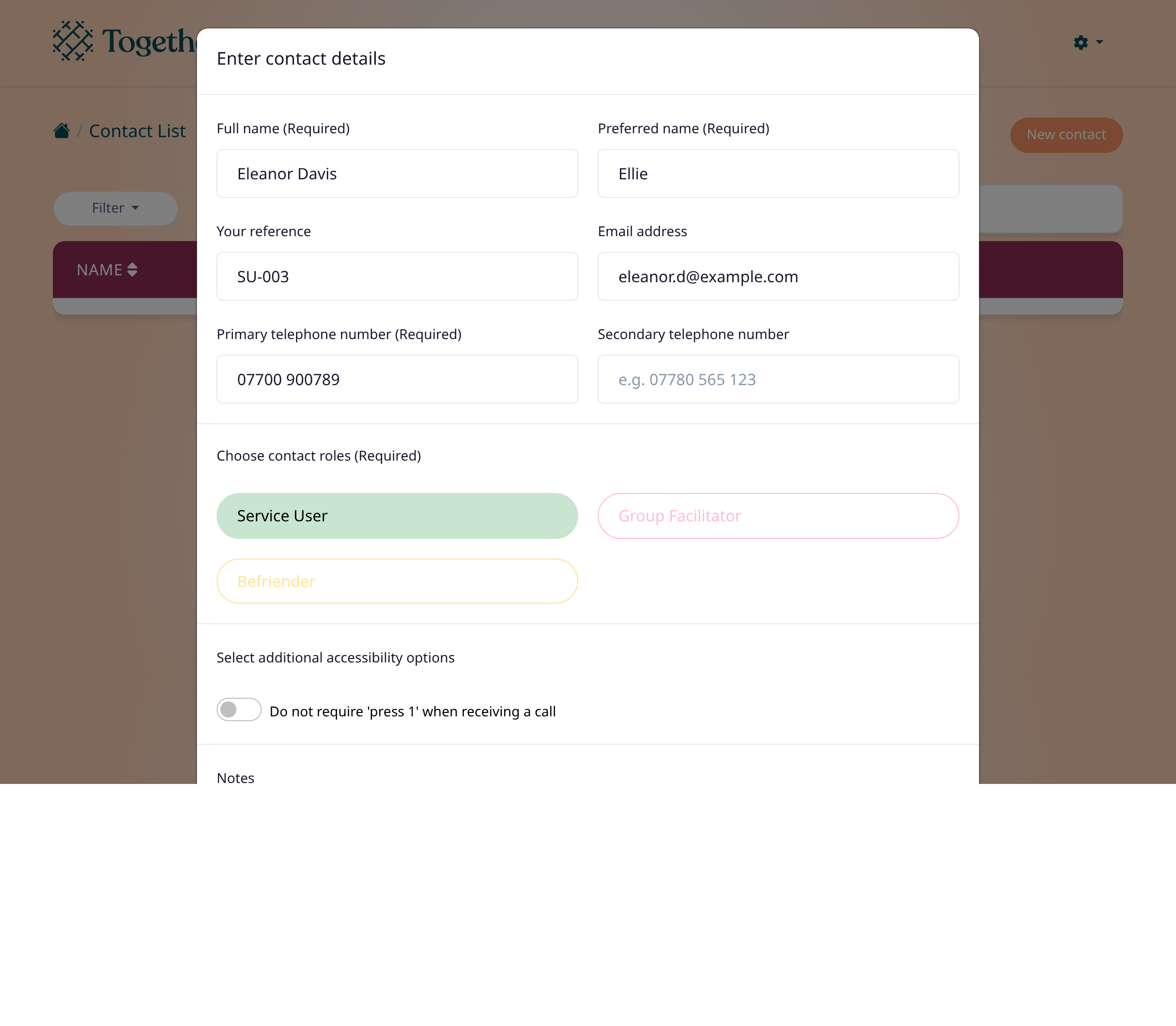
Fill in contact details and assign roles
Enter the contact's Full name, Preferred name, and Primary telephone number — these are required. You can also add an email address, secondary phone, and your own reference number. Then select at least one role: Service User for people receiving services, Befriender for volunteers, or Group Facilitator for staff running sessions. Click Add contact when you're done.
Tips
- Use the search bar to quickly find contacts by name once your list grows
- You can assign multiple roles to the same contact if needed
- The 'Preferred name' is how the contact will be greeted during calls
Summary
You've added your first contact to Togetherly. Now you can schedule them into group sessions or set up befriending matches.
Was this article helpful?
Built with supportpages.io — an AI documentation generator.
Have a question?
Search our articles, or ask and get an answer straight away.