
How to create a video befriending match
Updated 10 months ago
Browse All
A video befriending match pairs a befriender with a service user for regular one-on-one video calls. Once you set it up, both people automatically receive joining details for each session.
Prerequisites
- At least one contact with the Befriender role and an email address
- At least one contact with the Service User role and an email address
- TEst
Steps
Open the New Match menu
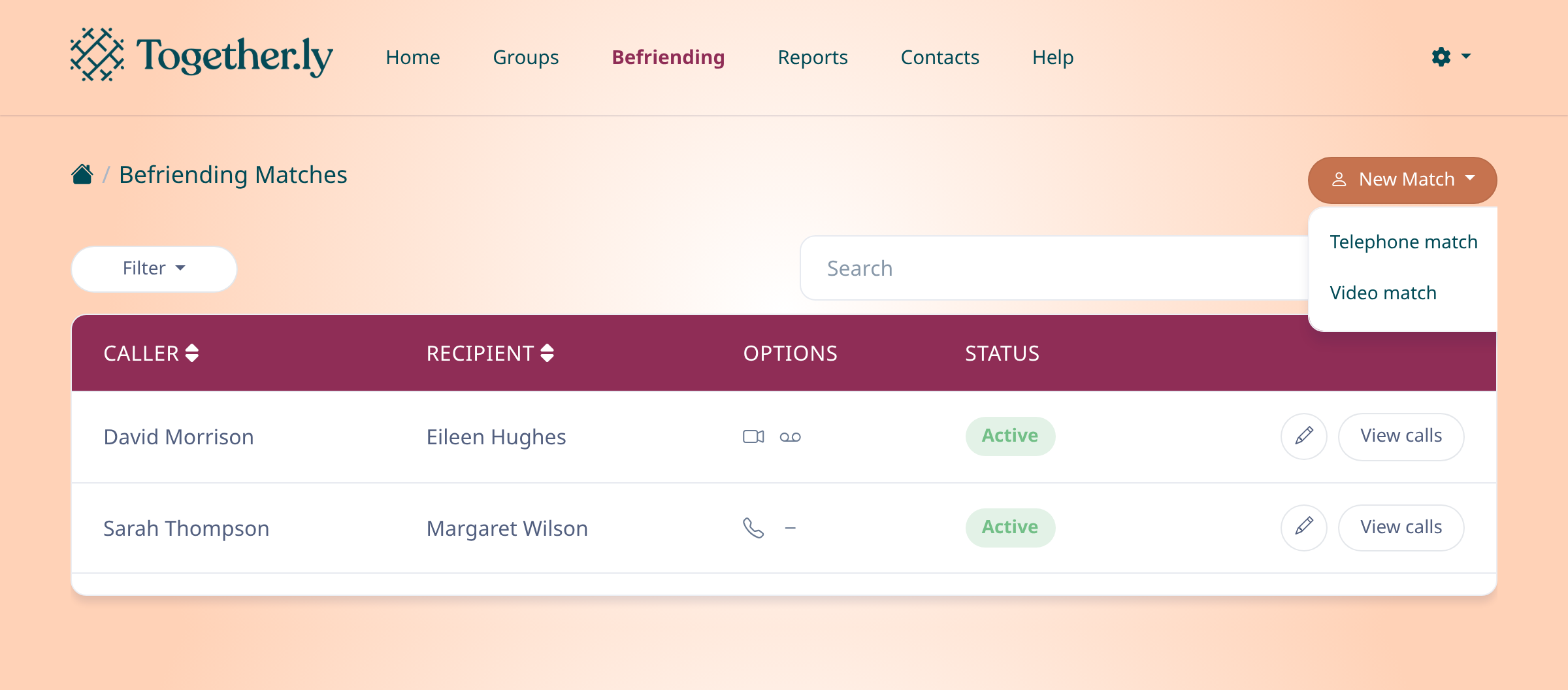
Go to Befriending in the navigation bar. Click the New Match button in the top-right corner, then select Video match from the dropdown.
Select the caller and recipient
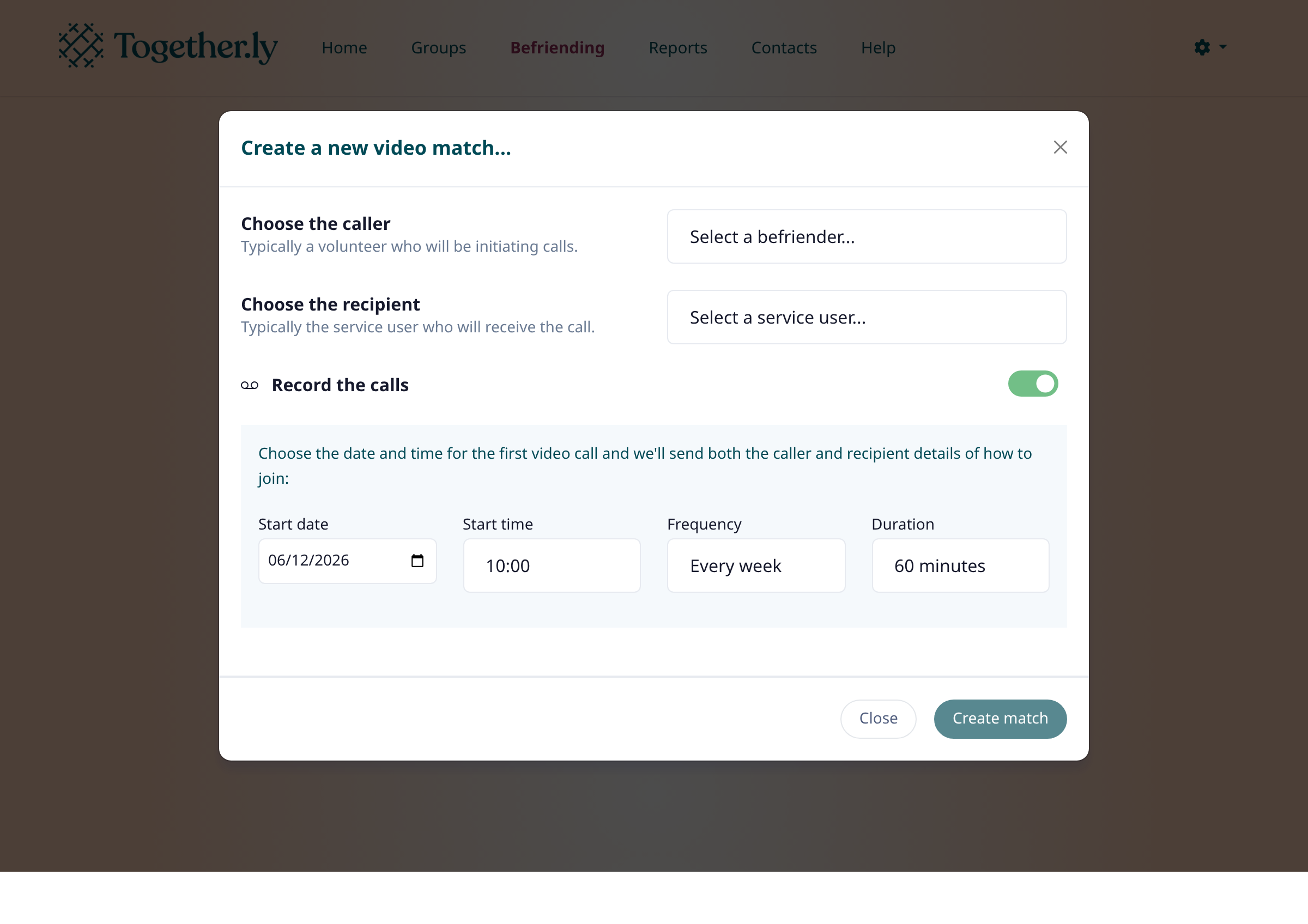
In the modal that appears, choose the befriender from the Choose the caller dropdown and the service user from the Choose the recipient dropdown.
Set the schedule and create the match
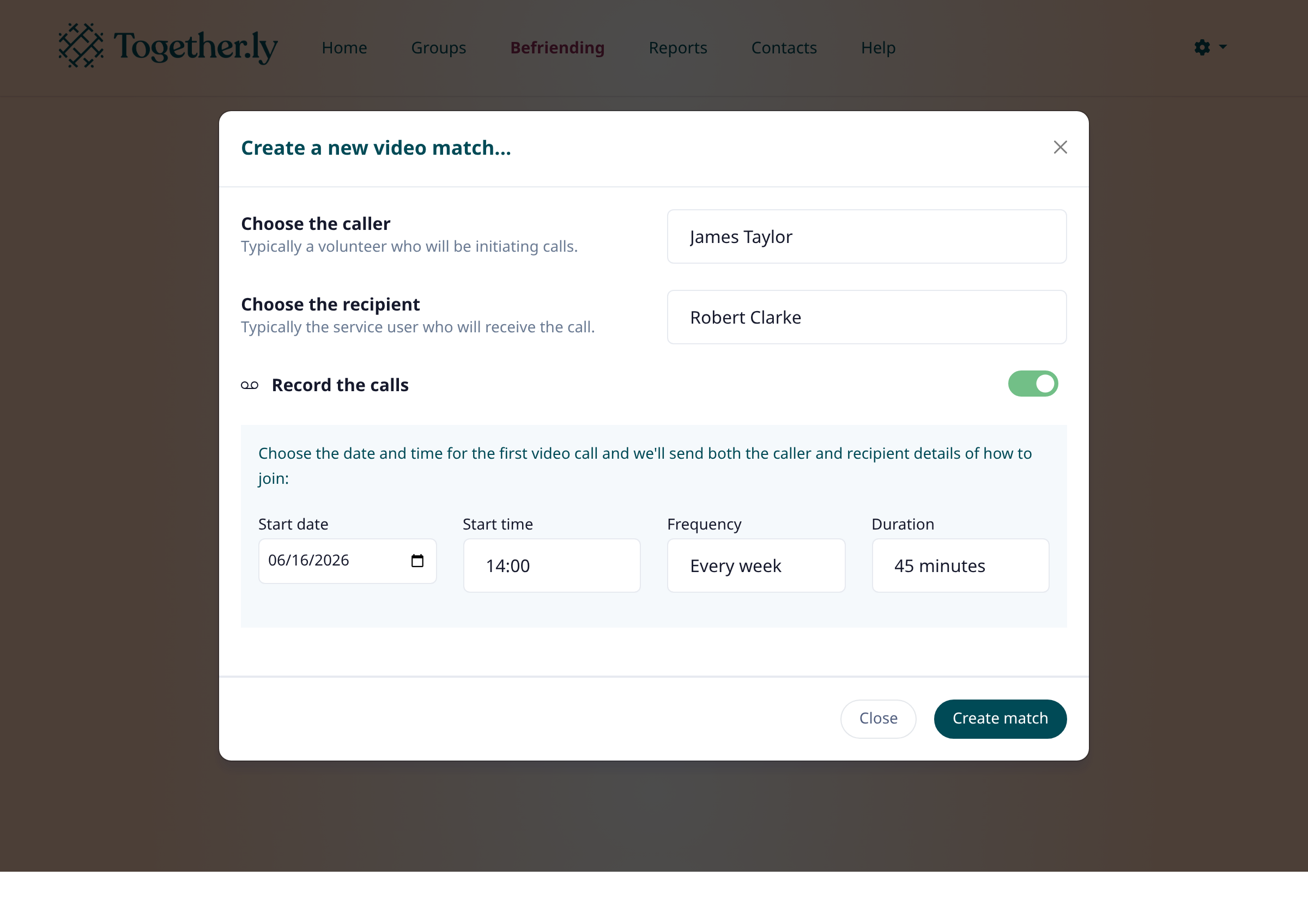
Pick the Start date, Start time, Frequency (weekly, fortnightly, etc.), and Duration for the calls. Click Create match to save. Both contacts will receive an email with details of how to join their first session.
Tips
- Only contacts with email addresses appear in the dropdowns, since video calls require an email invitation.
- You can change the schedule or deactivate a match at any time by clicking the pencil icon next to it.
Summary
Your video befriending match is now set up. Both the befriender and service user will receive calendar invitations, and the sessions will appear automatically in your Groups calendar.
Was this article helpful?
Made by supportpages.io — turning pull requests into automated user documentation.
Have a question?
Search our articles, or ask and get an answer straight away.