
How to export report data to CSV
Updated 10 months ago
Browse All
Export your impact report data as a CSV file that you can open in Excel, Google Sheets, or other spreadsheet applications. This is useful for creating custom analyses, sharing data with funders, or including figures in grant applications.
Prerequisites
- You must be logged in to your Togetherly account
- You need permission to view reports for your organization
Steps
Navigate to the Impact Report
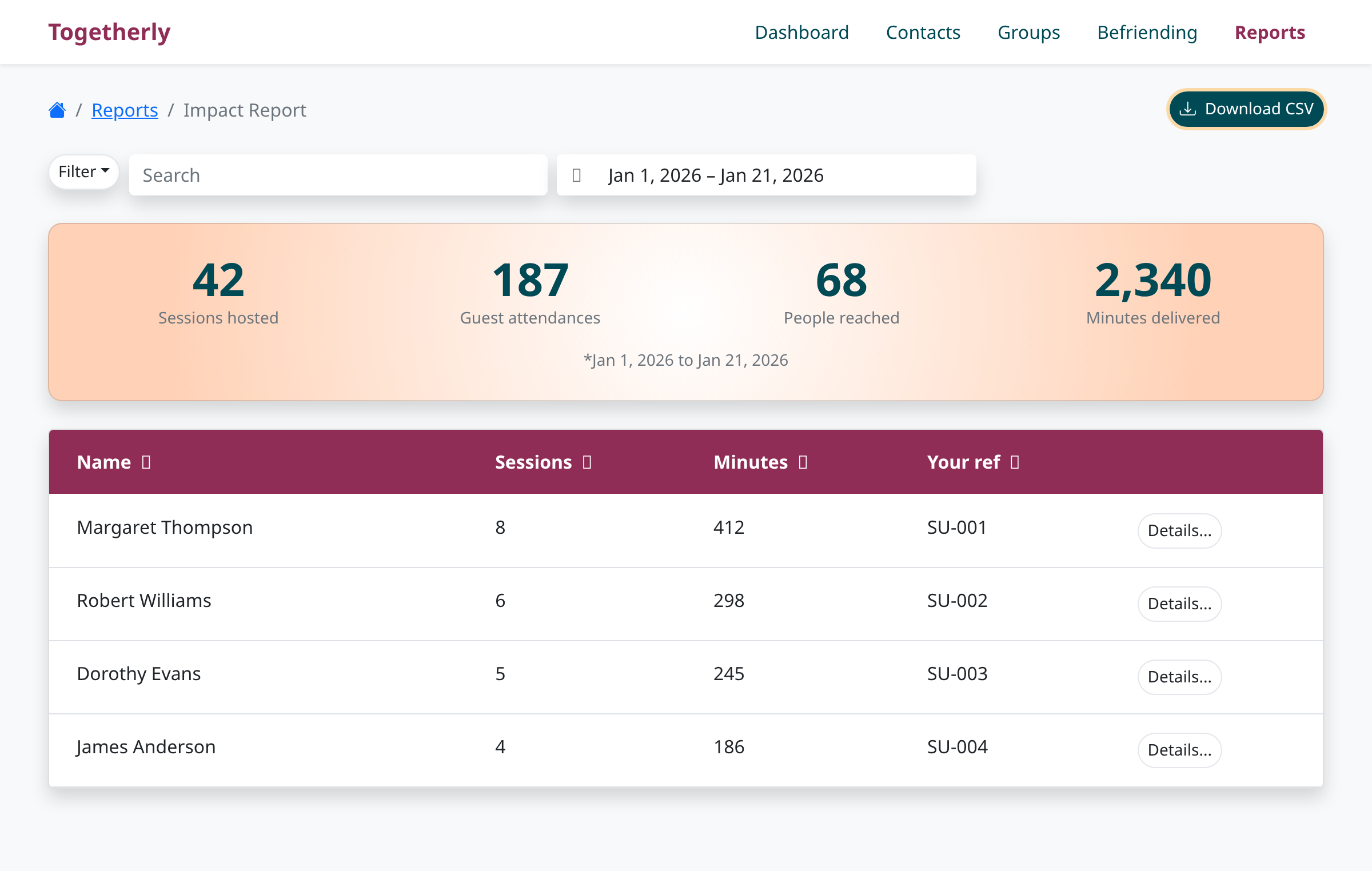
From the main navigation, click on Reports to open the Reports dashboard. Then click the View button on the Impact Report card to open the detailed impact report. You'll see summary metrics at the top along with a table listing participant activity.
Set your date range (optional)
Before downloading, you can adjust the date range to include only the time period you need. Click on the date picker field with the calendar icon and select your desired start and end dates. The report will refresh to show activity within your selected timeframe. This date range will be reflected in the exported file.
Click the Download CSV button
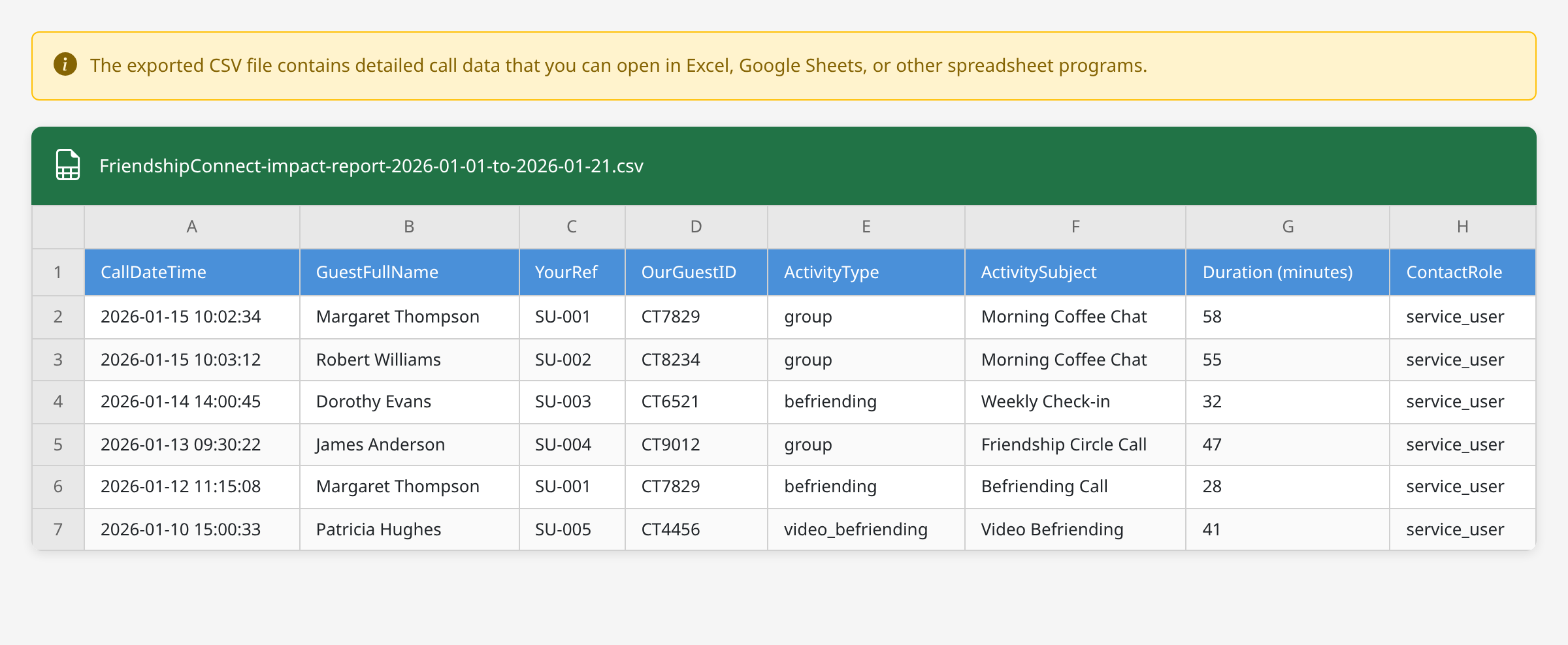
In the top-right corner of the Impact Report page, click the Download CSV button. The file will automatically begin downloading to your computer. The filename includes your organization name and the selected date range (for example, 'FriendshipConnect-impact-report-2026-01-01-to-2026-01-21.csv').
Open the file in a spreadsheet application
Locate the downloaded CSV file in your Downloads folder and open it with Excel, Google Sheets, or another spreadsheet program. The file contains detailed call records with columns including: call date and time, participant name, your reference code, Togetherly guest ID, activity type (group, befriending, or video befriending), session subject, call duration in minutes, and contact role.
Use the data for analysis and reporting
You can now sort, filter, and analyze the data using your spreadsheet application's features. Common uses include creating pivot tables to summarize participation by time period, calculating total engagement hours for funding reports, or merging with other datasets using your reference codes.
Tips
- If your organization has mood analysis enabled, the CSV will include an additional Mood column showing the AI-detected emotional state for each call
- Use filters on the Impact Report page before downloading if you only want to include certain activity types (Groups or Befriending) in your export
- Save the exported file with a descriptive name and date so you can easily track historical data over time
Summary
You can now export your impact report data as a CSV file for use in external spreadsheets and reports. This feature helps you maintain records for funders and perform custom analyses of your service delivery.
Was this article helpful?
Made by supportpages.io — turning pull requests into automated user documentation.
Have a question?
Search our articles, or ask and get an answer straight away.