
How to sort and export the Safeguarding Report
Updated about 2 months ago
Browse All
The Safeguarding Report lists every call your AI analysis has flagged, which can add up quickly. Grouping the calls by match or by day — and putting the busiest or most concerning groups first — makes the list easy to work through, and you can take the whole report away as a CSV file when you need to share it or keep it on record.
Prerequisites
- Your plan includes conversation analysis — the Safeguarding Report and its CSV export are only available on those plans.
- Safeguarding analysis is switched on and has flagged at least one call in the period you want to review.
- You can sign in to your account and open its Reports area.
Steps
Open the Safeguarding Report
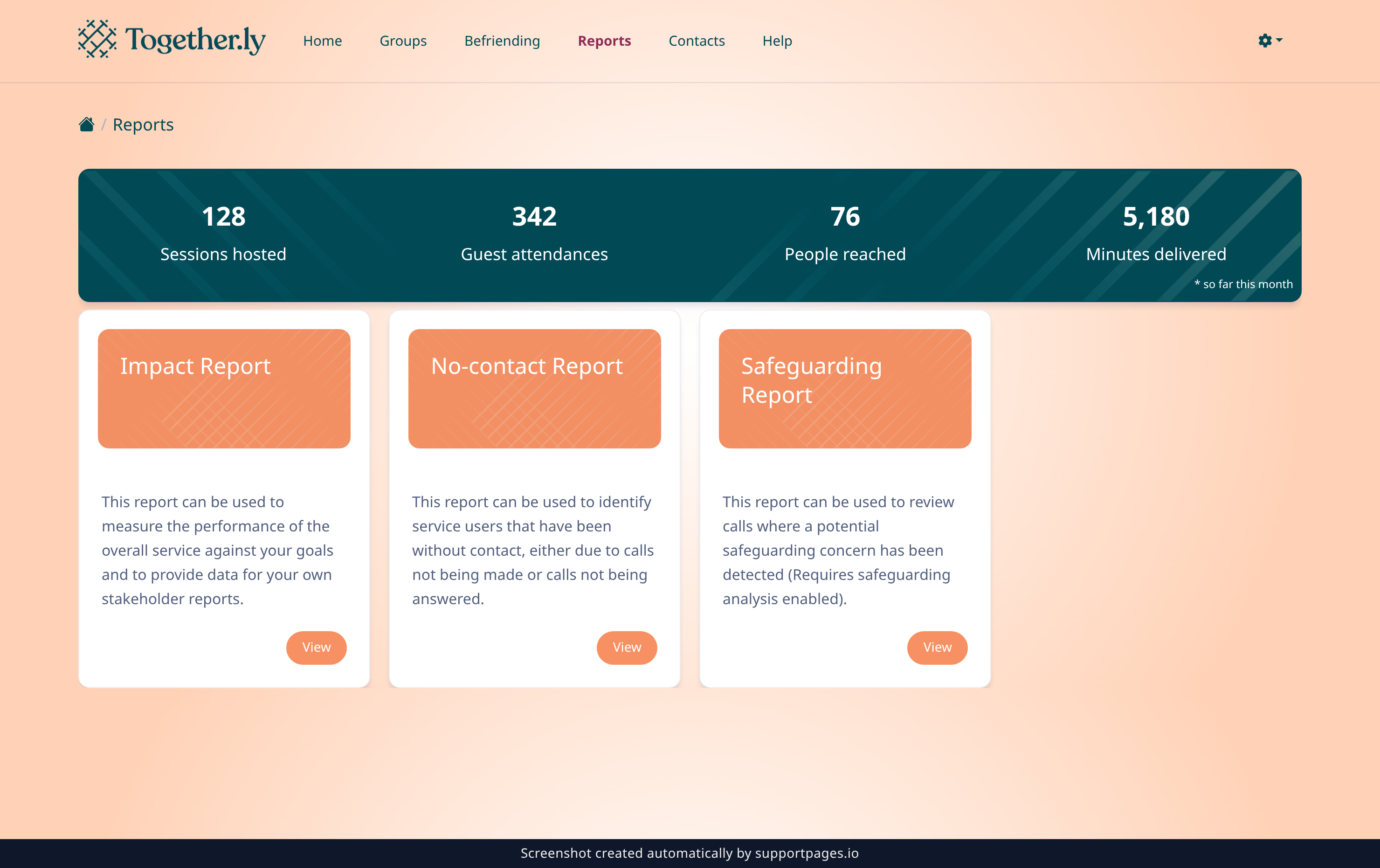
In the top navigation, select Reports. On the Reports page, find the Safeguarding Report card and select View.
Group the flagged calls
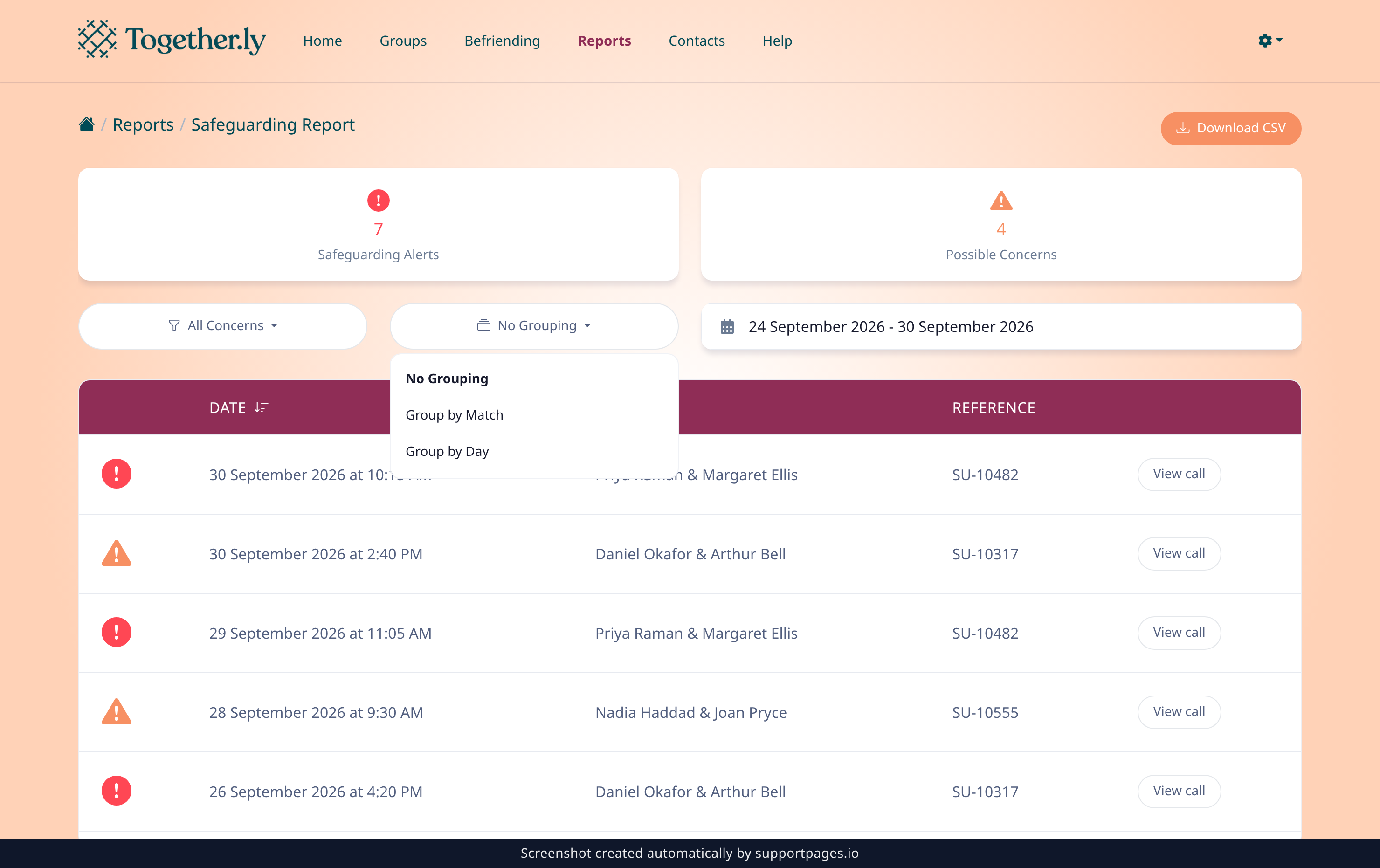
Open the menu that currently reads No Grouping and choose Group by Match to gather flagged calls by the people on the call, or Group by Day to gather them by the date they happened. Each group then appears as its own heading, with a count of the calls inside it.
Choose the order the groups appear in
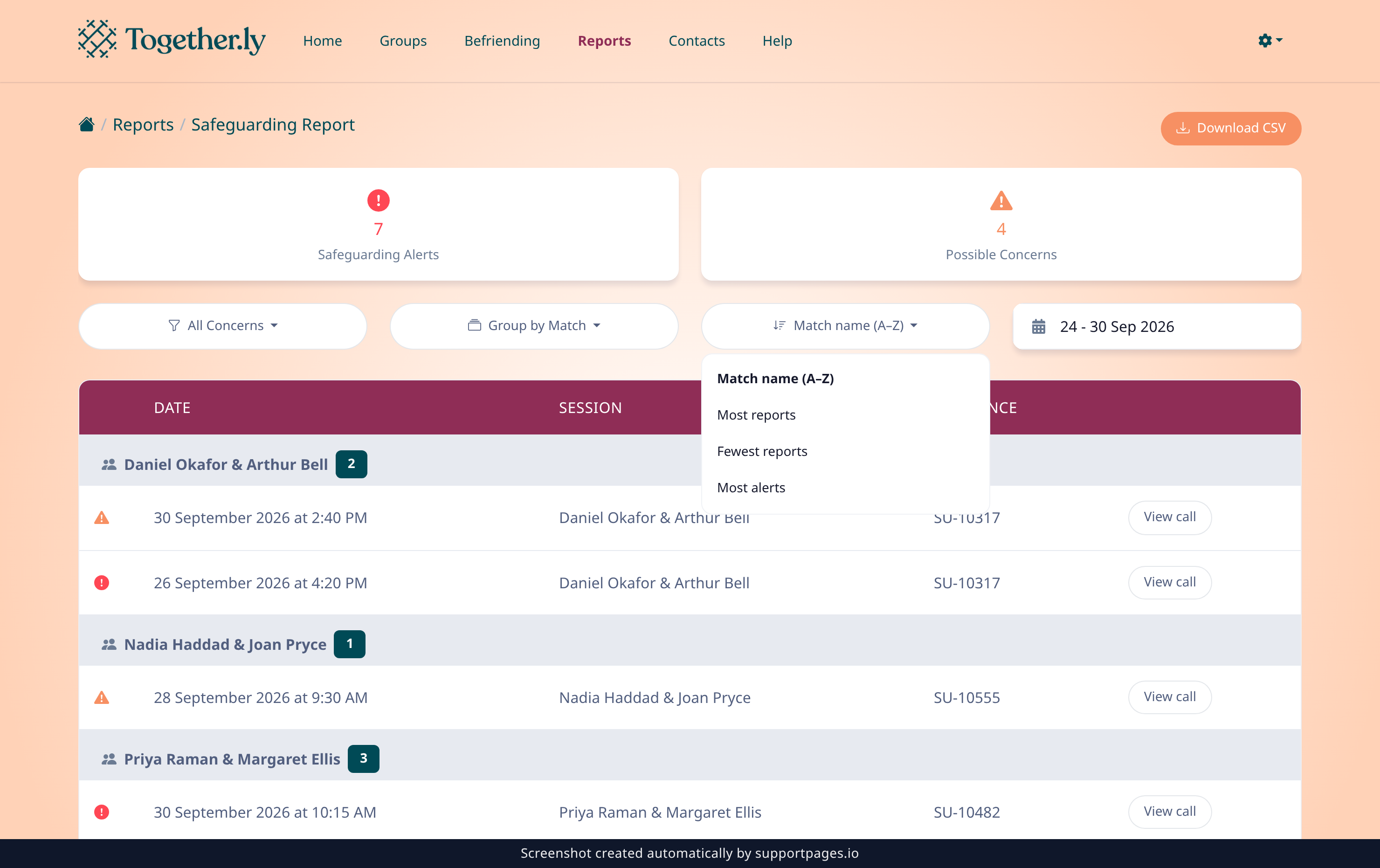
Once the report is grouped, a Sort groups by menu appears beside the grouping menu. Choose Most reports, Fewest reports or Most alerts to reorder the groups; leaving it on Match name (A–Z) — or Newest day first for daily groups — keeps the familiar order. The sort is applied to the whole report before it is split into pages, so your biggest or most concerning groups land on the first page.
Download the report as a CSV
Select Download in the top-right corner of the report. Your browser saves a CSV file containing every flagged call in the current date range and filter, in exactly the order shown on screen. Each row carries the call date and time, the concern level, the reason the AI flagged it, the caller and recipient, your reference, the guest and match IDs, and a link straight to the call summary.
Tips
- Your choice of sort is kept as you change the date range, the concern filter, the grouping or the page, so you can compare the same view across different weeks.
- The report covers the last seven days by default — the Date range box in the filter row shows what the export will cover.
- Leaving the sort on Most alerts is a quick way to put the calls needing the closest attention at the top of your review.
- Reason text written by the AI is exported as plain text, so the file opens safely in Excel or Google Sheets.
Summary
Group the report, pick the order you want the groups in, then download the CSV — you now have a shareable record of every flagged call in the period.
Was this article helpful?
Written with supportpages.io. More on documentation automation on our blog.
Have a question?
Search our articles, or ask and get an answer straight away.