
How to view call transcripts
Updated 10 months ago
Browse All
This guide explains how to access and read the full automated transcription of a recorded befriending or group session, allowing you to review everything that was discussed during the call.
Prerequisites
- Recording transcripts must be enabled in your account settings
- The session must have been recorded
- The recording must have finished processing (transcription takes a few minutes after the call ends)
Steps
Navigate to the befriending match
From the main menu, select Befriending to view your list of matches. Find and click on the befriending pair whose call you want to review. This will open the call history for that match.
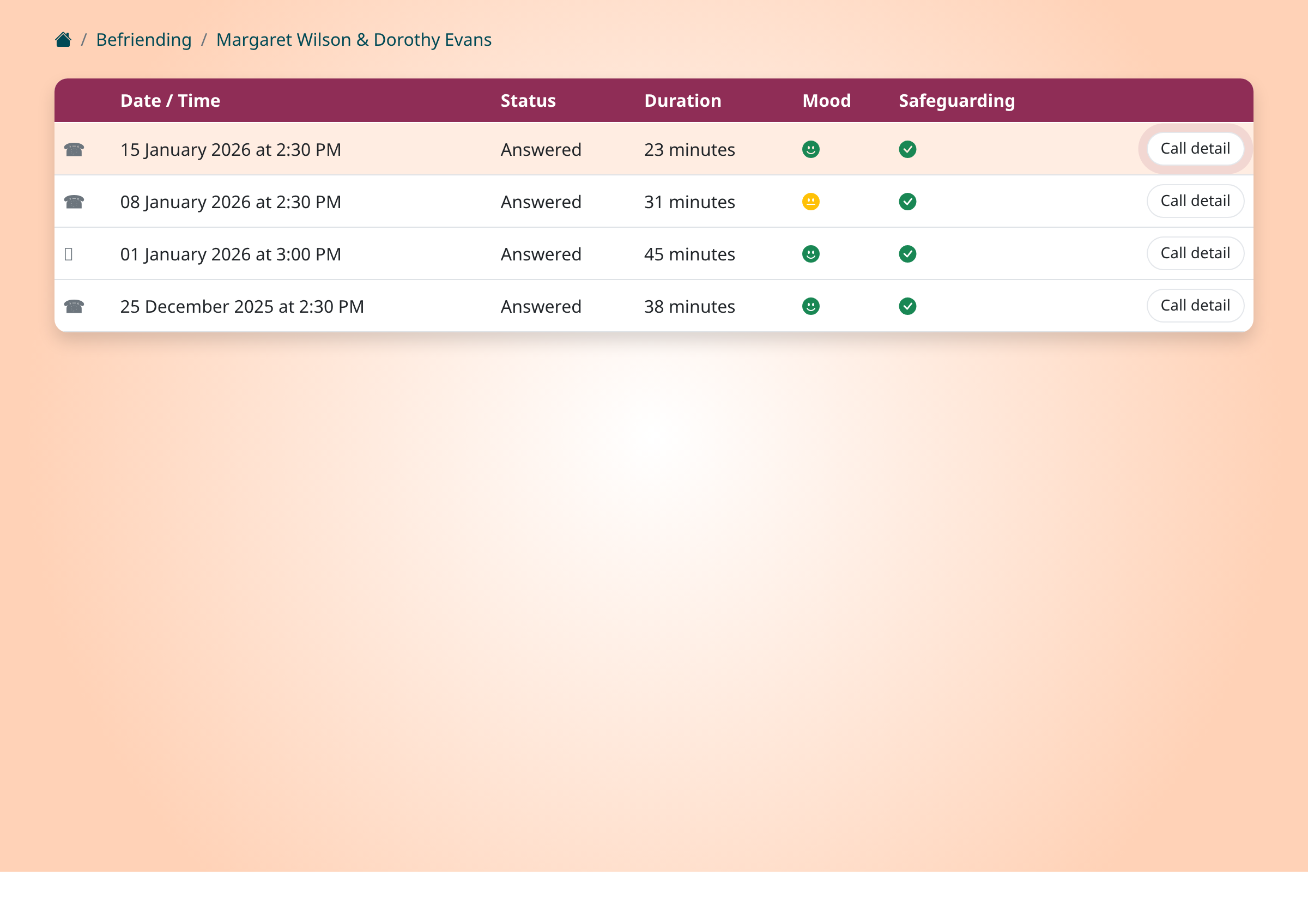
Select a call from the history
The call history displays all calls between the befriending pair, showing the date, time, status, and duration of each call. Calls that have been recorded and transcribed will also show mood and safeguarding indicators. Click the Call detail button next to the call you want to review.
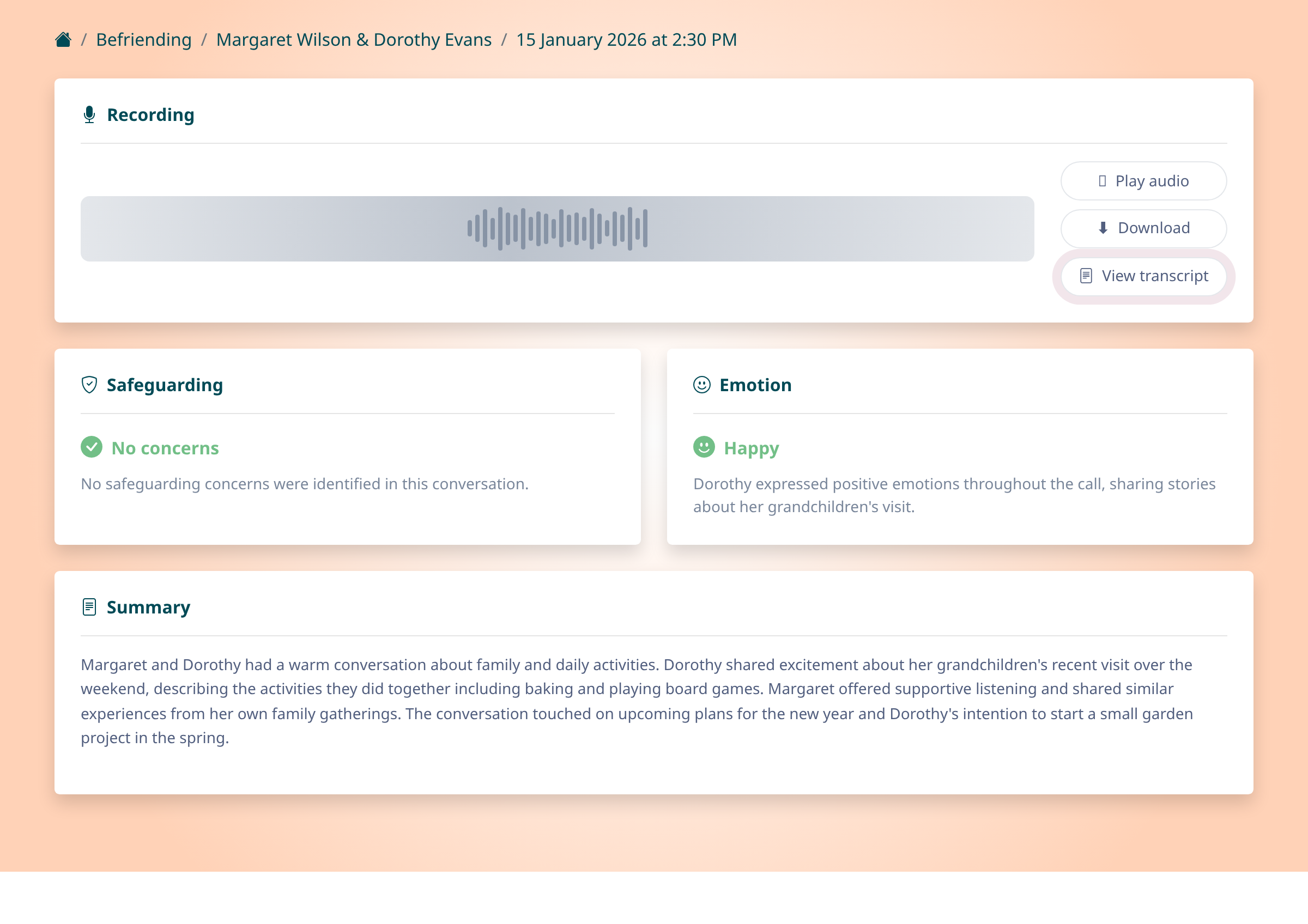
Open the transcript viewer
On the call detail page, you'll see the recording section at the top with audio playback controls. If a transcript is available, you'll see a View transcript button alongside the play and download options. Click View transcript to open the full text of the conversation.
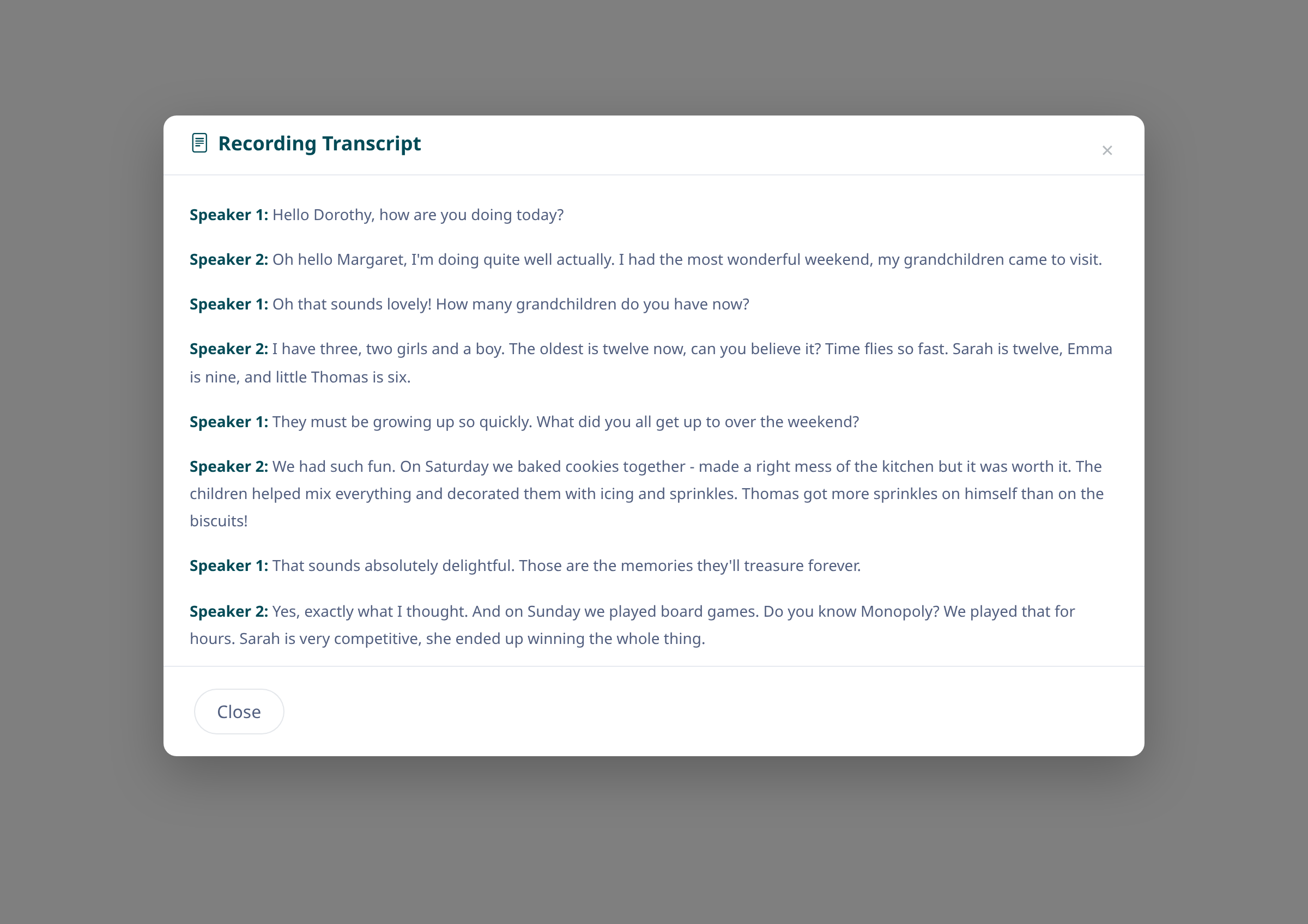
Read the full transcript
The transcript opens in a pop-up window showing the complete text of the recorded conversation. The transcript displays speaker labels (Speaker 1, Speaker 2, etc.) to help you follow who said what. You can scroll through the entire conversation to review what was discussed.
Close the transcript when finished
When you've finished reading the transcript, click the Close button at the bottom of the window or the X in the top corner to return to the call detail page. You can always reopen the transcript later if needed.
Tips
- Transcripts are automatically generated using speech recognition technology, so occasional errors may occur with names or unusual words
- The transcript feature must be enabled in your account settings under the conversational analysis section
- For privacy reasons, access to transcripts may be logged in your account's audit trail
- If you need to reference a specific part of a call, consider using the summary section for a quick overview before diving into the full transcript
Summary
You can now view the complete transcript of any recorded session by navigating to the call detail page and clicking View transcript. This feature helps you review conversations in detail without having to listen to the entire recording.
Was this article helpful?
Built with supportpages.io — an AI documentation generator.
Have a question?
Search our articles, or ask and get an answer straight away.