
How to copy a link for an attendees video group session
Updated 9 months ago
Browse All
This guide explains how to copy a unique join link for any attendee in your video group session, allowing you to share it directly with participants via your preferred communication method.
Prerequisites
- You must have a scheduled video group session with at least one participant added
- The participant must be set to join via video (not via phone dial-out)
Steps
Open your scheduled session
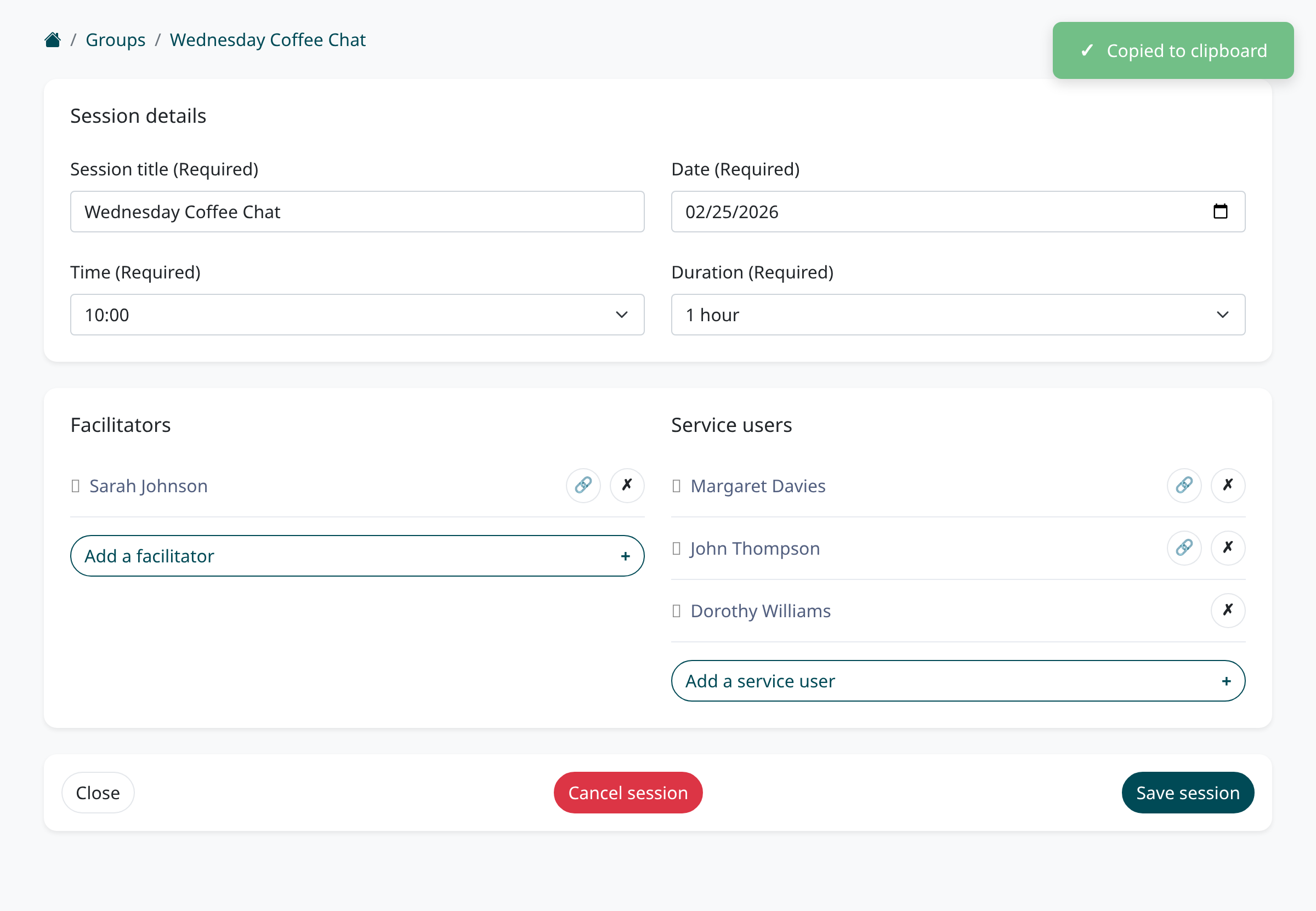
From your dashboard, go to the Groups section in the navigation menu. Find the session you want to manage and click on it to open the session details page. You will see the list of facilitators and service users who have been added to the session.
Locate the link button for the attendee
In the participant list, look for the attendee whose link you want to copy. Next to each participant who is joining via video, you will see a small link icon button (chain link symbol) to the left of the remove button. This button only appears for participants who have a video join link — it will not appear for those set to receive a phone call.
Click the link button to copy
Click the link icon button next to the participant's name. The unique join link for that attendee is immediately copied to your clipboard. A green confirmation message saying 'Copied to clipboard' will briefly appear in the top-right corner of the screen to confirm the action was successful.
Share the link with the attendee
You can now paste the copied link into an email, text message, or any other communication channel you use to contact the participant. The link is unique to that specific attendee and session, so they can use it to join the video call directly in their web browser without needing to enter a PIN or other credentials.
Tips
- Each participant has their own unique link — never share one person's link with another participant as it is tied to their identity
- If you do not see a link button for a participant, check that they are set to join by video rather than by phone dial-out
- You can copy links for both facilitators and service users using the same method
Summary
You have learned how to copy personalised join links for attendees in your video group sessions. This is useful when you need to send joining details through channels other than the automatic email invitations that Togetherly sends.
Was this article helpful?
Maintained by supportpages.io, a self-updating help centre for SaaS teams.
Have a question?
Search our articles, or ask and get an answer straight away.