
How to review audit logs
Updated 10 months ago
Browse All
Audit logs provide a complete history of actions taken by team members in your account, helping you maintain security, track changes, and ensure compliance with organizational policies.
Prerequisites
- You must be an administrator to access audit logs
- Your account must have the Conversational Analysis plan or higher
Steps
Navigate to the Settings area
Click on your account name or the settings icon in the navigation menu to access the Settings section of Togetherly.
Select Audit Log from the settings menu
In the left sidebar, you'll see a menu with several options including Team, Account Settings, Integrations/API, and Audit Log. Click on the 'Audit Log' option to view the activity history. The menu item shows a document icon and describes it as 'View all account activity.'
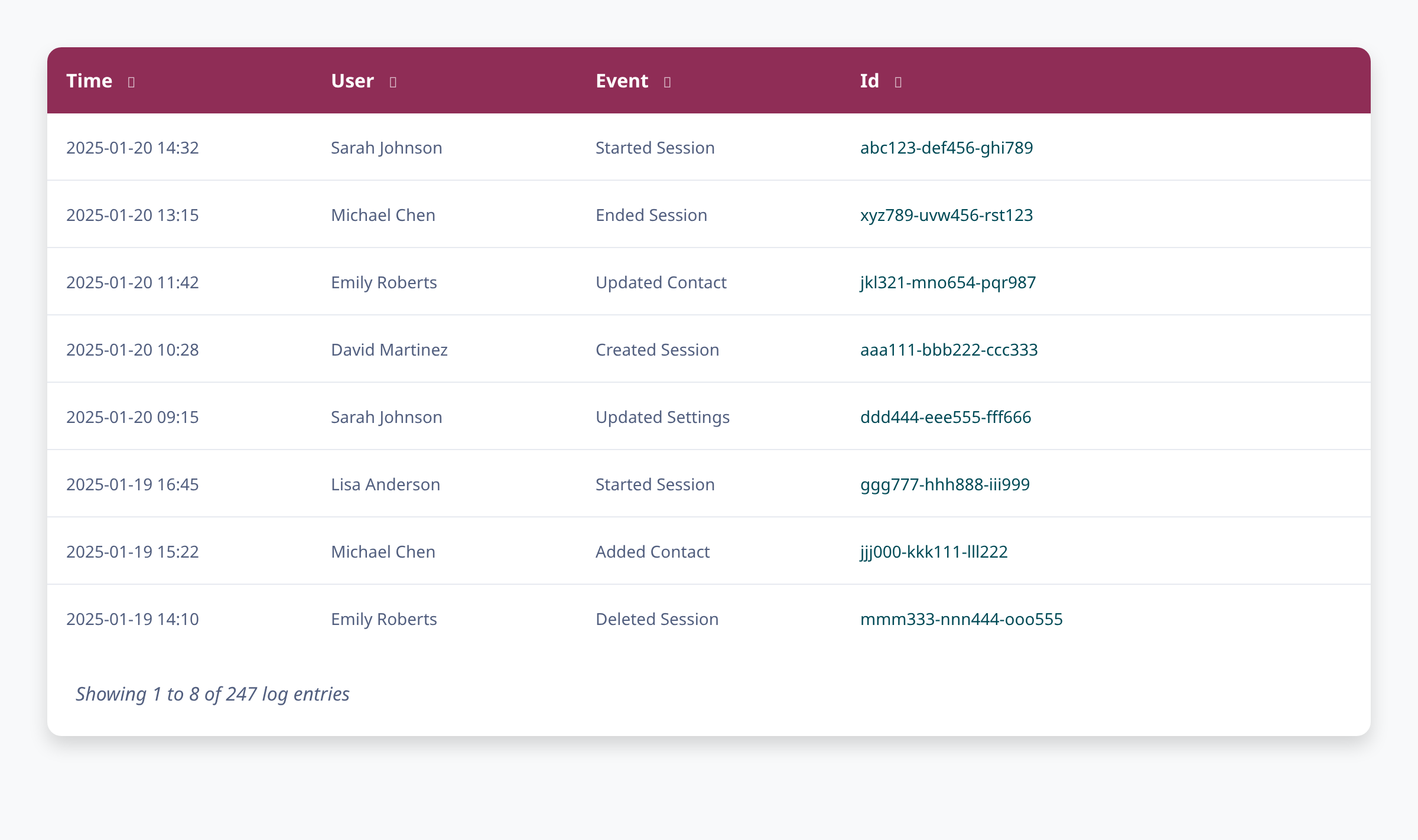
Review the activity log entries
The audit log displays a table showing all account activity. Each entry includes four columns: Time (when the action occurred), User (the team member who performed the action), Event (what action was taken), and Id (a unique identifier that links to more details). The table automatically shows the most recent activities first, with timestamps in your local timezone.
Sort and filter the log entries
Click on any column header (Time, User, Event, or Id) to sort the entries by that column. The small arrow icon next to each header indicates you can click to change the sort order. This helps you find specific activities or identify patterns in how your team is using the platform.
View detailed information about an event
Click on the blue link in the Id column to view complete details about a specific event. This will take you to a page showing the full context of that action, such as which session was modified, what contacts were involved, or what settings were changed.
Tips
- Audit logs are retained according to your account's data retention policy. Older entries may be archived or removed based on your plan.
- Use the audit log regularly to review team activity, especially after onboarding new team members or making significant changes to your account.
- The audit log tracks important actions like starting sessions, modifying contacts, changing settings, and managing befriending matches. It does not log every page view or minor interaction.
Summary
By regularly reviewing your audit log, you can maintain visibility into all account activities, identify any unauthorized changes, and ensure your team is following proper procedures. The log provides a permanent record for compliance and security purposes.
Was this article helpful?
Built with supportpages.io — an AI documentation generator.
Have a question?
Search our articles, or ask and get an answer straight away.