
How to set up recurring weekly sessions
Updated 10 months ago
Browse All
This guide shows you how to create sessions that automatically repeat at regular intervals, saving you time by eliminating the need to schedule each occurrence manually.
Prerequisites
- You must be logged in as a facilitator or administrator
- You need to know which group type you want to create (telephone, video, or public)
Steps
Navigate to create a new group
From the main navigation menu, click on Groups. Then click the 'New Group' button in the upper right corner and select the type of group you want to create (Private Telephone Group, Public Telephone Group, or Video Group).
Enter your session details
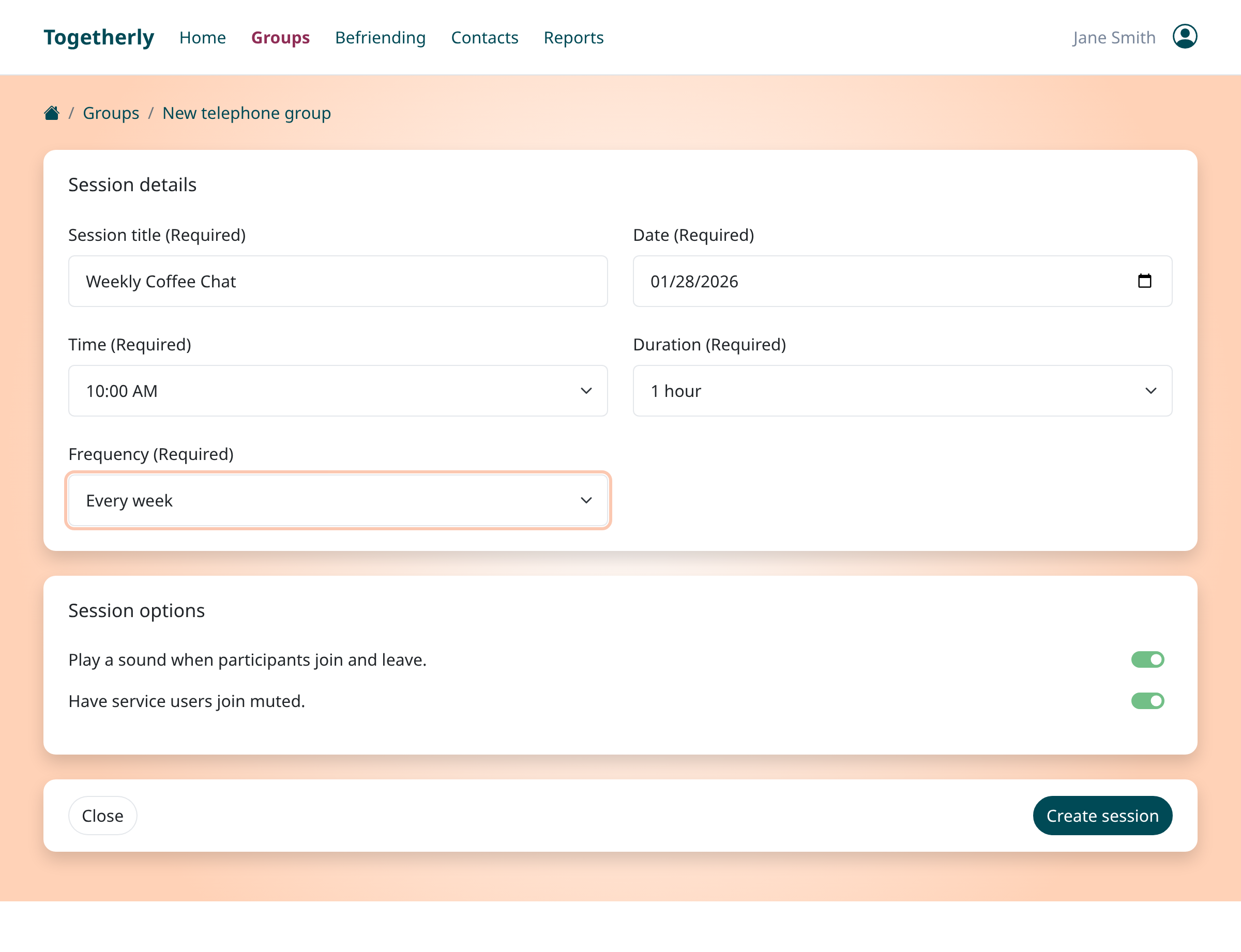
Fill in the required fields: enter a descriptive session title (like 'Weekly Coffee Chat'), select the date for the first occurrence, choose a start time, and set the duration of your session.
Select the weekly frequency
In the Frequency dropdown, select 'Every week' to have your session repeat automatically at the same time each week. You can also choose 'Every 2 weeks', 'Every 3 weeks', or 'Every 4 weeks' depending on how often you want the session to recur. If you only want a one-time session, select 'Single session'.
Add facilitators and service users
Click 'Add a facilitator' to select team members who will run the session, and 'Add a service user' to invite participants. The people you add will automatically be included in all future occurrences of this recurring session.
Create the session
Review your settings, then click the 'Create session' button. Togetherly will automatically generate all the recurring sessions on your calendar for upcoming weeks.
View your recurring sessions
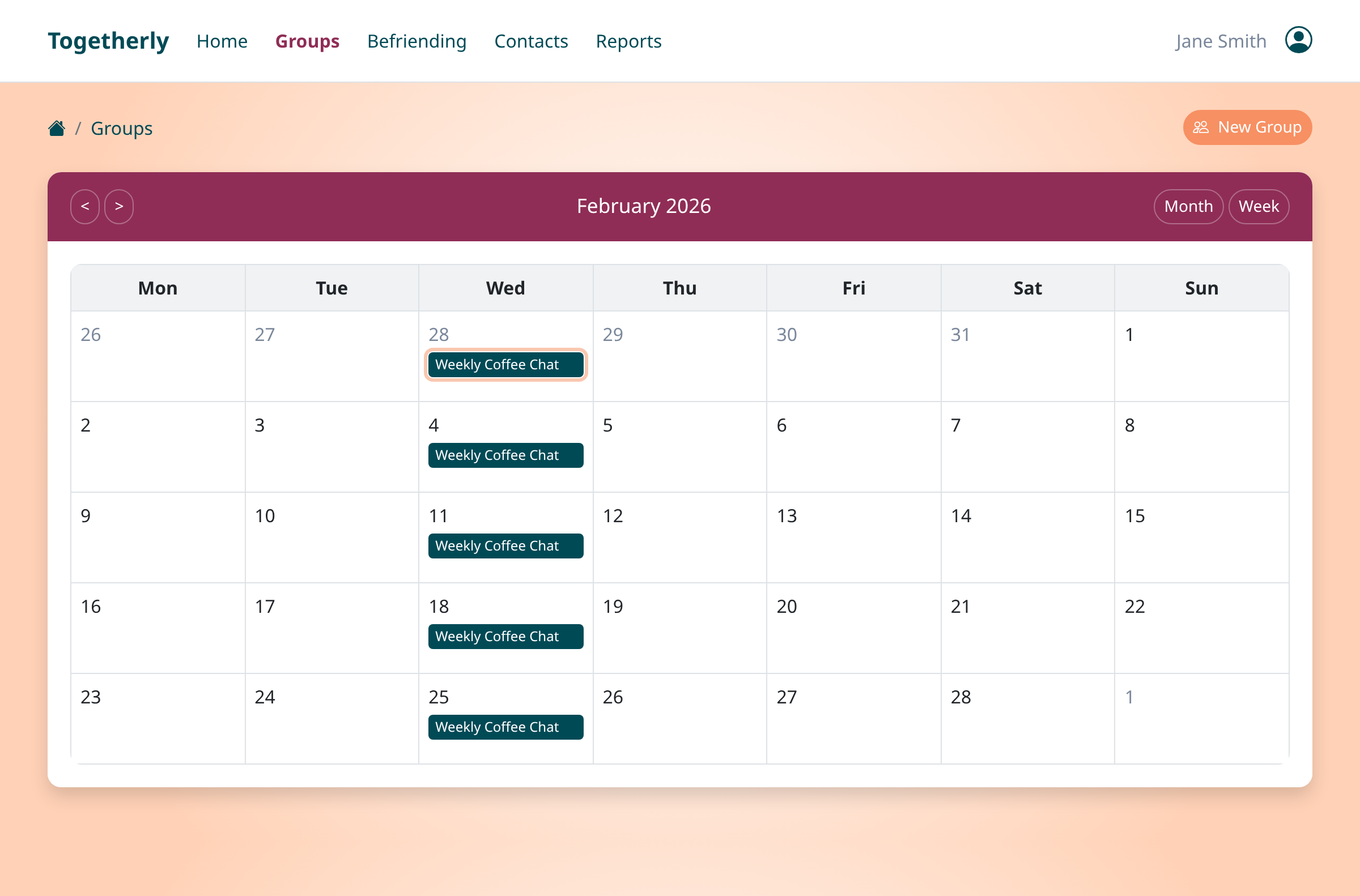
After creation, you'll see your recurring session appearing on multiple dates in your Groups calendar. Each occurrence is shown on the same day of the week, making it easy to identify the pattern.
Edit recurring sessions
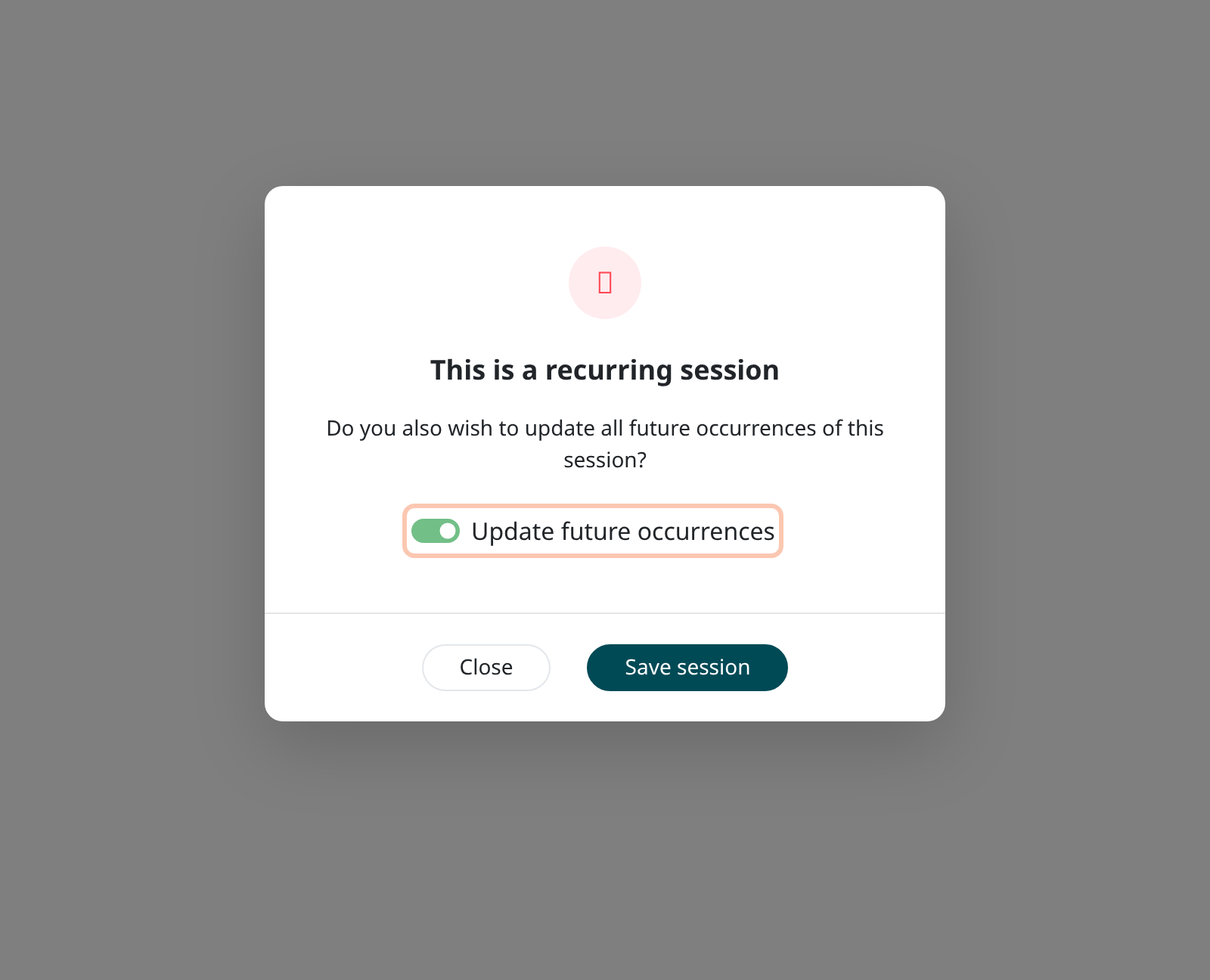
When you edit a recurring session and click Save, a dialog will appear asking if you want to update all future occurrences. Toggle 'Update future occurrences' on to apply your changes to the entire series, or leave it off to only modify the single session you selected.
Tips
- When you add or remove participants from a recurring session, you can choose to apply the change to all future sessions in the series
- You can cancel a single occurrence without affecting the rest of the series, or cancel all future occurrences at once
- Recurring sessions are generated well in advance, so your participants will see upcoming sessions in their calendars
Summary
Your recurring weekly session is now set up and will appear automatically on your calendar each week. Participants will be notified about each upcoming occurrence, and you can edit or cancel individual sessions or the entire series at any time.
Was this article helpful?
Built with supportpages.io — SaaS documentation software.
Have a question?
Search our articles, or ask and get an answer straight away.