
How to deactivate or reactivate team members
Updated 10 months ago
Browse All
This guide shows you how to deactivate team members who leave your organization while preserving their activity history, or reactivate them when they return.
Prerequisites
- You must be an account administrator to manage team members
- Navigate to Settings > Team to view your team member list
Steps
Locate the team member in your list
From the Settings menu, click on Team to view all team members. Active team members display a green "Active" badge, while inactive members show a red "Inactive" badge. Each team member row shows their name, email address, and current status.
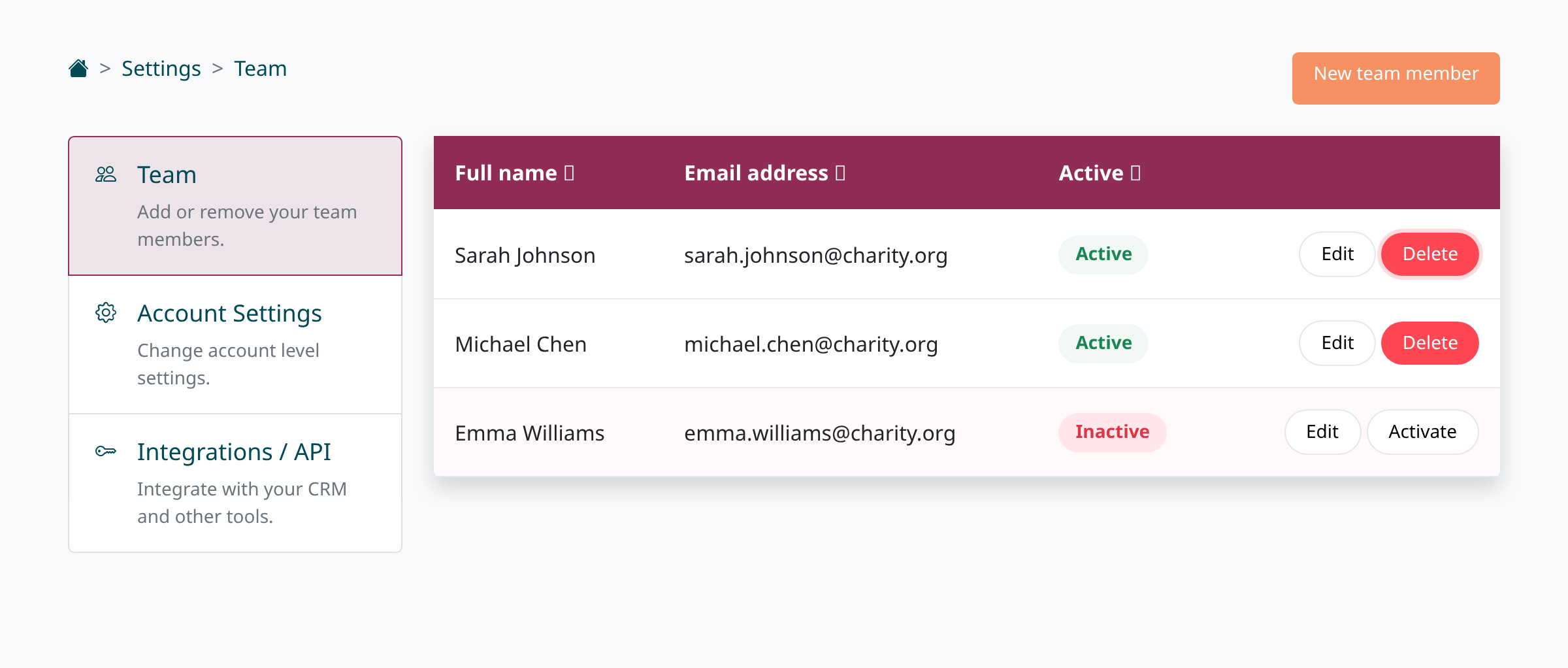
Click Delete to deactivate an active team member
Find the team member you want to deactivate in the list and click the red Delete button on their row. This opens a confirmation dialog to prevent accidental deactivation.
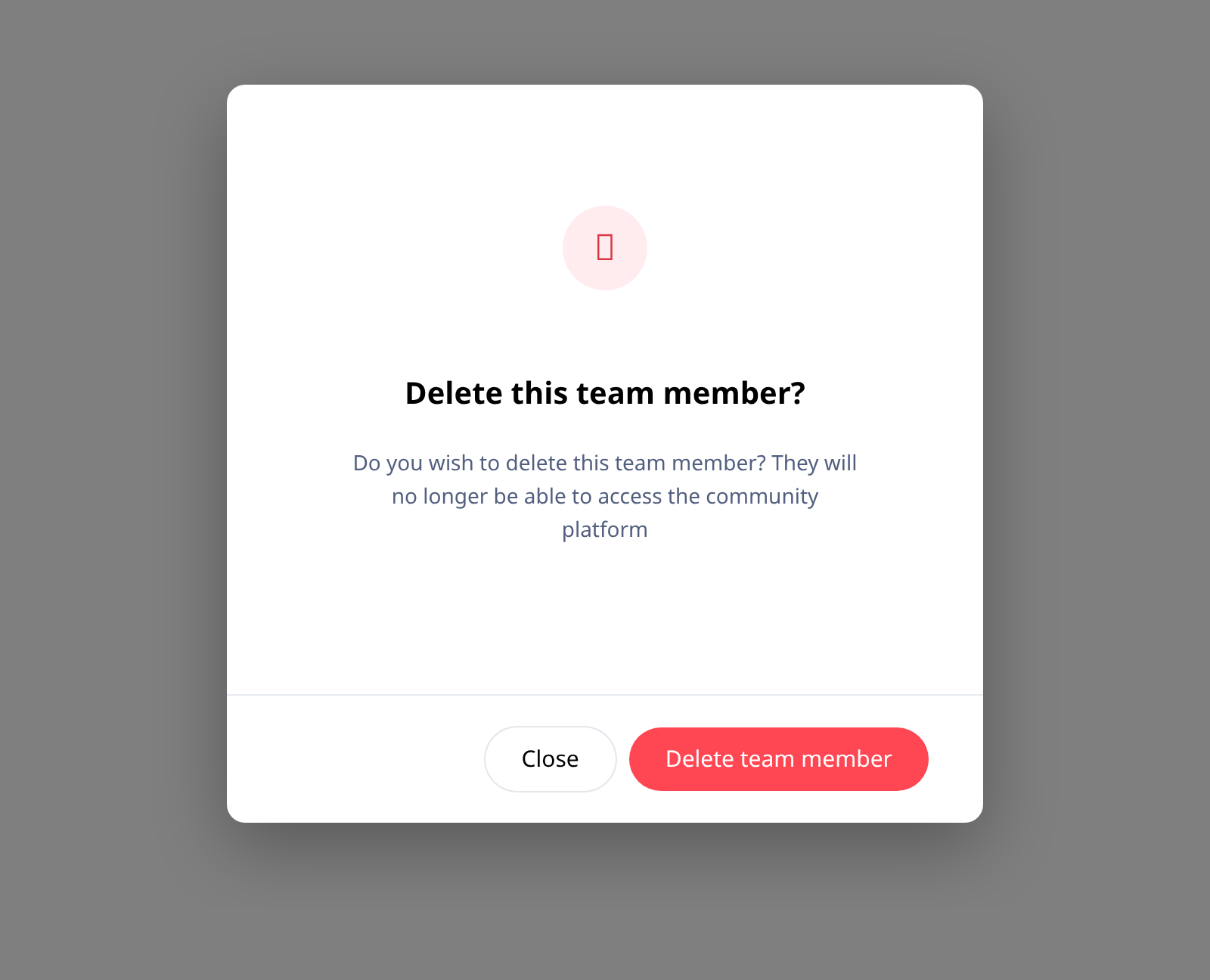
Confirm the deactivation
In the confirmation dialog, review the message explaining that the team member will no longer be able to access the platform. Click Delete team member to proceed, or click Close to cancel. Once deactivated, their status badge will change to Inactive and they will lose access to the platform immediately.
Reactivate a team member when needed
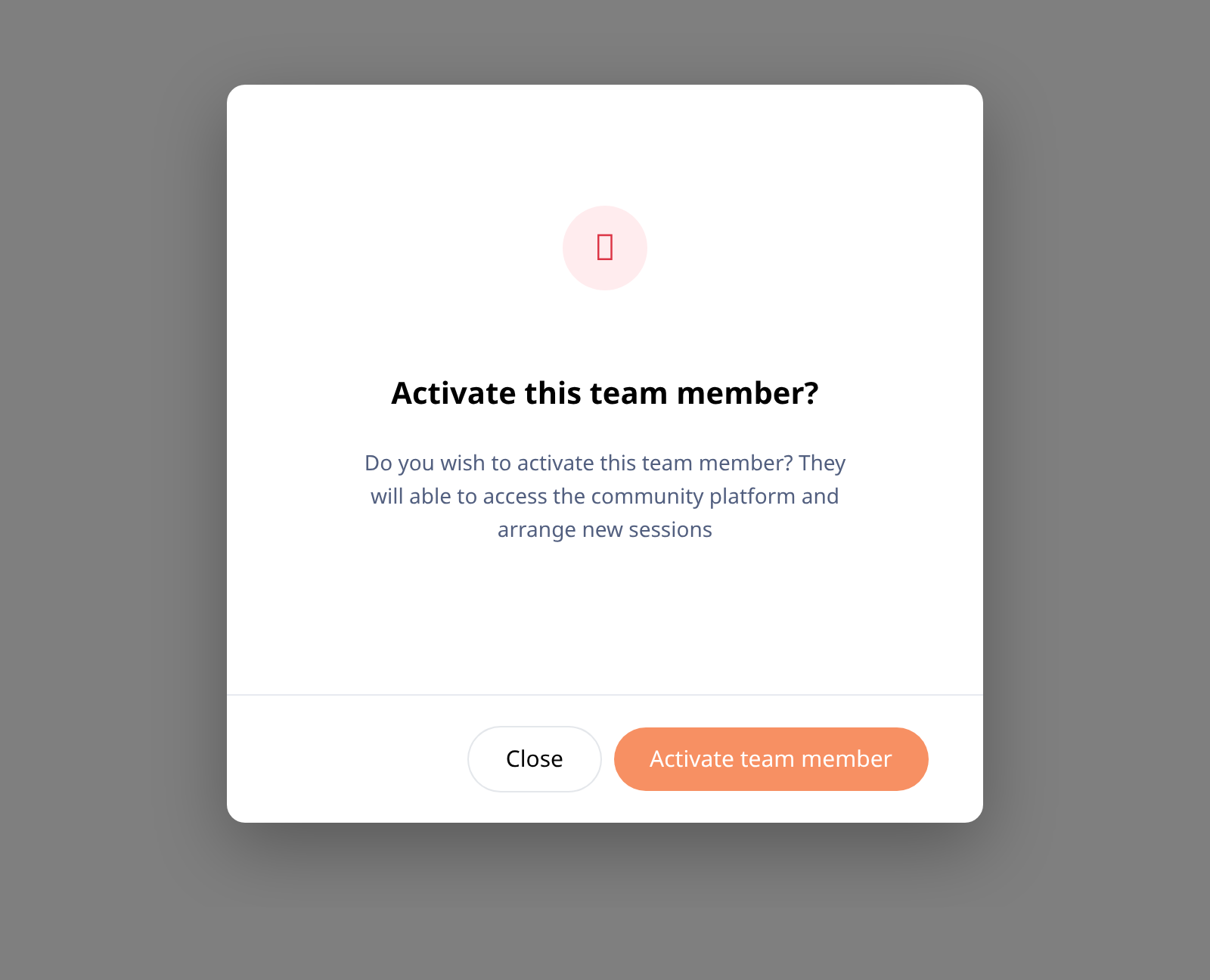
To restore access for a previously deactivated team member, find them in the team list (they will have an Inactive badge). Click the Activate button next to their name. In the confirmation dialog, review the message and click Activate team member to restore their access. Their status will change to Active and they can immediately log in and arrange sessions again.
Tips
- Deactivating a team member preserves all their historical data including past sessions, reports, and activity logs
- Inactive team members still count toward your account's team member limit until they are permanently deleted
- When you reactivate a team member, they retain their original permissions and roles from before deactivation
Summary
You can now manage team member access by deactivating members who leave while keeping their history intact, and reactivating them seamlessly when they return to your organization.
Was this article helpful?
Generated by supportpages.io, automating product documentation from your codebase.
Have a question?
Search our articles, or ask and get an answer straight away.