
How to join a session as a facilitator
Updated 10 months ago
Browse All
This guide walks you through joining a scheduled session as a facilitator in Togetherly, from opening the session link to connecting via video and using the in-call controls.
Prerequisites
- You must have a facilitator role on your Togetherly account
- A session must already be scheduled with you assigned as the facilitator
- A supported web browser (Chrome, Edge, or Firefox) with a working camera and microphone
Steps
Open your session link
When a session is scheduled, you will receive an email or notification with a link to join. Click the link to open the live call page in your browser. You can also find your upcoming sessions on the Volunteers page, where each session has a Join button. The session page will only allow you to enter within 15 minutes of the scheduled start time. If you arrive too early, you will see a waiting message showing when the session begins.
Allow camera and microphone access
When you open the session link for the first time, your browser will ask for permission to use your camera and microphone. Click Allow in the browser prompt that appears. If you accidentally deny access, you will see a message saying "Microphone and camera permission required" with a Request access button. Click it to try again. You may need to update your browser's site permissions to re-enable access.
Select your camera and microphone
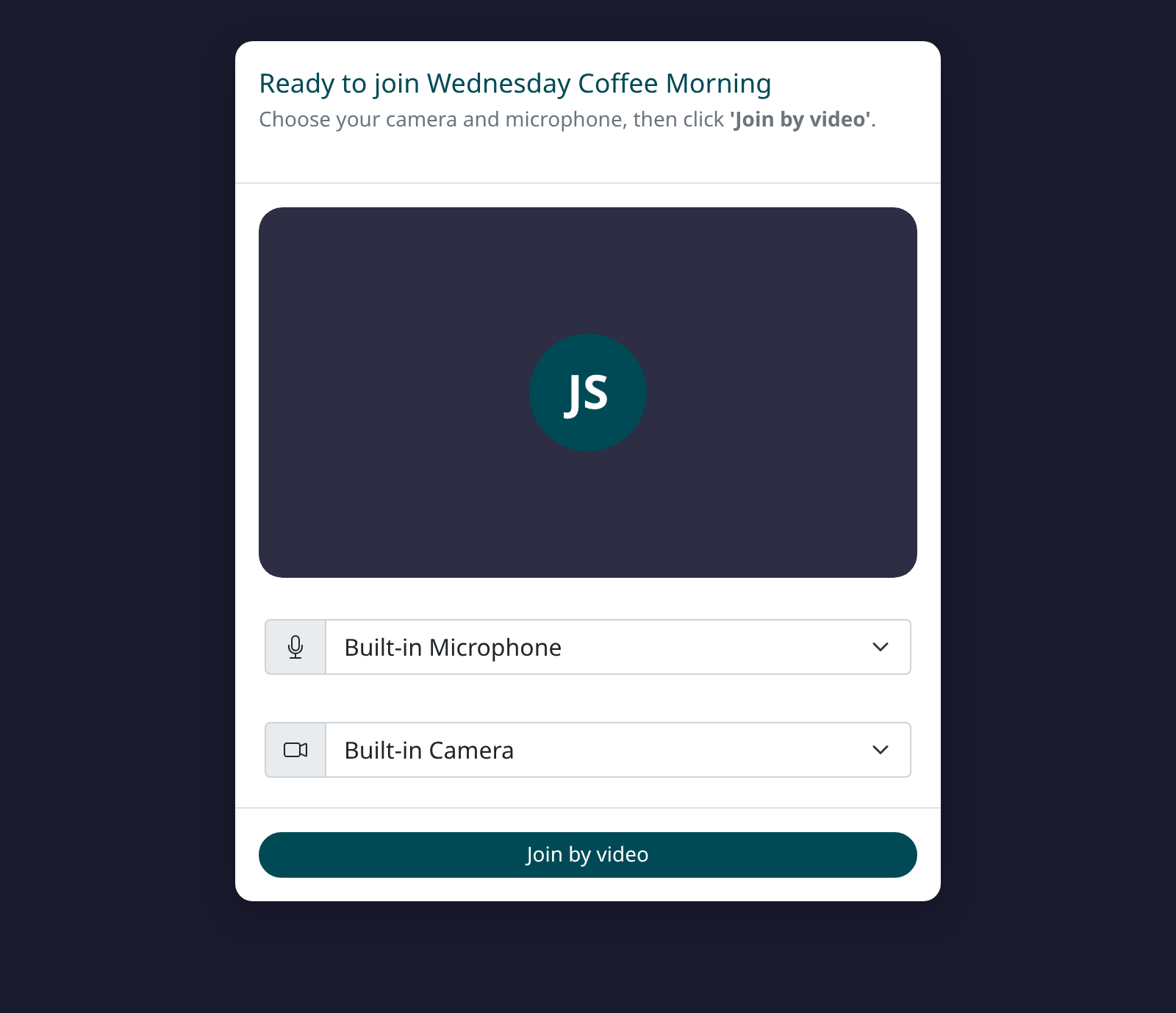
Once permissions are granted, you will see a preview of your camera feed along with two dropdown menus. Use the microphone dropdown (marked with a mic icon) to choose which microphone to use, and the camera dropdown (marked with a camera icon) to select your preferred camera. If you have only one of each, they will be selected automatically. Check the video preview to confirm your camera is working before joining.
Join the session
When you are happy with your camera and microphone selections, click the Join by video button at the bottom of the dialog. The button will show a loading indicator while the connection is established. Once connected, you will see the video grid with all participants' feeds displayed. As a facilitator, you also have the option to click Join by phone if you prefer to dial in, or View only to observe the session without joining as a participant.
Use the in-call controls
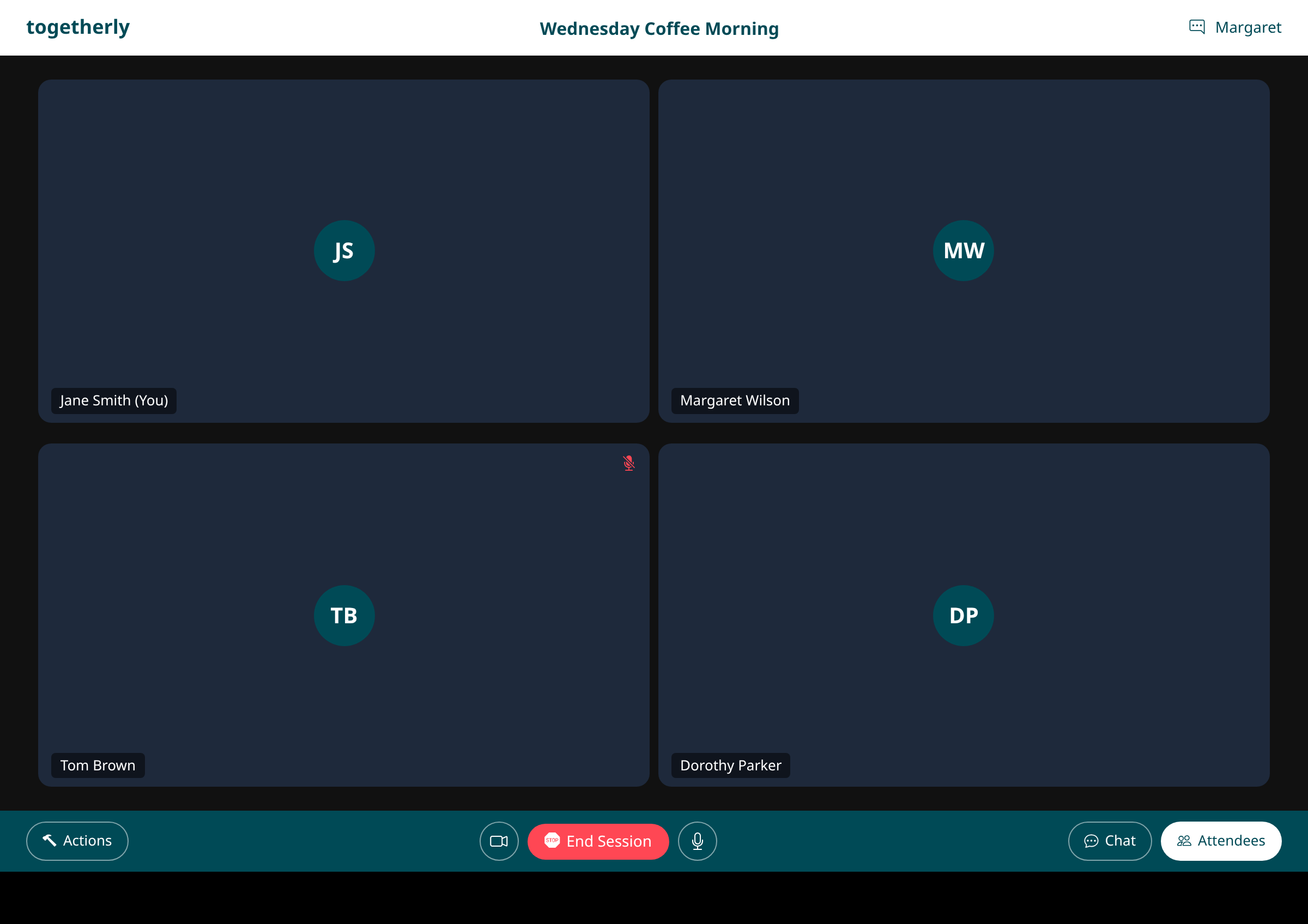
Once connected, a control bar appears at the bottom of the screen. From left to right, you have access to: Actions to manage session settings, a camera toggle to turn your video on or off, End Session to stop the call for everyone, a mute/unmute button for your microphone, and buttons for Chat and Attendees on the right to open the sidebar panels. The session name is displayed in the header bar at the top of the screen.
Tips
- If your camera preview is blank or you see an error, close any other applications that might be using your camera and refresh the page
- You can join up to 15 minutes before the scheduled start time to set up your devices and be ready when participants arrive
- If you experience connection issues during the call, check your internet connection and try refreshing the page
Summary
You now know how to join a session as a facilitator in Togetherly. Once connected, you can manage participants, control your audio and video, and use the chat and attendees panels to stay engaged throughout the session.
Was this article helpful?
Built on supportpages.io — automated help articles for SaaS products.
Have a question?
Search our articles, or ask and get an answer straight away.