
How to invite team members to your account
Updated 8 months ago
Browse All
Bringing a colleague into Togetherly takes about a minute. You add them by email, and at the same time you decide what they're allowed to do — including whether safeguarding alerts land in their inbox.
Before you start
- Admin access to the account you're adding them to.
- The email address you want their invitation to go to.
- Their full name, as you'd like it to appear in Togetherly.
Steps
Open the Team page
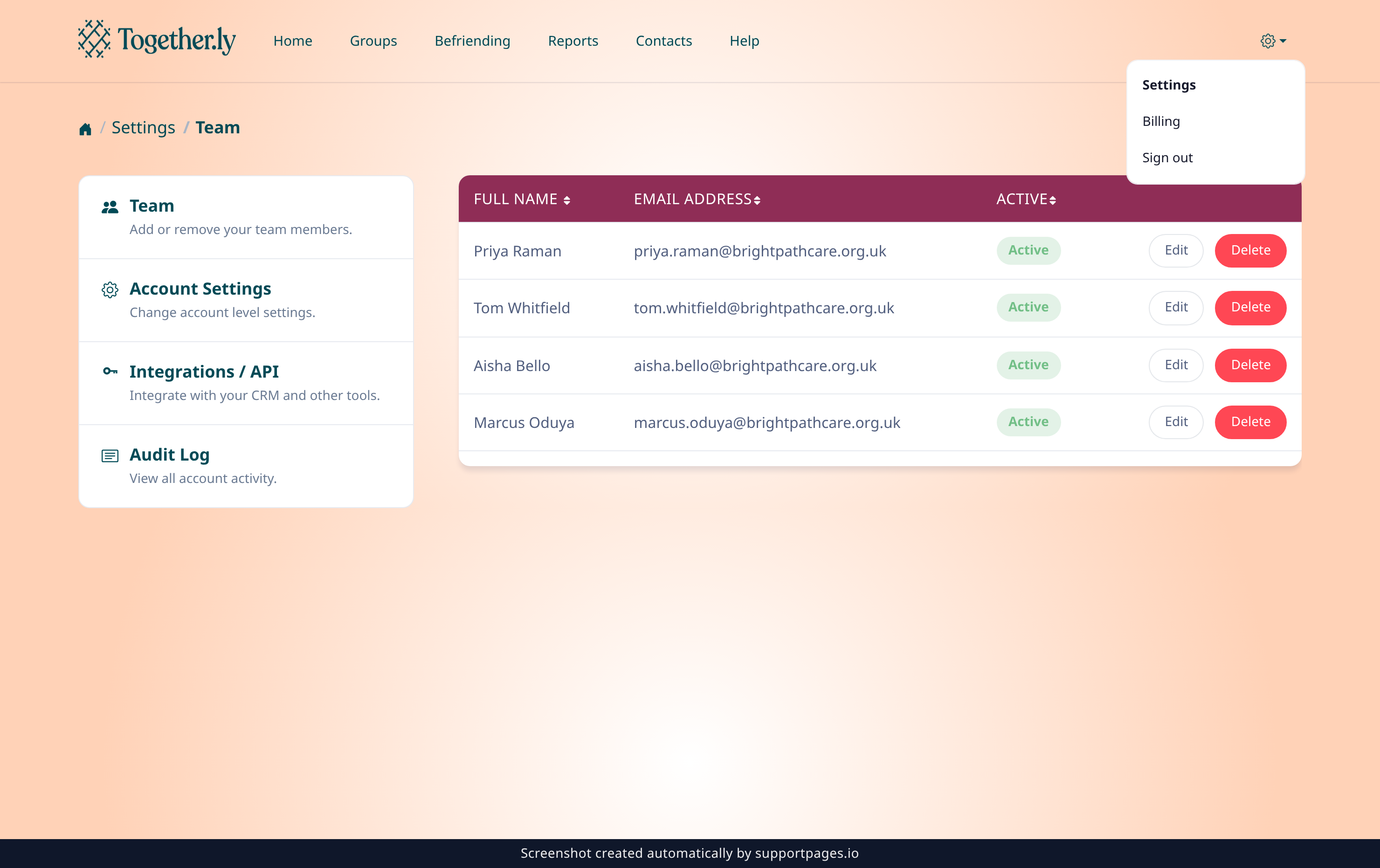
Open the admin menu — the gear icon at the top right of any page — and choose Settings.
You'll land on the Team page, which lists everyone who can currently access your account.
Start a new team member
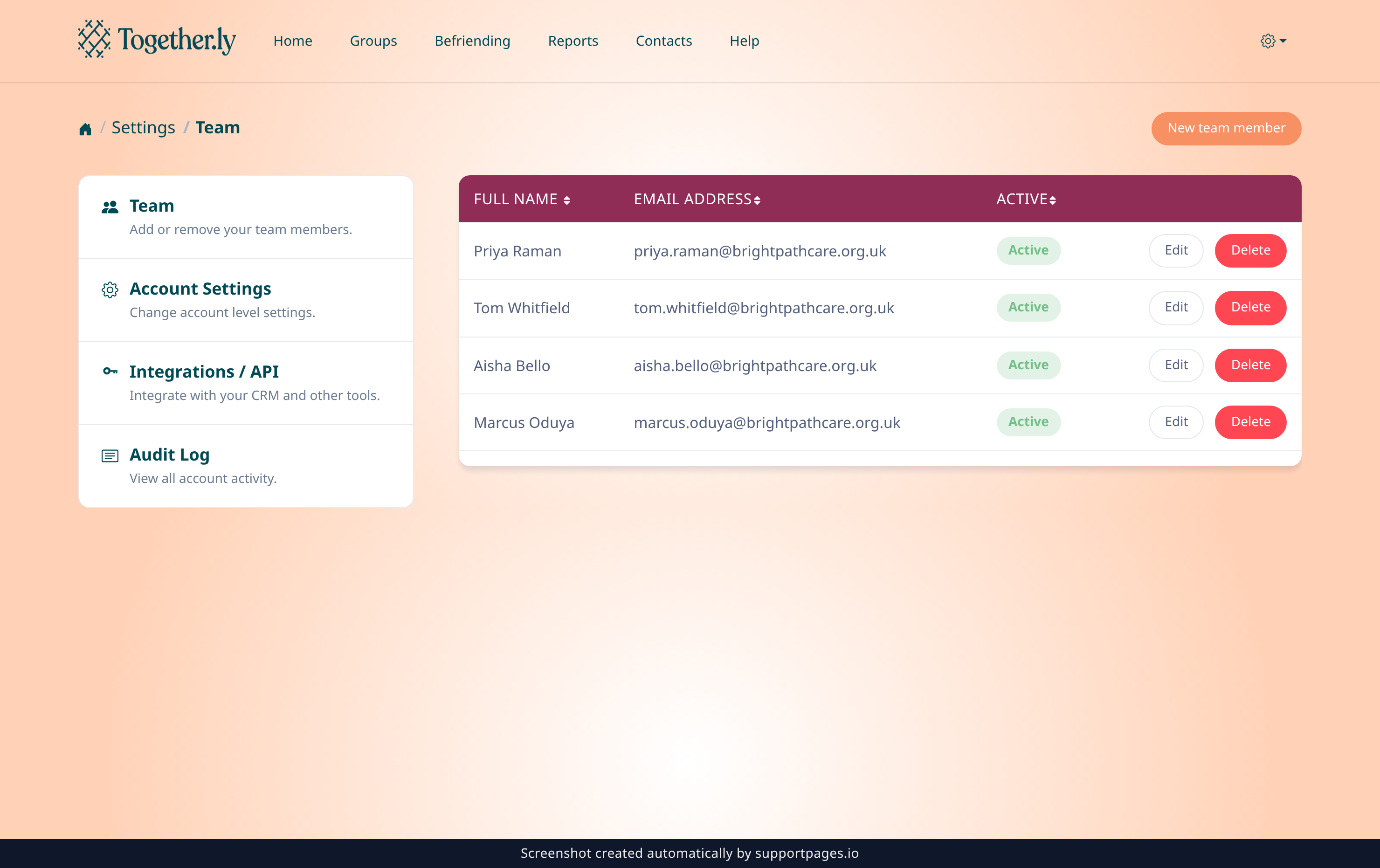
Choose New team member at the top of the page.
A short form opens over the list, ready for their details.
Add their details and permissions
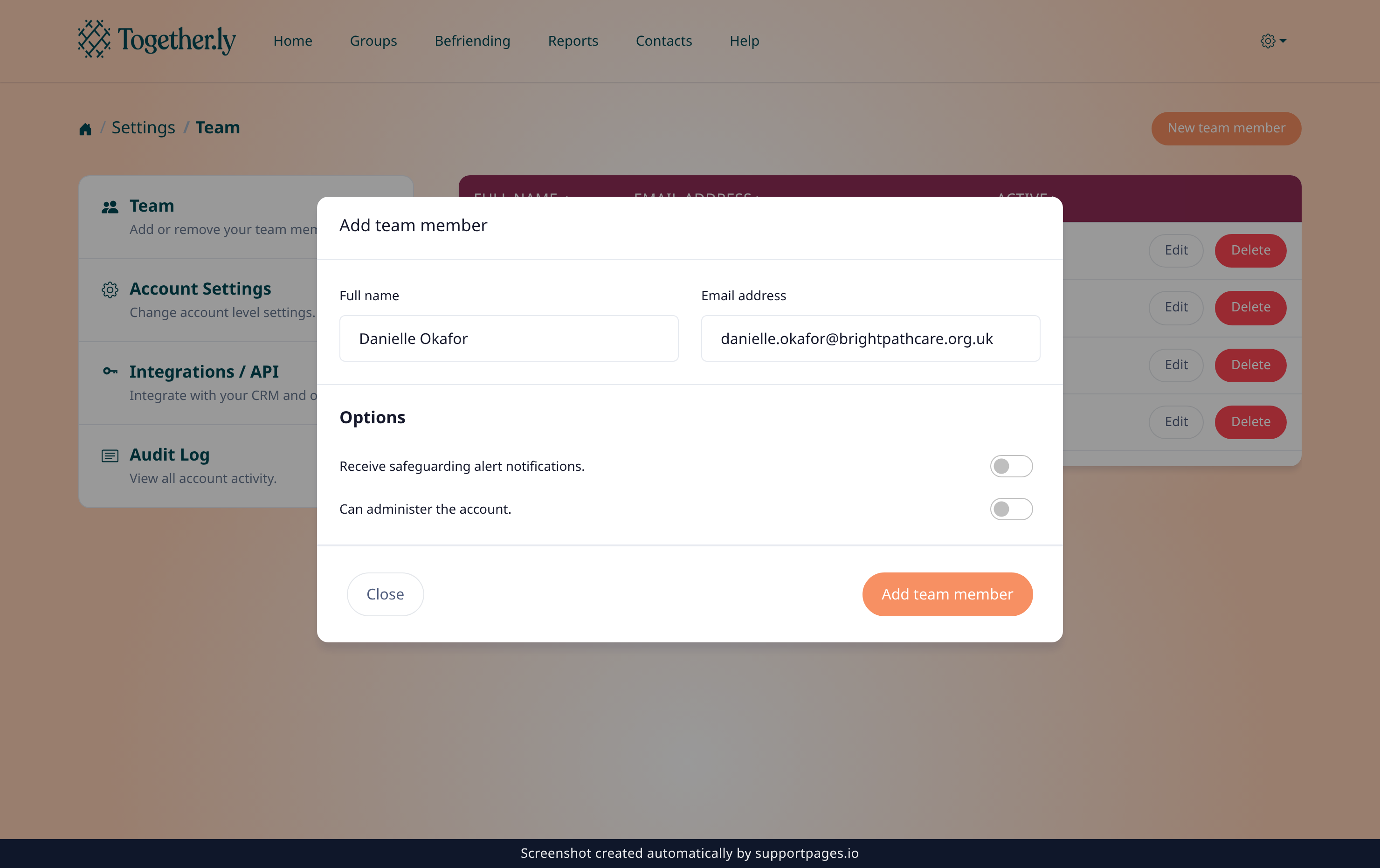
Type their Full name, then their Email address.
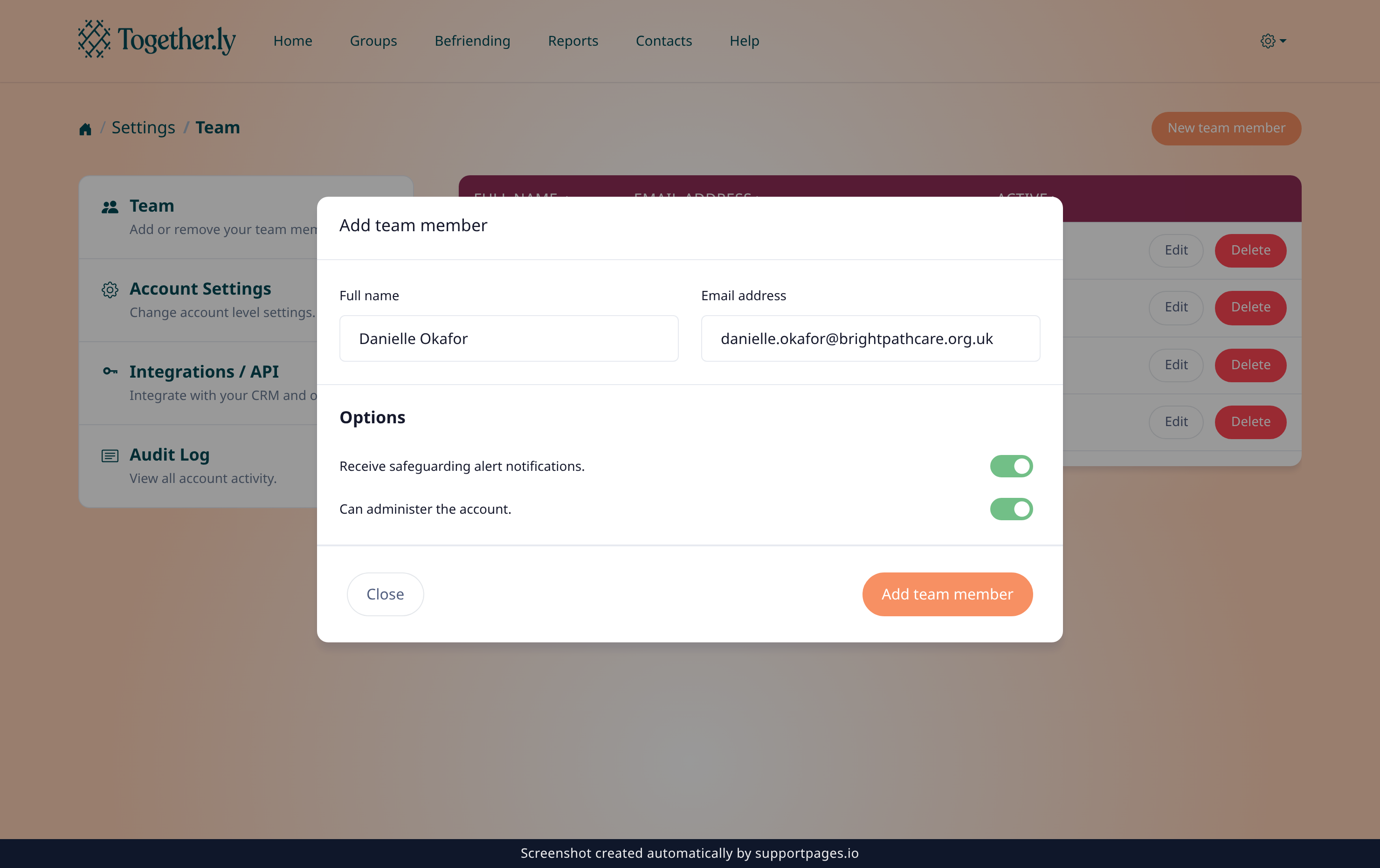
Under Options, turn on Receive safeguarding alert notifications. to send them a heads-up whenever a call raises a concern, and Can administer the account. if they should also manage team members and account settings. If you're not sure, leave both off — you can change them later.
Send the invitation
Choose Add team member to finish.
They'll appear in the list straight away, and we'll email them a link to activate their account.
Tips
- Leave both switches off if they only need to run sessions — they'll still be able to host calls and see your contacts.
- To change someone's permissions later, choose Edit next to their name on the Team page.
- If the email address is already on your team, Togetherly will tell you rather than creating a duplicate.
Summary
That's it — they're on the team. Your new team member will get an activation email, and you can fine-tune what they can do at any time from the Team page.
Was this article helpful?
Help centre by supportpages.io — AI-generated documentation for SaaS.
Have a question?
Search our articles, or ask and get an answer straight away.