
How to add participants to a group session
Updated 10 months ago
Browse All
This guide shows you how to invite facilitators and service users to participate in your scheduled group sessions by selecting them from your contacts and specifying how they will join the call.
Prerequisites
- You must have a scheduled session created
- You need contacts already added to your account as either facilitators or service users
Steps
Navigate to your session
Go to the Groups section from your dashboard and click on the session you want to add participants to. This will open the session details page where you can manage all aspects of your session, including participants.
Select a participant to add
In the session details page, you'll see two sections: Facilitators and Service users. Click the 'Add a facilitator' button to invite staff members who will run the session, or click 'Add a service user' button to invite the people who will participate in the call. A list of your contacts will appear showing their names and reference numbers. You can use the search box at the top to quickly find specific people by typing their name or reference number. Click the 'Add' button next to the person you want to invite.
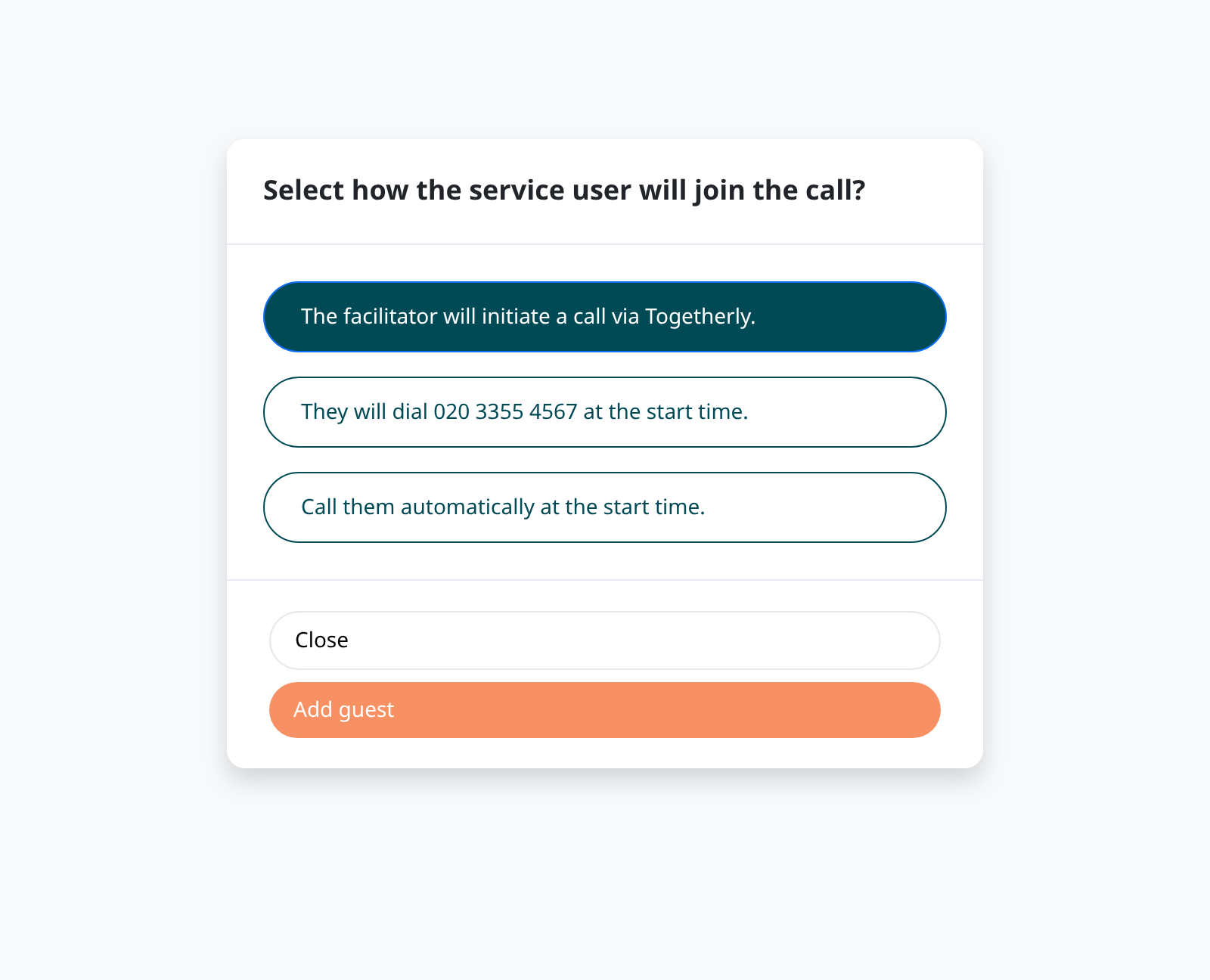
Choose how they will join
After selecting a participant, you'll be asked to specify how they will join the call. For service users, you have three options: the facilitator can manually initiate a call to them via Togetherly during the session, they can dial in themselves using a provided phone number at the start time, or the system can automatically call them when the session begins. For facilitators, you can choose whether they will join by themselves or receive an automatic call at the start time. Select the option that works best for that participant and click 'Add guest' or 'Add Facilitator'.
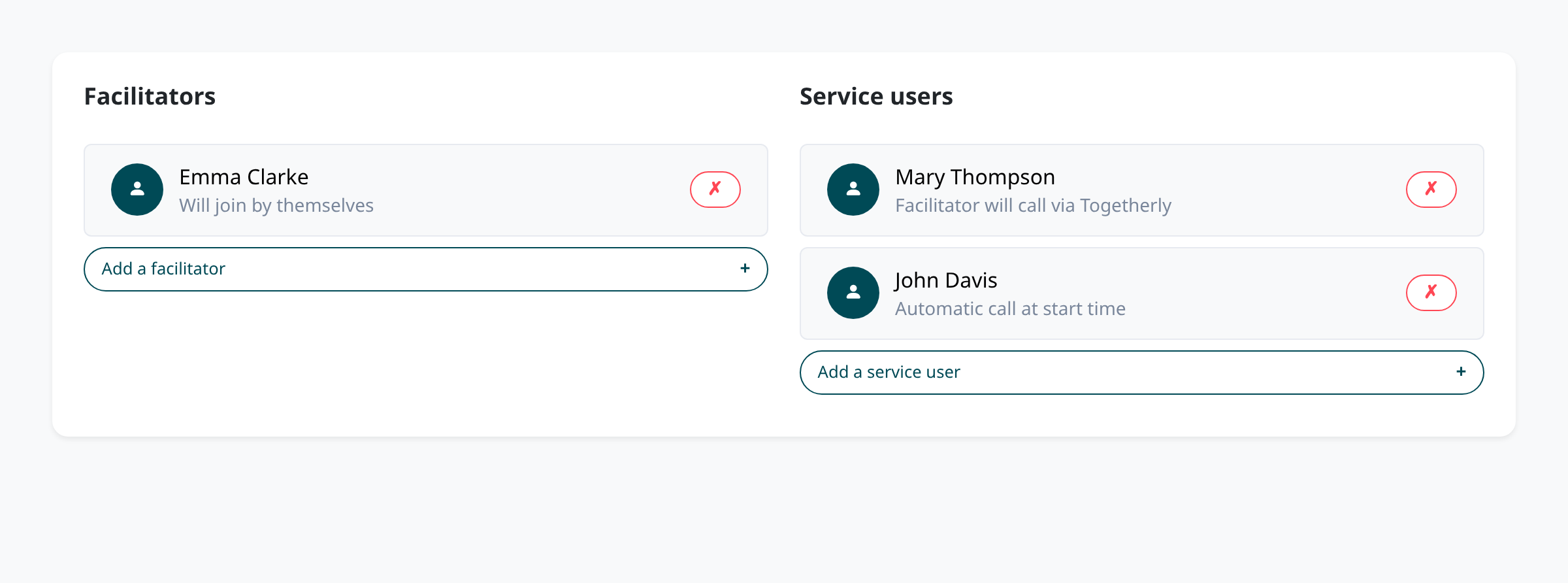
Review your participant list
The participant will now appear in the appropriate section (Facilitators or Service users) showing their name and how they will join. You can see at a glance whether they'll be called automatically, will dial in themselves, or will be called by the facilitator. If you need to remove someone, click the red 'X' button next to their name. Repeat the process to add more participants to your session.
Save your changes
Once you've finished adding all participants, scroll to the bottom of the page and click the 'Save session' button to confirm your changes. If this is a recurring session, you'll be asked whether you want to apply these participant changes to all future occurrences of the session or just this single occurrence.
Tips
- You can add the same person as both a facilitator and a service user if needed, though this is uncommon in most use cases.
- If you choose automatic calling for participants, make sure their phone numbers are correctly stored in their contact details.
- The search function in the participant selection window is helpful when you have many contacts - just start typing to filter the list instantly.
Summary
You've successfully learned how to add participants to your group sessions. Remember that you can always come back to edit the participant list before the session starts, and for recurring sessions you can choose whether changes apply to just one session or the entire series.
Was this article helpful?
Created with supportpages.io — AI help centre software.
Have a question?
Search our articles, or ask and get an answer straight away.