
How to choose your camera and microphone
Updated 10 months ago
Browse All
Before joining a video call, you can select which camera and microphone to use. This is helpful if you have multiple devices connected, like an external webcam or a headset, and want to choose the best quality option.
Prerequisites
- You must have at least one camera and microphone connected to your computer
- You need to grant permission for your browser to access your camera and microphone
Steps
Open the join call screen
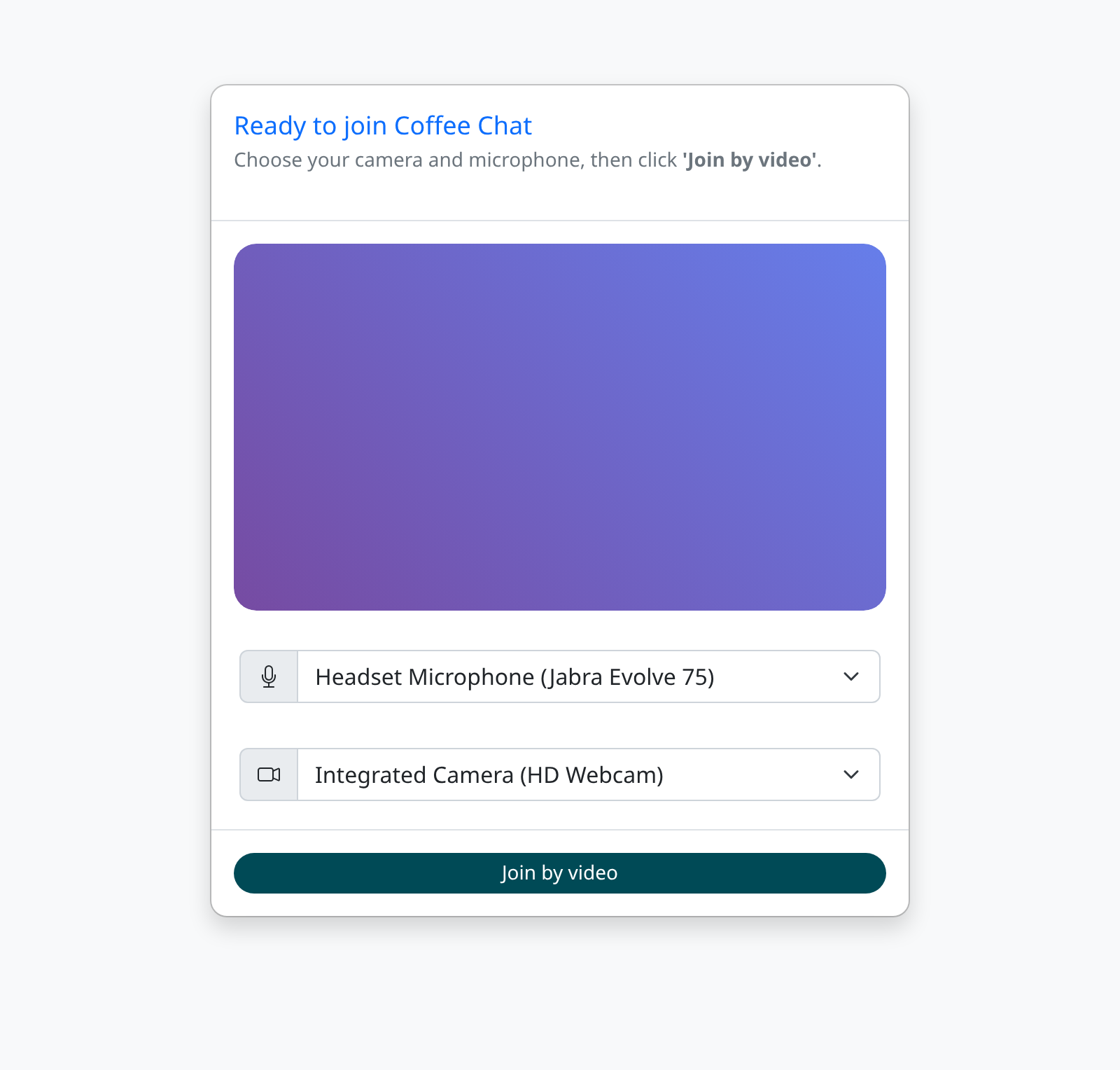
When you're ready to join a video call, you'll see the join screen with a preview of your camera feed. This screen appears when you click the link to join your scheduled session. At the top, you'll see the session name and instructions. Below that is a video preview showing what others will see when you join.
Select your microphone
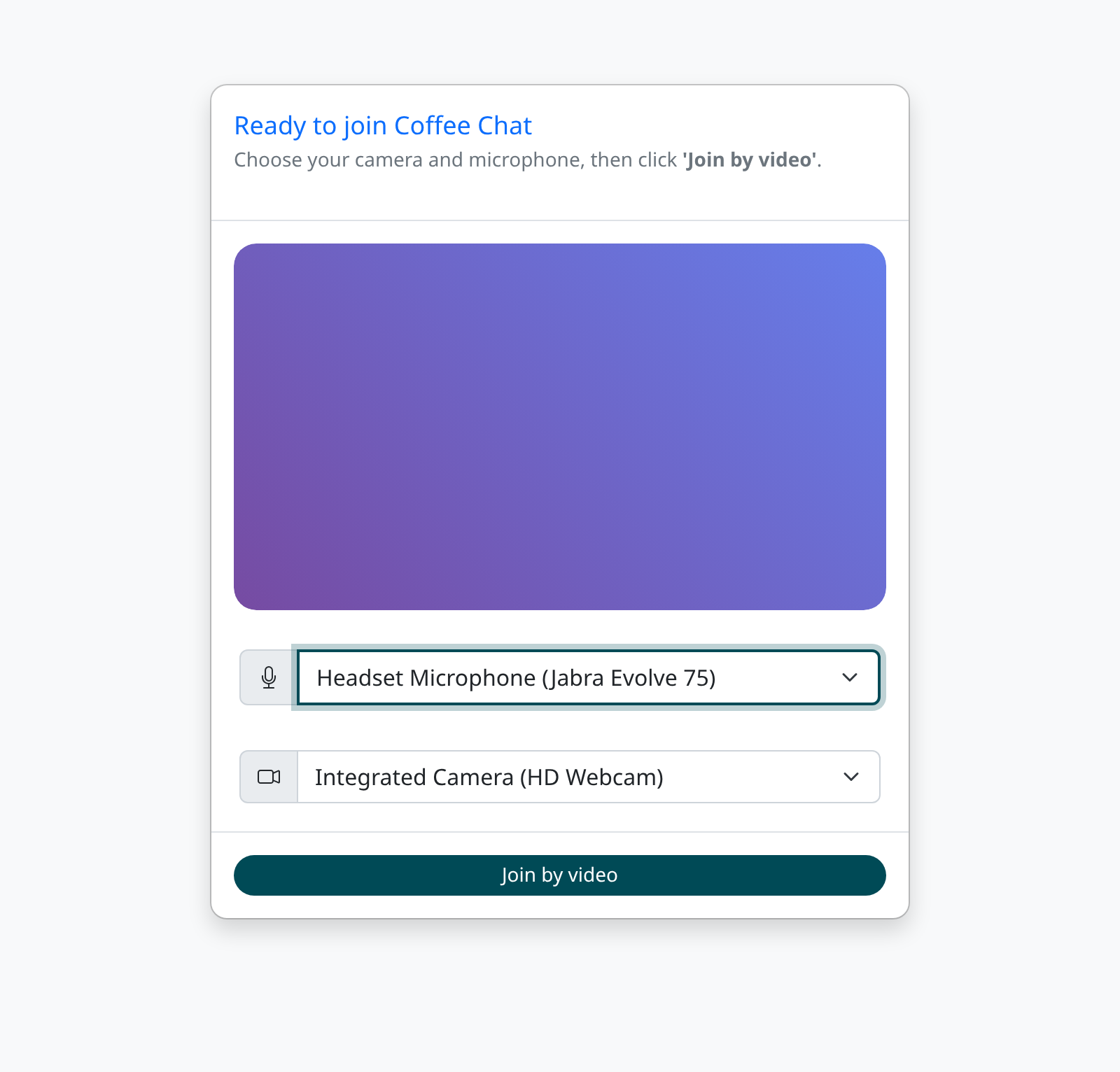
Click the microphone dropdown menu (marked with a microphone icon) to see all available audio input devices. The list will show your computer's built-in microphone, any connected headsets, and external microphones. Click on the microphone you want to use. Your selection is saved automatically, so the next time you join a call, this microphone will be selected by default.
Select your camera
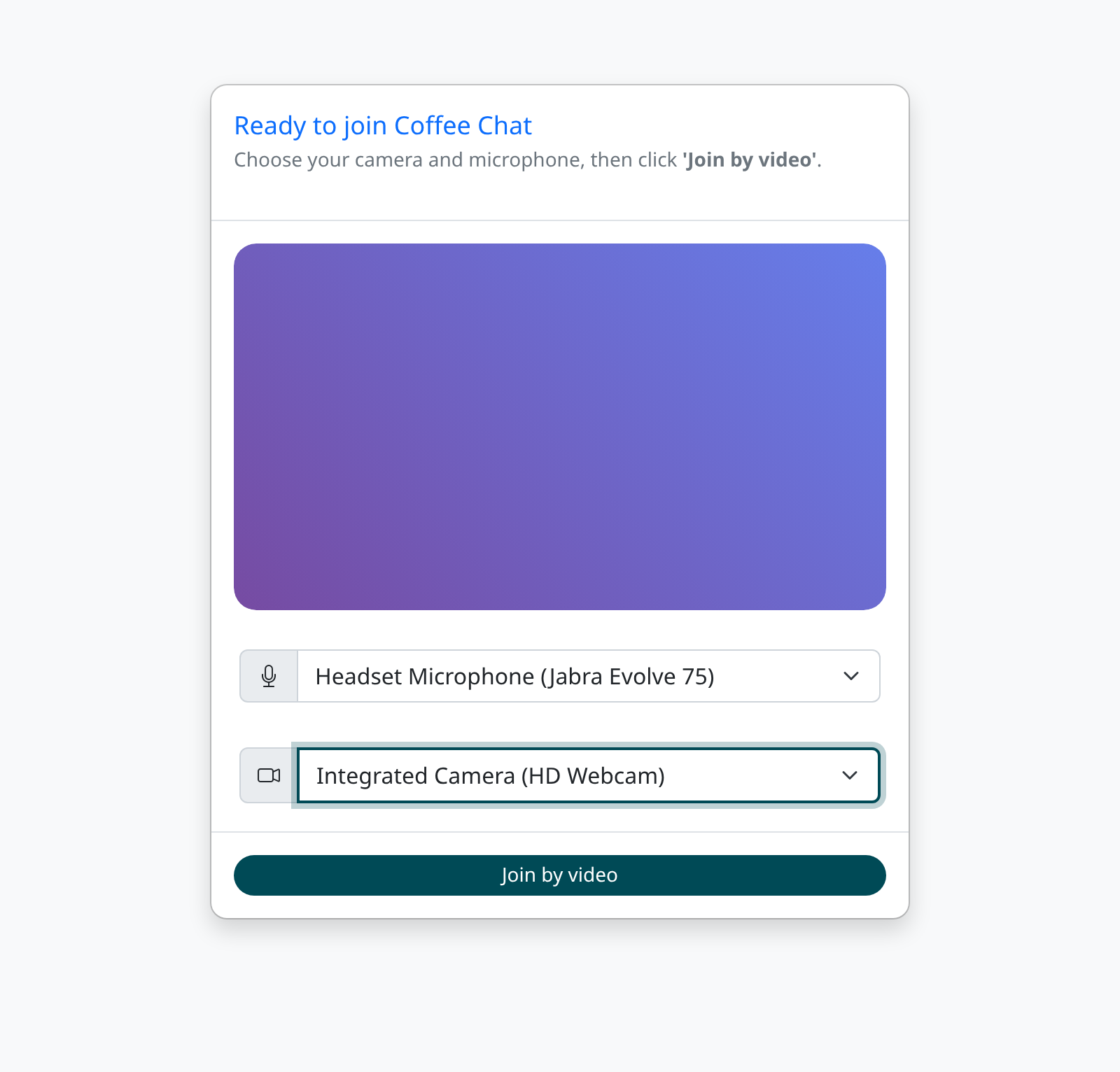
Click the camera dropdown menu (marked with a camera icon) to see all available video input devices. You'll see options like your built-in webcam or any external cameras you've connected. When you select a different camera, the video preview will update immediately to show the feed from your new selection. This lets you confirm you've chosen the right camera before joining the call.
Join the call
Once you're happy with your camera and microphone selections, click the 'Join by video' button at the bottom of the screen. Your device preferences will be remembered for future calls, making it quicker to join next time.
Tips
- Your device selections are remembered between calls, so you only need to change them if you switch to different equipment
- If you see an error about a camera being unavailable, make sure no other applications are using it and try refreshing the page
- The video preview shows a mirrored view of yourself, but others will see you normally during the call
Summary
Selecting the right camera and microphone before joining ensures you have the best audio and video quality during your call. Your preferences are saved automatically for future sessions.
Was this article helpful?
Written with supportpages.io. More on documentation automation on our blog.
Have a question?
Search our articles, or ask and get an answer straight away.