
How to access emergency contact details in video befriending call
Updated about 4 hours ago
Browse All
If you're worried about someone's safety during a video befriending call, you can quickly look up the emergency contact details saved for them. Here's how to find them, and exactly what happens when you do.
Before you start
- You're in an active video befriending call, joining as the befriender or the session organiser.
- Your organisation has the emergency contact details feature turned on.
- The person you're calling has emergency contact details saved on their contact record.
Steps
Open the emergency contact details
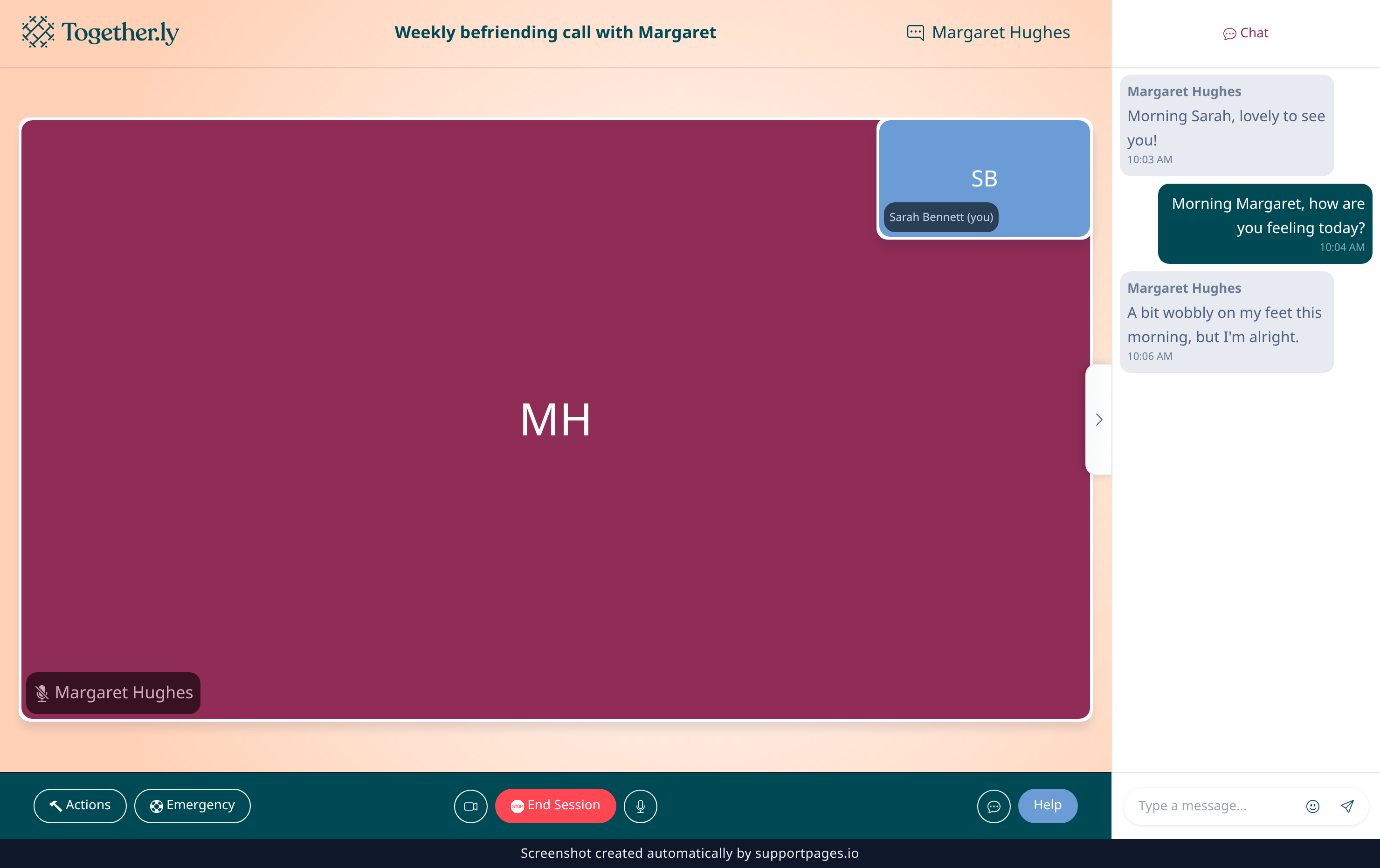
In the call controls bar along the bottom of the call, click Emergency. It sits on the left next to Actions, and has a lifebuoy icon.
Confirm you want to see the details
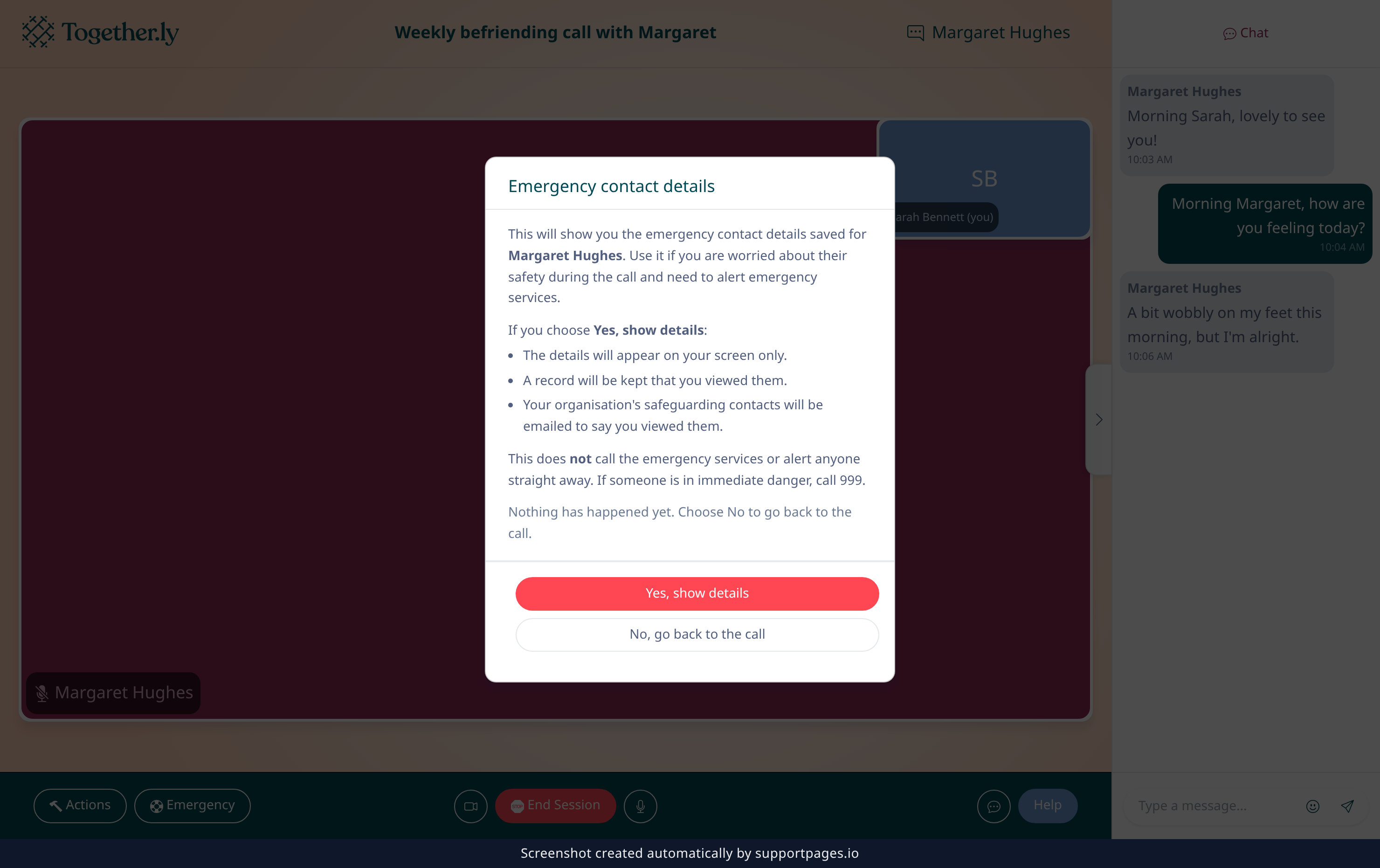
A window appears explaining what will happen. If you want to continue, click Yes, show details. If you opened it by mistake, click No, go back to the call instead and nothing is shown.
Read the details
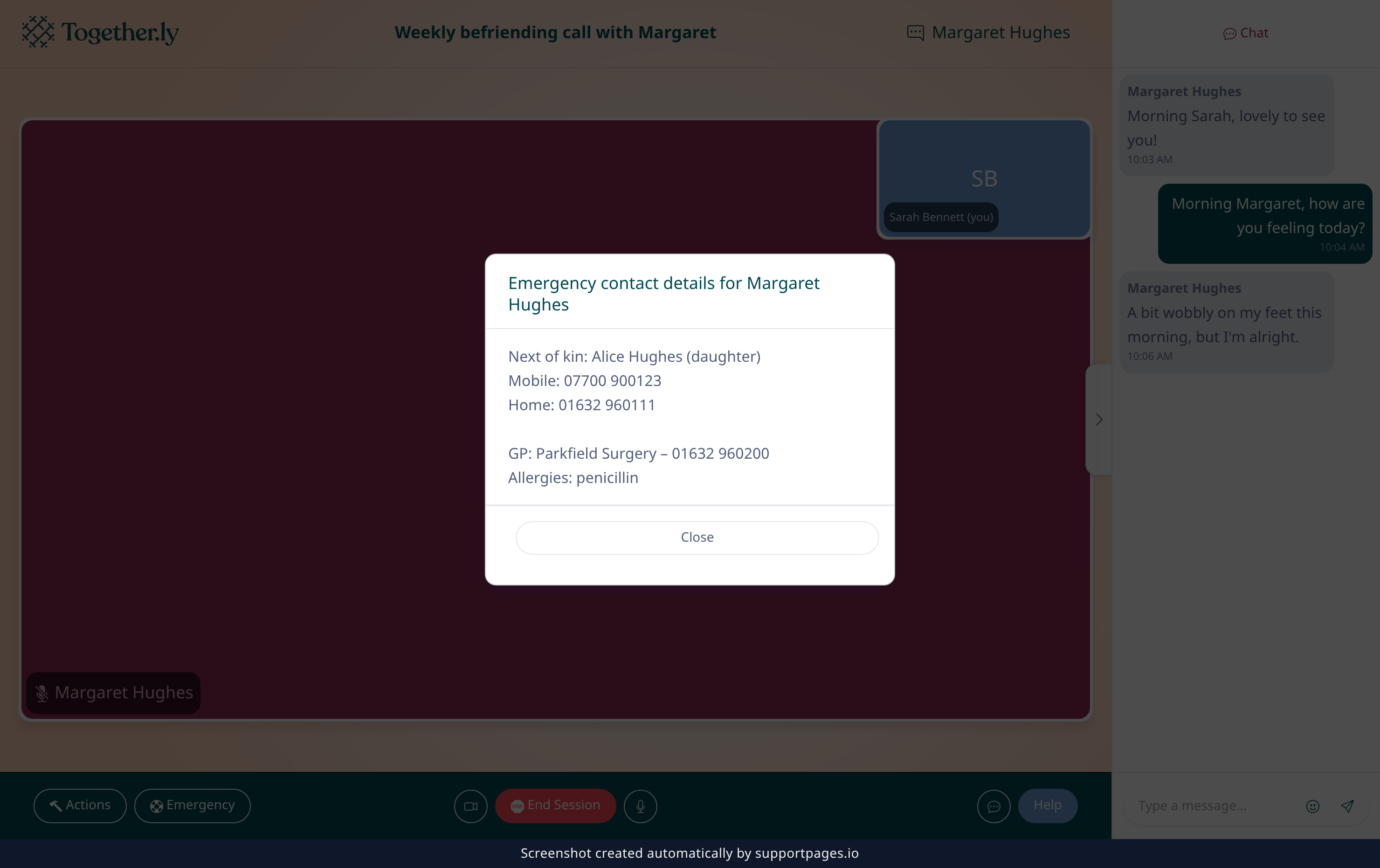
The emergency contact details for the person appear in the window, on your screen only. When you've finished, click Close to return to the call.
Good to know
- Opening the details does not call the emergency services or alert anyone straight away. If someone is in immediate danger, call 999.
- A record is kept each time you view the details, so only open them when you need to.
- If your organisation has safeguarding contacts set up, they'll be emailed to let them know you viewed the details.
- The details belong to the person you're calling, so they stay the same whichever call you join.
Summary
Click Emergency in the call controls, confirm with Yes, show details, and the emergency contact details are shown to you alone. Close the window to carry on with the call.
Was this article helpful?
Built with supportpages.io — an AI documentation generator.
Have a question?
Search our articles, or ask and get an answer straight away.