
How to blur your background before joining a call
Updated about 4 hours ago
Browse All
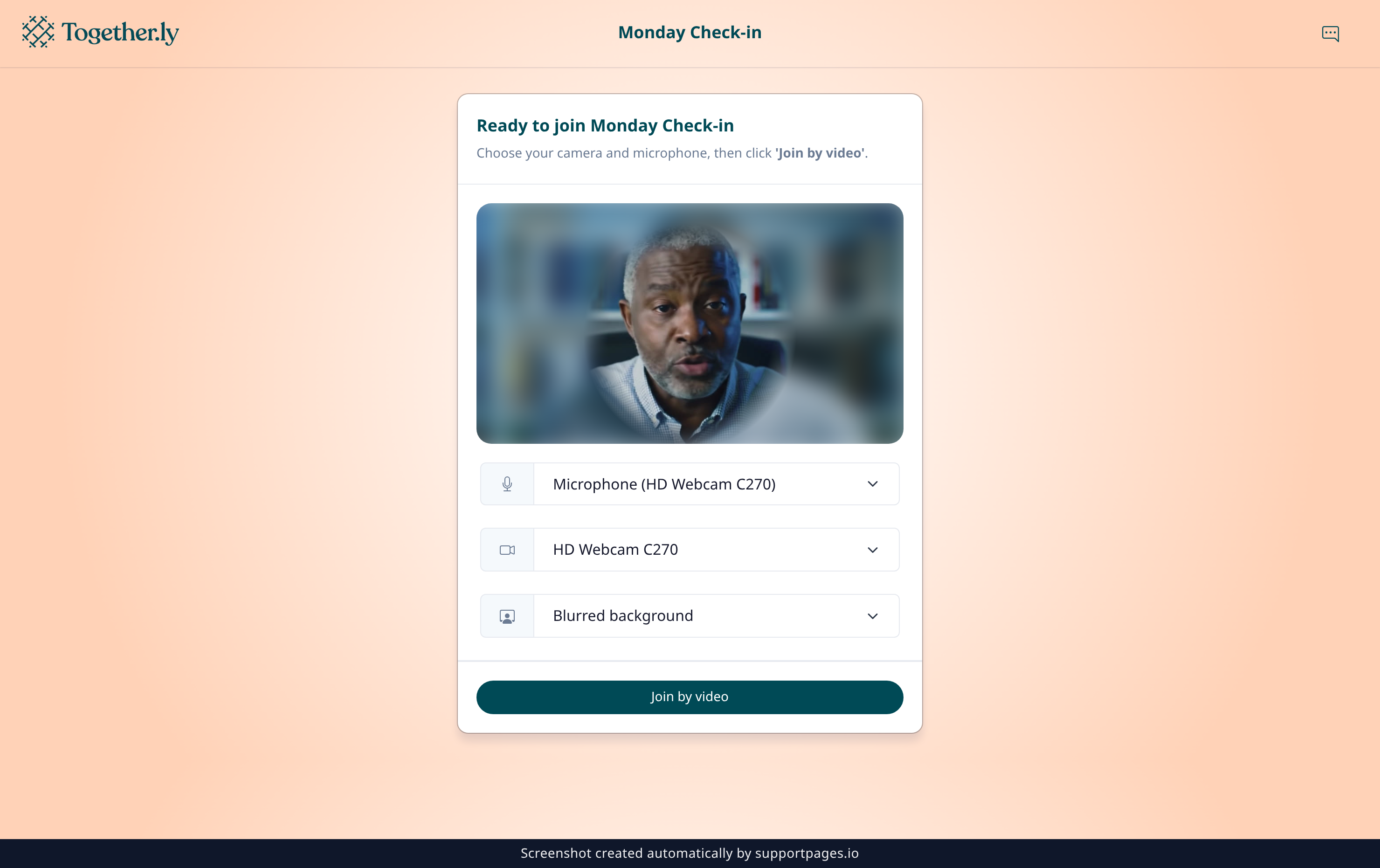
You don't have to share the room behind you with everyone on the call. Before you join, switch your camera background to Blurred background on the join screen — the space behind you turns soft and unrecognisable while you stay in focus.
Before you start
- Background blur is switched on for your account. If you don't see the Background option, ask your account admin.
- A recent version of Chrome, Edge, Firefox or Safari, with camera access allowed.
Steps
Choose a blurred background
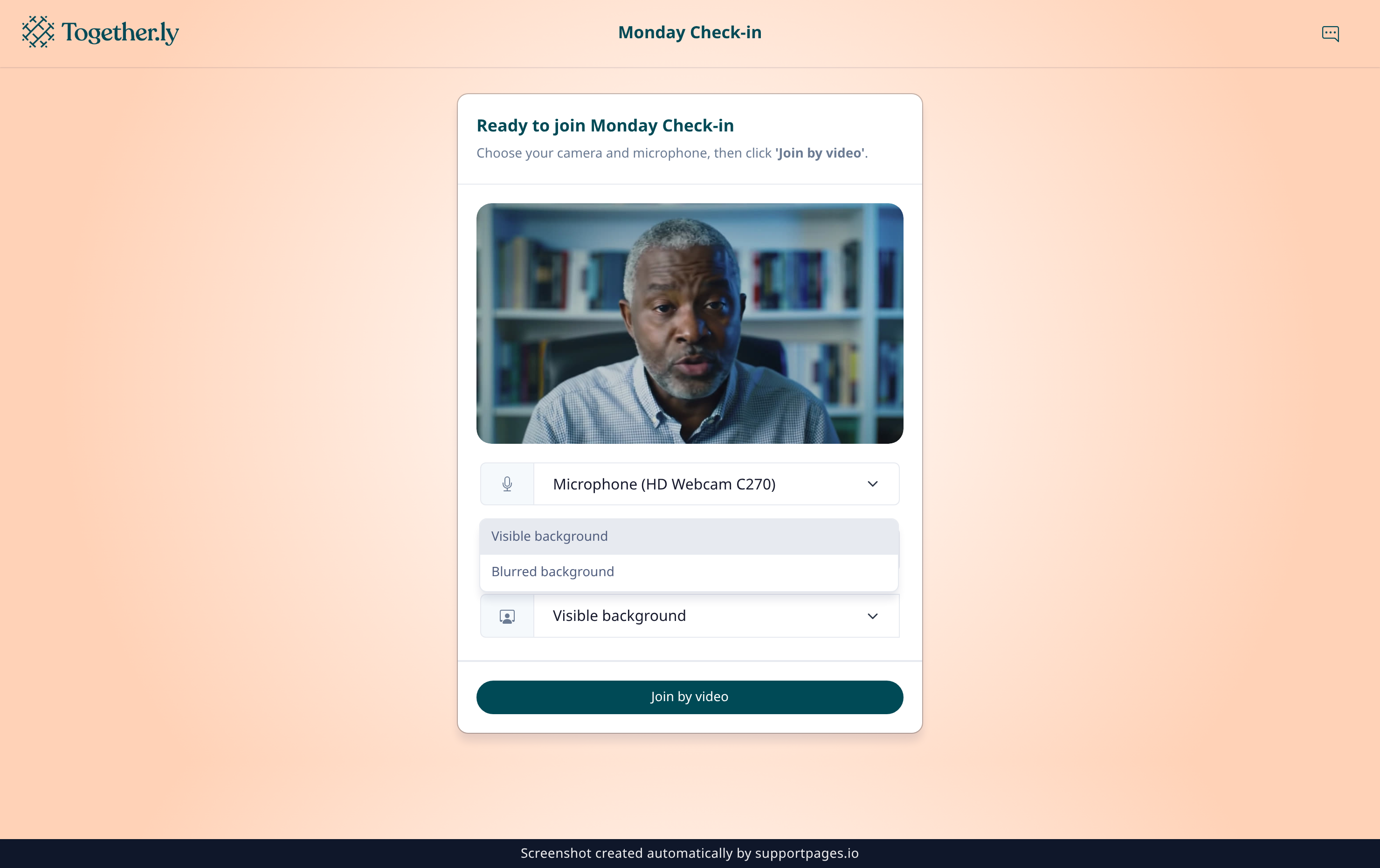
On the Ready to join screen, open the Background dropdown and select Blurred background. The preview updates straight away, so you can check exactly what everyone else will see.
Check the preview and join
Happy with the blur? Click Join by video to enter the call. Blur stays on for the whole call, and your choice is remembered the next time you join from this device.
Tips
- If your device can't keep up, blur switches itself off and a message explains why — your camera carries on as normal.
- Choose Visible background to turn the blur off again.
- The setting is remembered on this device only, so you'll choose again on another computer or phone.
Summary
Select Blurred background on the join screen before you join, and the room behind you stays hidden for the whole call.
Was this article helpful?
Maintained by supportpages.io, a self-updating help centre for SaaS teams.
Have a question?
Search our articles, or ask and get an answer straight away.